In this tutorial, you will learn how to:
• Access keyboard settings
• Change keyboard mode
• Swype
• Auto-complete suggestions
• Access emojis, speech-to-text, capitalize text & symbols
Access keyboard settings
When the keyboard is visible, select the Settings icon to access Keyboard settings. Keyboard settings allow you to change languages, keyboard height and layout, and adjust smart typing features.
Note: To access keyboard settings outside of the keyboard screen, swipe down from the Notification bar then select the  Settings icon > scroll to and select General management > Samsung Keyboard settings.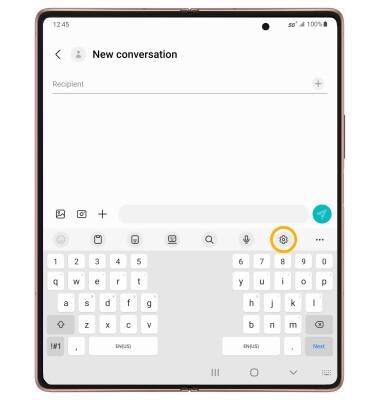
Change keyboard mode
The default keyboard mode is Split keyboard. Select the Standard keyboard icon to use the Standard keyboard. Select the Floating keyboard icon to use the Floating keyboard.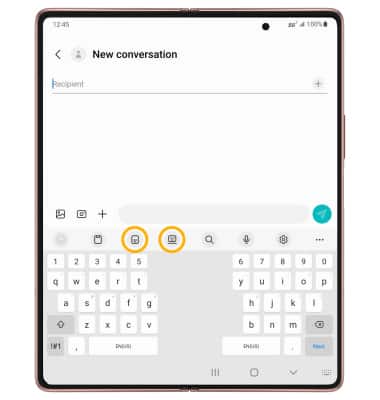
Swype
Select and drag across each letter of the desired word without removing your finger from the screen. Words will automatically be entered into the text field.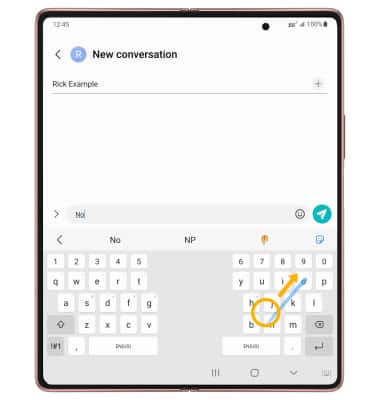
Auto-complete suggestions
When typing a word, three suggestions will appear at the top of the keyboard. Select the desired suggestion to enter it into the text field.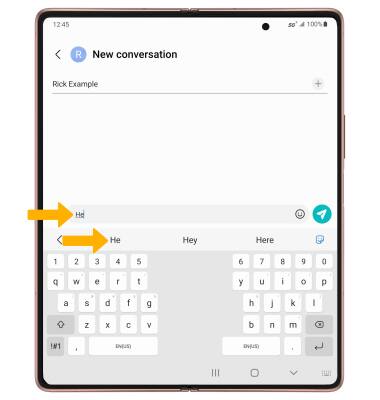
Access emojis, audio messages, capitalize text & symbols
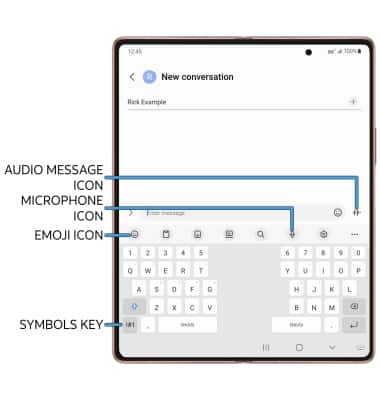
• SPEECH-TO-TEXT: Select the Microphone icon.
• AUDIO MESSAGES: Select and hold the Audio message icon.
• SYMBOLS: Select the Symbols key.
Note: In the Symbols keyboard, you can access additional symbols by selecting the 1/2 key.