In this tutorial, you will learn how to:
• Access Dual media stream
• Connect to a device
• Adjust Bluetooth device settings
• Unpair or disconnect from a device
Access Dual media stream
1. Swipe down from the Notification bar, then select the  Settings icon.
2. Select Connections, then select Bluetooth.
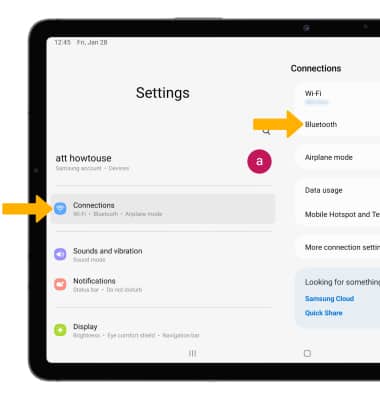
Settings icon.2. Select Connections, then select Bluetooth.
Connect to a device
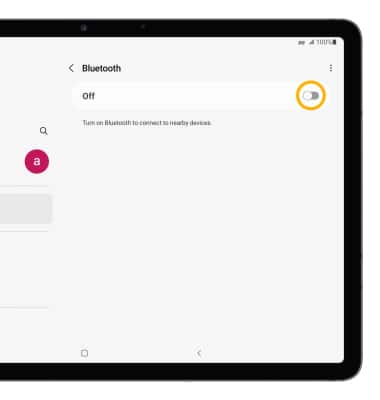
1. If Bluetooth is not enabled, from the Bluetooth screen, select the Bluetooth switch. Your device will automatically search for and display available devices ready for connection.
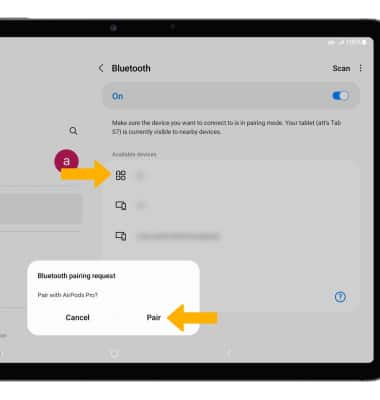
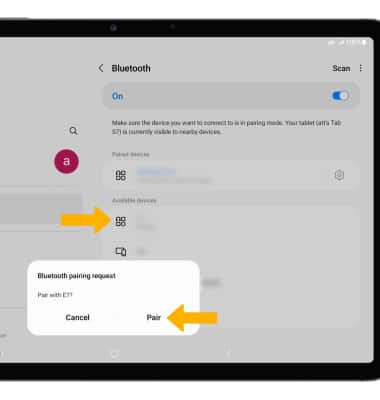
2. Select the desired device to connect, then select Pair to confirm.
Note: Select OK when prompted to request a pairing. You may be prompted to enter a passcode (common default passcode is 0000).
2. Select the desired device to connect, then select Pair to confirm.
Note: Select OK when prompted to request a pairing. You may be prompted to enter a passcode (common default passcode is 0000).
3. Select the second desired device to connect, then select Pair to confirm.
Adjust Bluetooth device settings
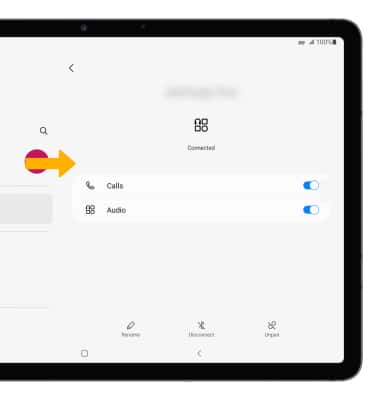
1. From the Bluetooth screen, select the Settings icon next to the desired device.
Settings icon next to the desired device.2. Edit the settings as desired.
Unpair or disconnect from a device
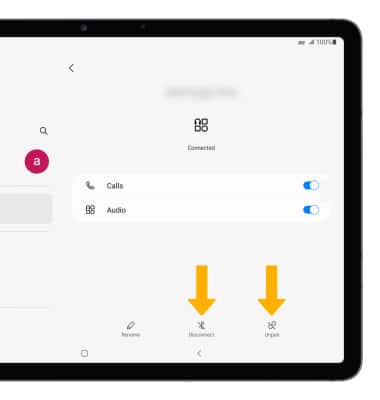
To unpair and forget a Bluetooth device, from the Paired device's Settings screen, select Unpair. To disconnect a device from Bluetooth, select Disconnect.