

 Phone icon will display in the Notification bar.
In this tutorial, you will learn how to:
• Use in-call options
• Use speed dial
• Use your phone while on an active call
• Create a conference call
• Decline a call with a text message
• Enable/disable call waiting
• Swap between active calls
Use in-call options
While on an active call, the following options will be available:
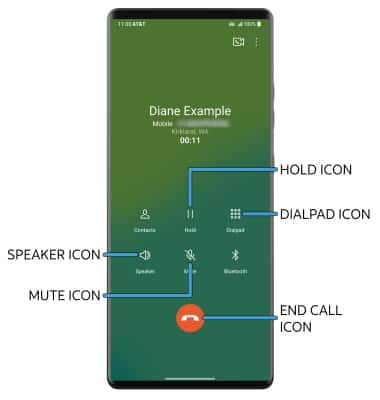
• HOLD/RESUME CALL: Select the Hold icon.
• SHOW/HIDE DIALPAD: Select the Dialpad icon.
• ENABLE/DISABLE SPEAKERPHONE: Select the Speaker icon.
• MUTE/UNMUTE: Select the Mute icon.
• END CALL: Select the End call icon.
Use speed dial
From the dialpad, select and hold the desired Speed dial number.
Note: To add a number to speed dial, from the dialpad, select the Menu icon > Speed dial > desired speed dial number > desired contact or phone number.
Note: To add a number to speed dial, from the dialpad, select the
Menu icon > Speed dial > desired speed dial number > desired contact or phone number. 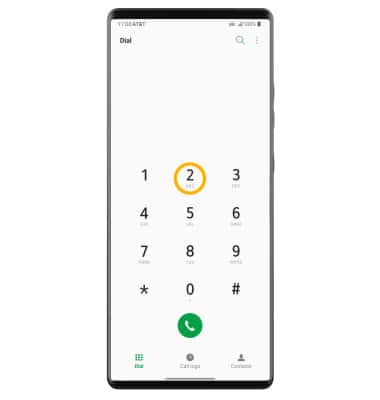
Use your phone while on an active call
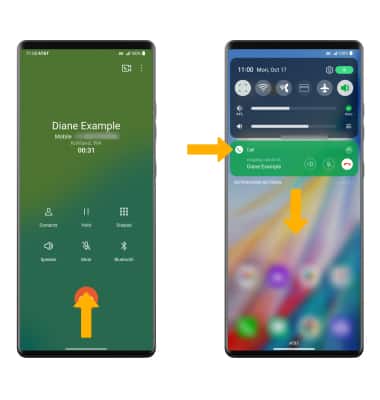
While on an active call, swipe up from the bottom of the screen to access the home screen. To return to an active call, swipe down from the Notification bar then select the active call notification.
Create a conference call
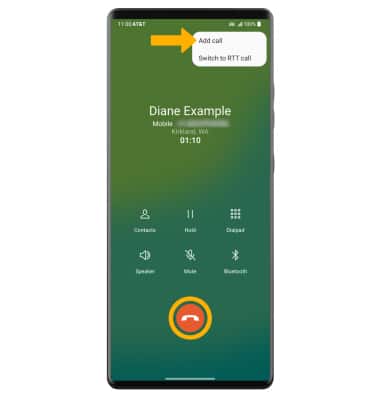
From an active call, select the Menu icon then select Add call and follow the prompts. To end a call, select the End call icon.
Menu icon then select Add call and follow the prompts. To end a call, select the End call icon.Note: When creating a Conference call, after connecting with a second caller, you will need to select Merge calls to combine the separate phone calls. The End call icon is the same icon in a single call or conference call.
Decline a call with a text message
When receiving a call, swipe the Decline with message icon in any direction to decline the call and send a text message. Select the desired text message to send, or select Create new message to write your own.
Note: To create or edit text message replies, from the home screen, select the
 Phone app > Menu icon > Call settings > Call blocking & Decline with message > Decline with message > select the desired message to edit or select the
  Add icon to add a new message.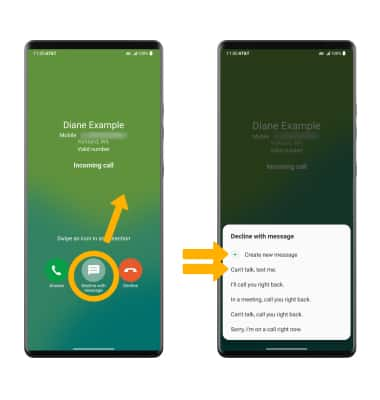
Enable/disable call waiting
Call waiting allows you to accept additional incoming phone calls and put a currently active call on hold. To enable or disable this feature, select the Menu icon > Call settings > Additional settings > Other settings > Call waiting switch.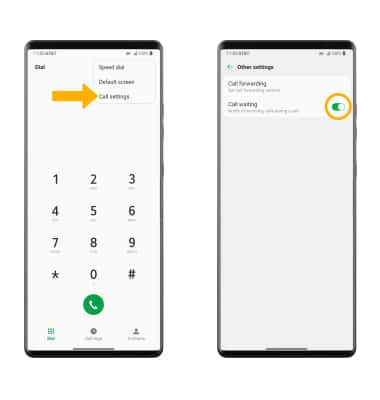
Swap between active calls
While call waiting is enabled and a call is put on hold, select the desired active call.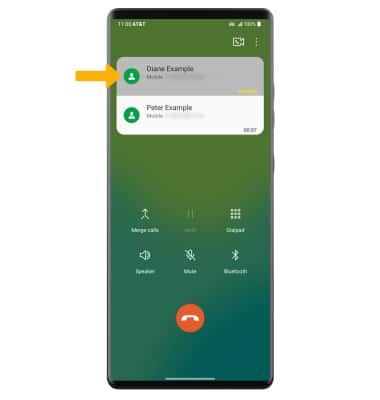
Tips
To learn about calling or using your device in other countries, visit the AT&T International website.