In this tutorial, you will learn how to:
• Access messages
• Compose and send a message
• Read and respond to a new message
• Delete a message
• Pin/Unpin a message thread
When a new message is received, the  New Message icon will display in the Notification bar.
Access messages
From the home screen, select the  Messaging app.
Compose and send a message
1. From the Messaging app, select the  Add icon.
2. Compose and send a message using the following options as desired: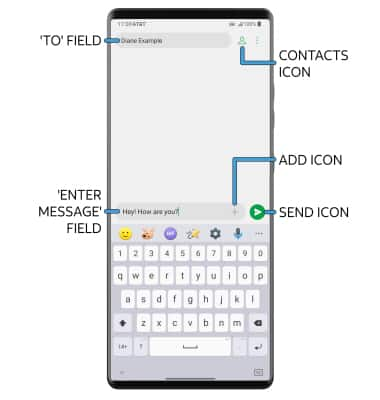
• ENTER RECIPIENT: Select the 'To' field to enter the desired number. Select the Contacts icon to add a number from the contacts list.
• ENTER MESSAGE: Select the 'Enter message' field to enter the desired message.
• ADD ATTACHMENT: Select the Add icon and follow the prompts to add an attachment.
• SEND A MESSAGE: When finished composing a message, select the Send icon to send the message.
Note: To create a Group Message, from the 'To' field, enter additional recipients.
Read and respond to a new message
From the Messaging inbox, select the desired message thread.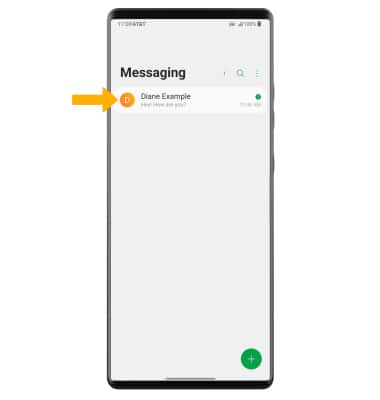
VIEW/SAVE AN ATTACHMENT: To view an attachment, select the desired attachment. To save an attachment, select and hold the desired attachment then select Save attachment.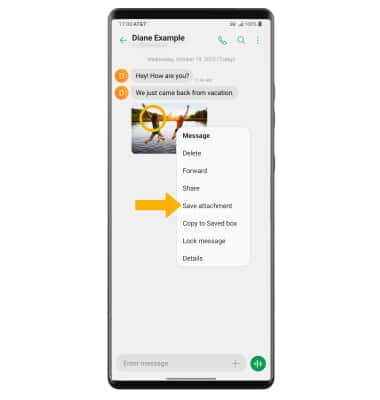
RESPOND TO A MESSAGE: Select the desired option.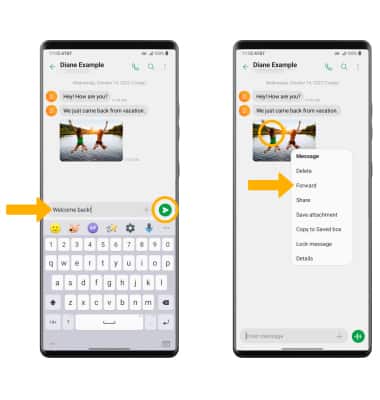
• REPLY: Enter the desired message in the 'Enter message' field, then select the Send icon.
• FORWARD: Select and hold the desired message, then select Forward and follow the prompts to forward a message.
Delete a message
From the desired message thread, select and hold the desired message then select Delete. Select Delete again to confirm.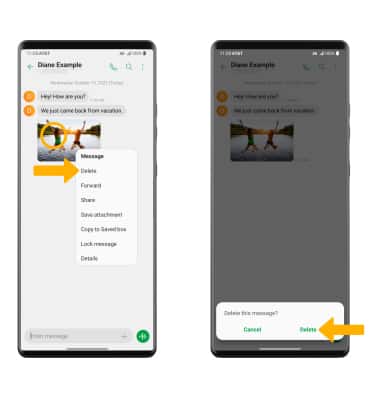
DELETE MESSAGE THREAD: From the Messaging screen, select and hold the desired message thread then select Delete. Select Delete to confirm.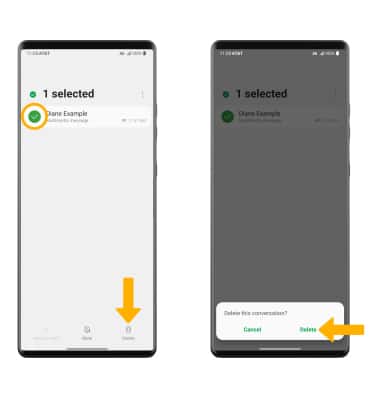
Pin/Unpin a message thread
From the Messaging screen, select and hold the desired message thread. Select the  Menu icon then select Pin/Unpin.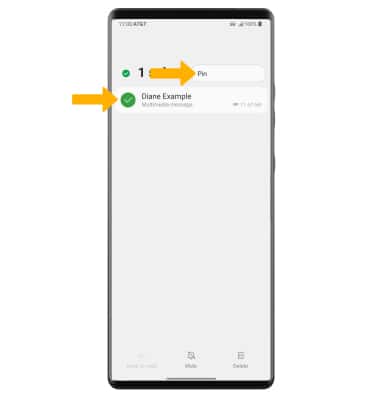
Tips
If Advanced Messaging is turned on and you are messaging another device using the most recent version of Advanced Messaging (2020) from AT&T, you can share files up to 100MB, get read receipts, and see when someone is replying. If Advanced Messaging is turned off you can share files up to 1 MB. To learn more, visit att.com/advancedmessaging.
By default, attachments will be saved to the Downloads folder in the Gallery app. To view saved attachments, from the home screen select the  Gallery app > Albums tab > Download.