In this tutorial, you will learn how to:
• Access camera modes and filters
• Customize photo and video settings
• Access advanced audio settings
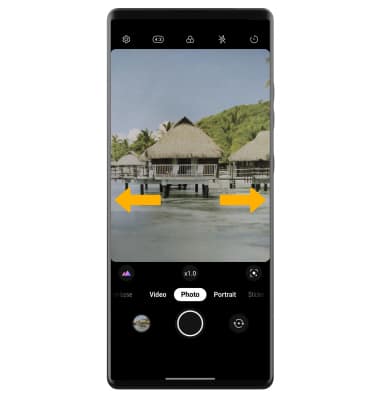
• Switch between regluar and wide angle
• Access and use advanced video features
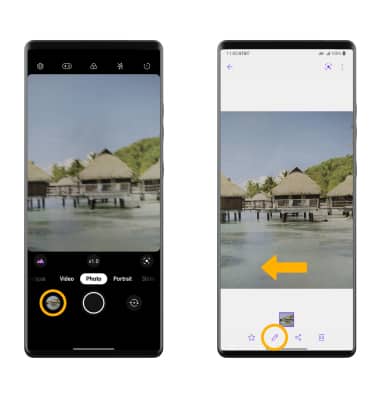
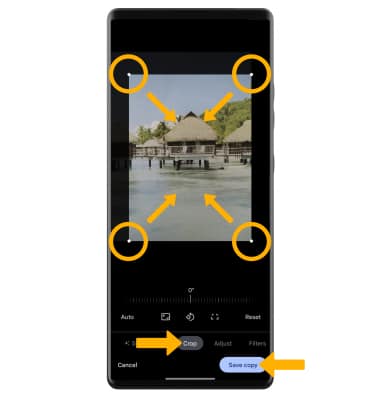
• Crop a photo
This tutorial requires you to open the Camera app. From the home screen, select the  Camera app. To access the camera from the lock screen, select and drag the Camera icon up or press the volume down button twice.
Access camera modes and filters
Note: To access additional camera modes, swipe left to More then select the desired camera mode. For more information, please see the Camera Modes tutorial.
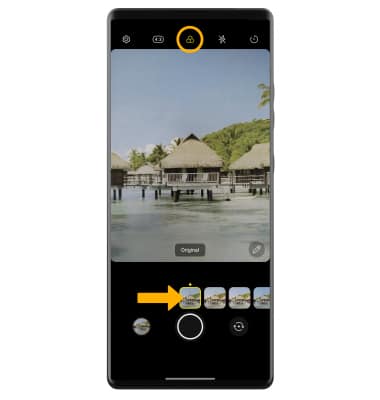
To access filters, select the Filters icon then select the desired filter.
Note: Filters are not available in some camera modes.
Customize photo and video settings
From the Camera app, select the  Settings icon then edit settings as desired.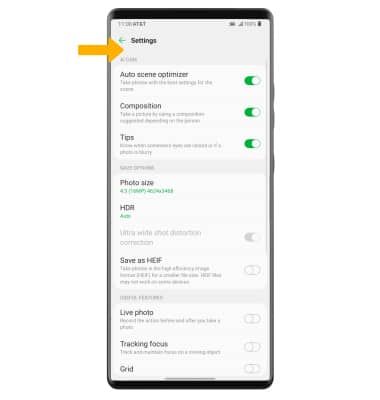
Access advanced audio settings
From the Camera app, swipe right to Video then select the Microphone icon. Select the desired Video audio option.
Note: Basic allows you to record a video with stable stero sound. ASMR Recording amplifies the sound of a subject in a video recording so you can hear soft sounds. Voice Bokeh allows you to record a video that focuses on a single voice and reduces ambient noise.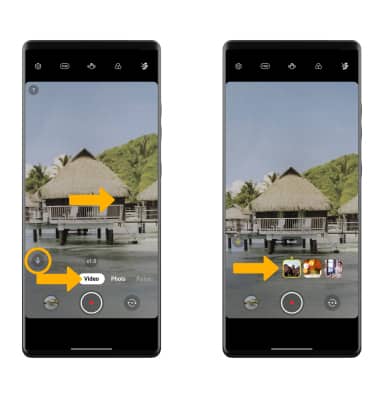
Access and use advanced video features
Note: Gimbal Mode prevents the camera from shaking to allow you to shoot clearer videos while moving. Dual Recording allows you to create videos that capture the front and rear camera view simultaneously. You can save the videos as one file or separately. For more information on individual camera modes and features, select the
Settings icon on the Second screen then scroll to and select Help. A brief description for each camera mode will be displayed.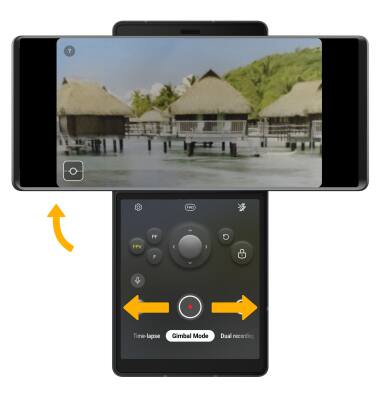
GIMBAL MODE: When in Gimbal mode, the following options are available:
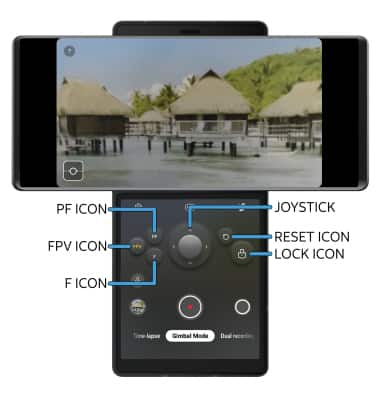
• LOCK CAMERA ANGLE: Select and hold the Lock icon.
• RESET CAMERA ANGEL: Select the Reset icon to reset the camera back to the default angle.
• FIRST PERSON VIEW MODE: When shooting a video from multiple angles, select the FPV icon to use First Person View Mode which allows you to freely move in any direction.
• PAN FOLLOW MODE: To keep the camera level while moving in a car or going up stairs, select the PF icon to enable Pan Follow Mode. Pan Follow Mode moves the angle left or right with the upper and lower axes fixed.
• FOLLOW MODE: To record your travels with a view similar to how your eyes see, select the F icon to enable Follow mode.
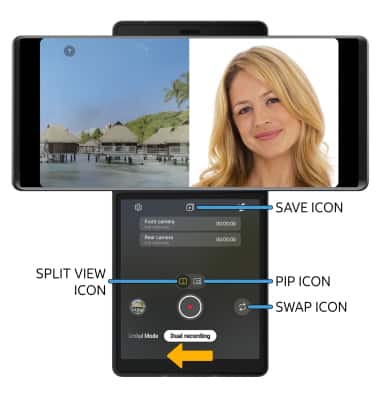
• SPLIT VIEW: Select the Split view icon.
• PICTURE IN A PICTURE: Select the PIP icon.
• CHANGE CAMERA VIEW: To swap where the Front camera view and Rear camera view are displayed on the screen, select the Swap icon.
Crop a photo
Note: Alternately, from the home screen select the
 Gallery app then navigate to and select the desired photo.