
In this tutorial, you will learn how to:
• Turn mobile hotspot on/off
• View mobile hotspot name and connected devices
• Configure hotspot settings
When Mobile Hotspot is enabled, the  Mobile hotspot icon will be displayed in the Notification bar. Requires eligible data plan .
Turn mobile hotspot on/off
1. From the home screen, select the AT&T AllAccess widget. 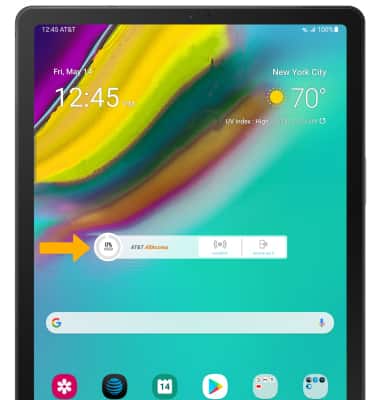
2. Select the Mobile hotspot icon, then select the Mobile Hotspot switch.
Note: Review the Mobile Hotspot prompt, then select OK. 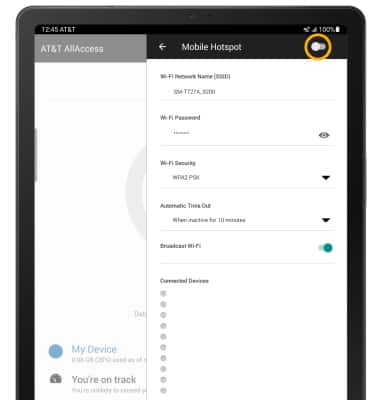
View mobile hotspot network name & connected devices
The Mobile Hotspot Network name and Connected devices will be displayed.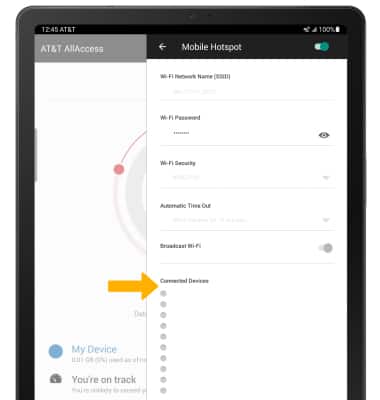
Configure hotspot settings
Edit the Mobile Hotspot settings as desired.
Note: The Mobile Hotspot must be turned off in order to be configured. 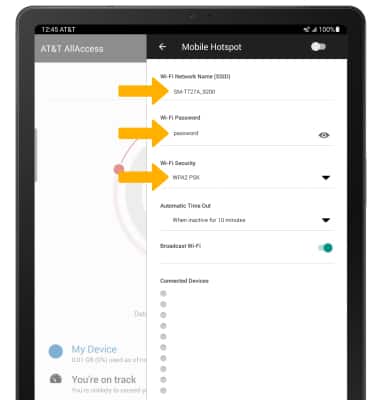
• WI-FI NETWORK NAME: Change the name of the Mobile Hotspot network.
• WI-FI PASSWORD: Change the Password of the Mobile Hotspot network.
• WI-FI SECURITY: Change the Security type of the Mobile Hotspot network.