

In this tutorial, you will learn how to:
• Access accessibility features
• Turn on/off Voice Assistant
• Turn on/off flash notifications
• Enable/disable accessibility shortcuts
• Access and edit Text-to-speech
Access accessibility features
 Settings icon.
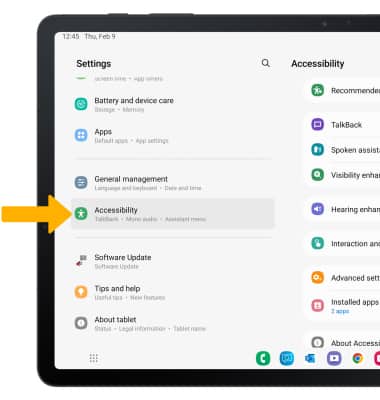
2. Scroll to and select Accessibility.
Turn on/off flash notifications
1. From the Accessibility screen, select Advanced settings.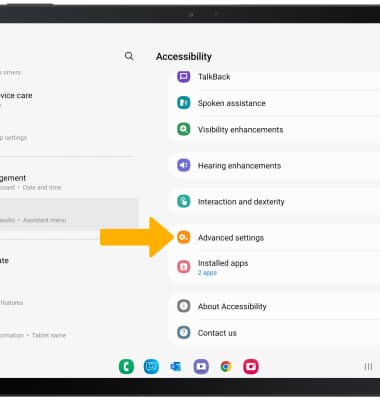
2. Select Flash notification.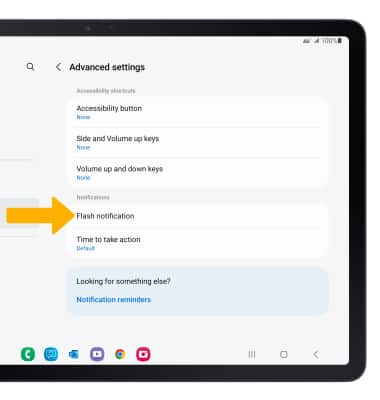
3. Select the Screen flash notification switch.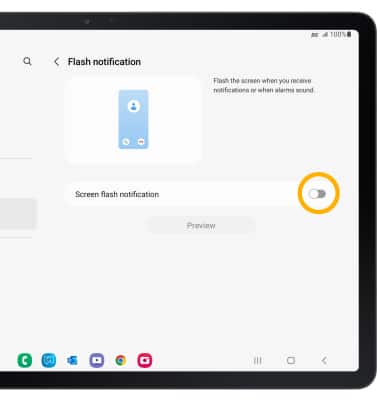
Enable/disable accessibility shortcuts
1. From the Advanced settings screen, select Side and Volume up keys.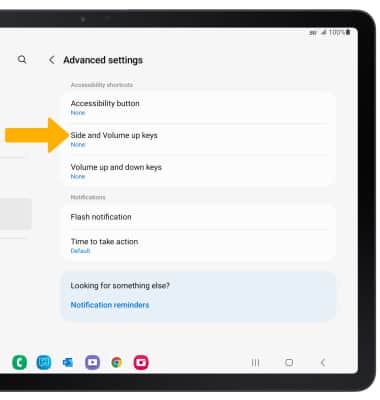
2. Select the desired Accessibility feature.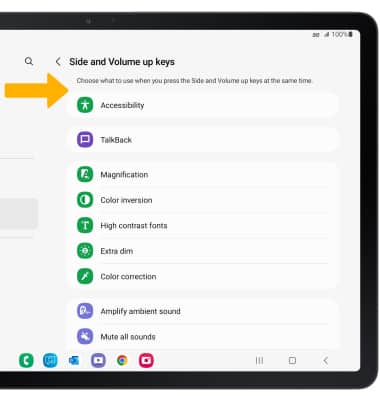
Access and edit Text-to-speech
ACCESS: From the Settings screen, scroll to and select General management then select Text-to-speech. 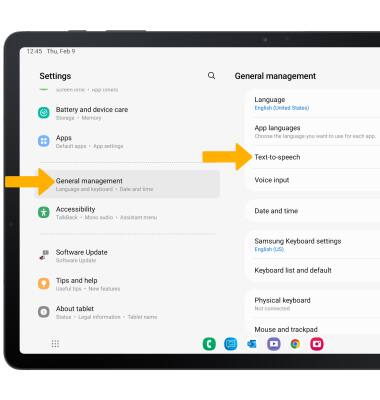
EDIT: Edit settings as desired.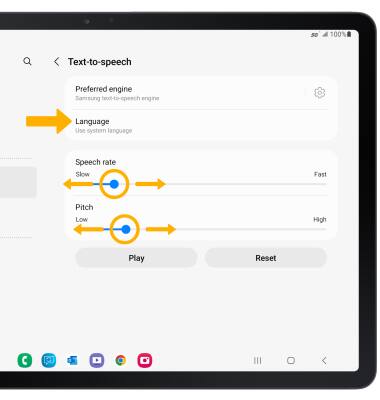
• CHANGE LANGUAGE: Select Language, then select the desired option.
• SPEECH RATE: Select and drag the Speech rate slider to the desired speech rate.
• PITCH: Select and drag the Pitch slider to the desired pitch.