In this tutorial, you will learn how to:
• Take a screenshot
• Edit or share screenshots immediately
• Access and use screen recording
Take a screenshot
Press and quickly release the Side and Volume down buttons.
Note: To access screenshots, from the home screen, select the  Gallery app >
  Menu icon > Albums > Screenshots.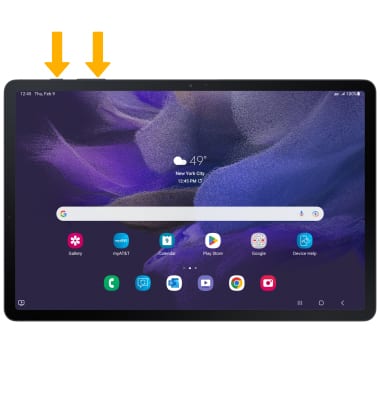
Edit or share screenshots immediately
From the desired screenshot, select the desired option.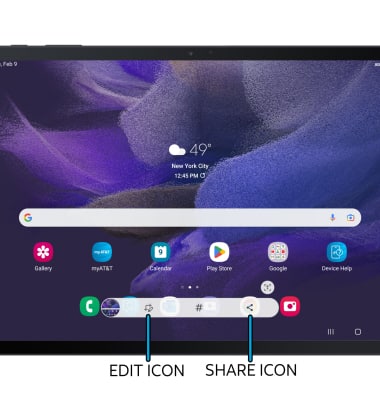
• EDIT A SCREENSHOT: Select the Edit icon, then edit screenshot as desired.
• SHARE A SCREENSHOT: Select the Share icon, then follow the prompts to share.
Access and use screen recording
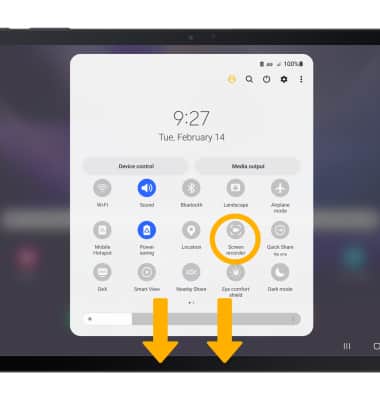
Screen recording lets you capture what’s happening on your phone. Swipe down from the Notification bar twice, then select the Screen recorder icon.
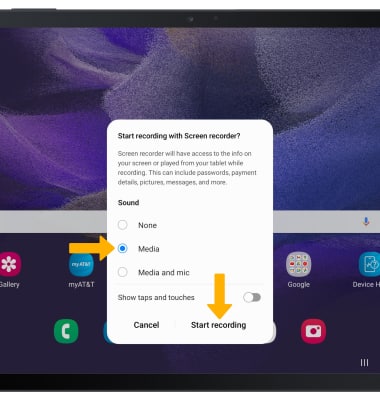
Select the desired sound setting, then select Start recording.
Select the desired sound setting, then select Start recording.
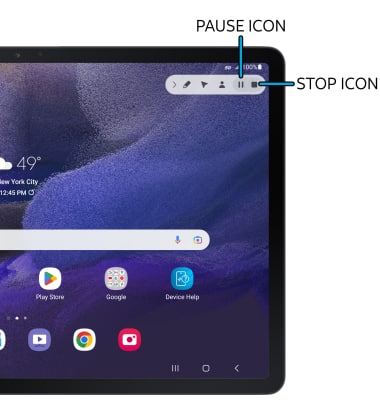
To pause the recording, select the Pause icon. To stop the recording, select the Stop icon.
Note: To access screen recordings, from the home screen, select the
Gallery app > Menu icon > Albums > Screen recordings.