• Access Digital Wellbeing tools
• Enable or disable Bedtime mode
• Enable or disable Focus mode
• Enable or disable Do Not Disturb
• Set time limits
Access Digital Wellbeing tools
1. Swipe down from the Notification bar with two fingers, then select the  Settings icon.
2. Scroll to and select Digital Wellbeing & parental controls. 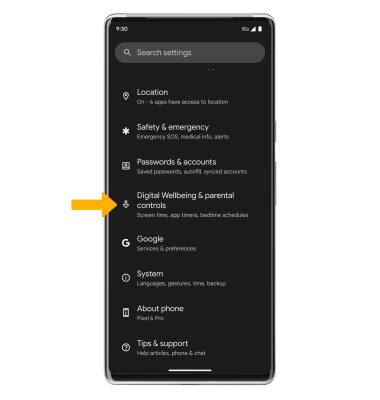
3. App usage time will be displayed. 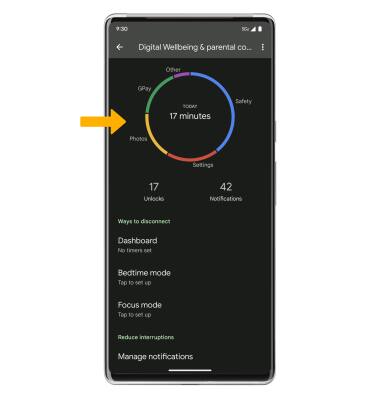
Enable or disable Bedtime mode
1. From the Digital Wellbeing & parental controls screen, select Bedtime mode.
Note: Review the Sleep better with Bedtime mode prompt, then select the desired option. Select Next to continue.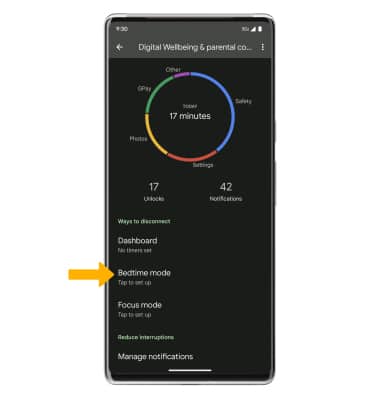
2. Select the desired option or set the desired schedule. When finished, select Done. To turn Bedtime mode off, select Off. 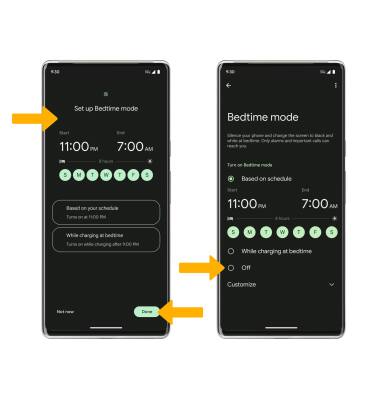
Enable or disable Focus mode
1. From the Digital Wellbeing & parental controls page, scroll to and select Focus mode. 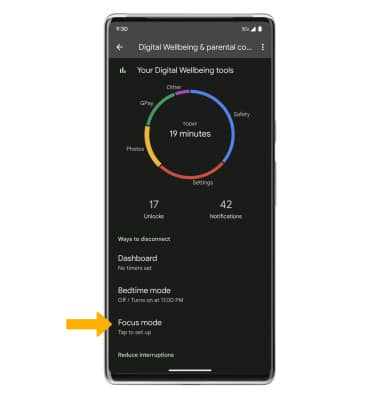
2. Select the desired apps to pause, then select Turn on now. To enable focus mode on a schedule, select Set a schedule. 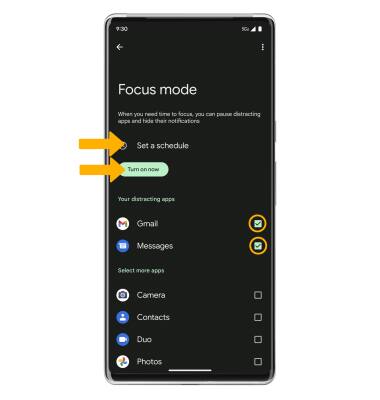
3. To disable Focus mode, select Turn off now. To disable Focus mode temporarily, select Take a break. 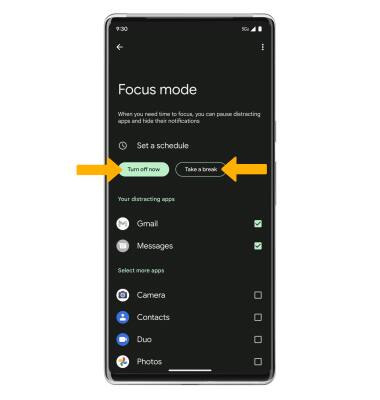
Enable or disable Do Not Disturb
1. From the Digital Wellbeing & parental controls screen, scroll to and select Do Not Disturb. 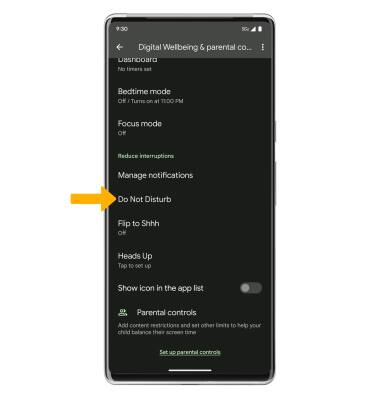
2. Edit settings as desired, then select Turn on now. 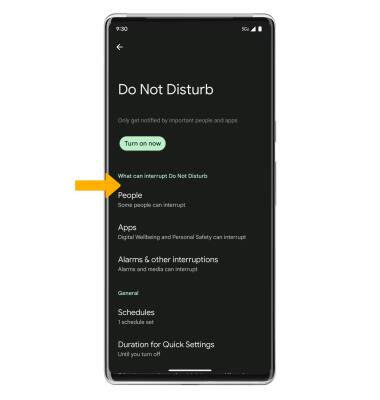
3. When enabled, the  Do Not Disturb icon will be displayed in the Notification bar.
4. To disable, select Turn off now.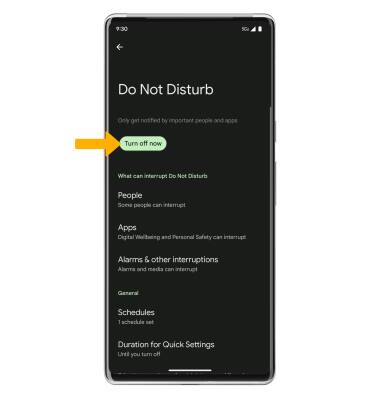
Set time limits
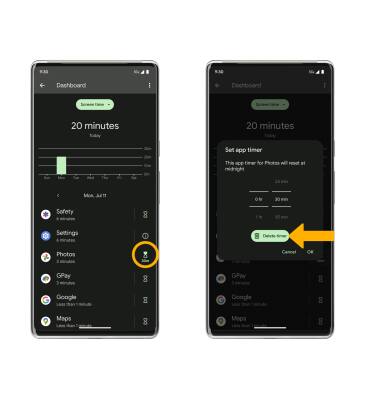
1. From the Digital Wellbeing & parental controls screen, select Dashboard. 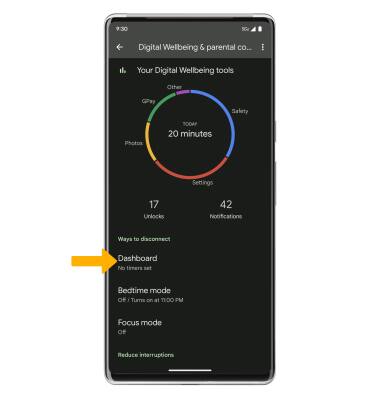
2. Select the Timer icon next to the desired app. Select the desired option, then select OK.
Note: Timers are not available for certain system apps. 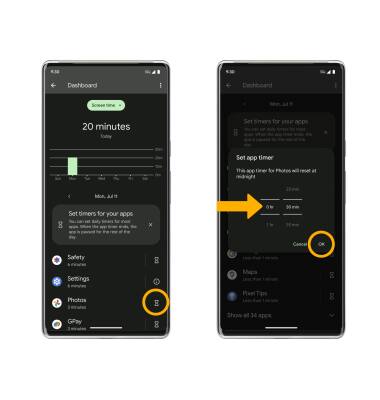
3. To delete a timer, select the Timer icon next to the desired app, then select Delete timer.