In this tutorial, you will learn how to:
• Clear app cache
• Force stop an app
• Check for app updates
• Remove an app
• Reinstall an app
Clear app cache
1. Swipe down from the Notification bar, then select the  Settings icon.
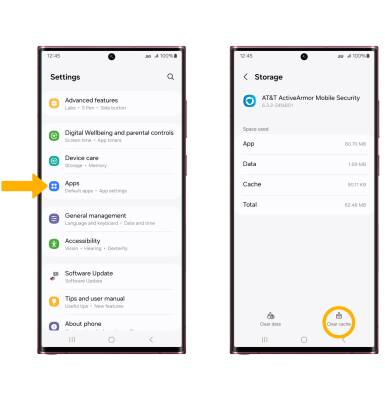
2. Scroll to and select Apps > desired app > Storage > Clear cache.
Force stop an app
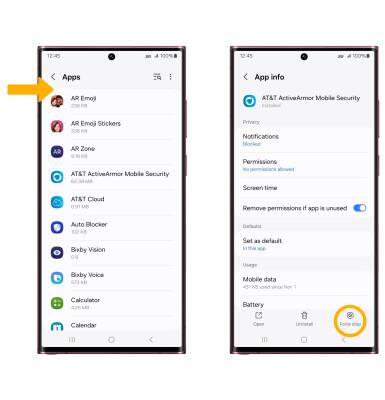
From the Apps screen, select the desired app, then select Force stop.
Note: You will be prompted to select OK to confirm.
Check for app updates
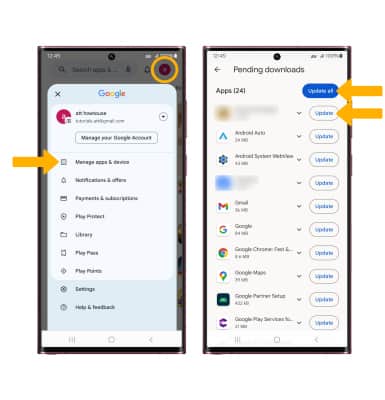
From the home screen, select the  Play Store app > Account icon > Manage apps & device > Updates available > select Update next to the desired app or select Update all to download all available app updates.
Remove an app
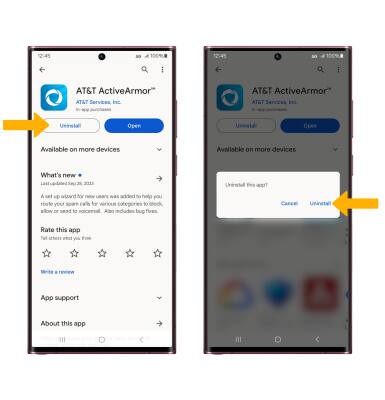
From the desired app page in the Play Store, select Uninstall. Select Uninstall to confirm.
Reinstall an app
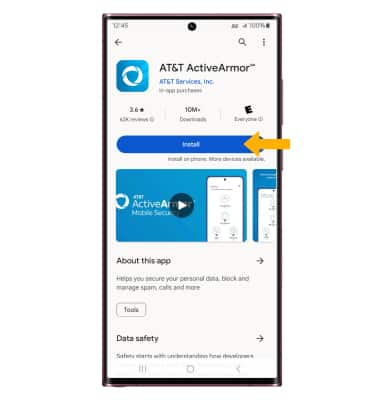
From the desired app page in the Play Store, select Install.