In this tutorial, you will learn how to:
• Enable or disable Bluetooth
• Pair with device
• Unpair a device
• Quickly Turn Bluetooth on or off
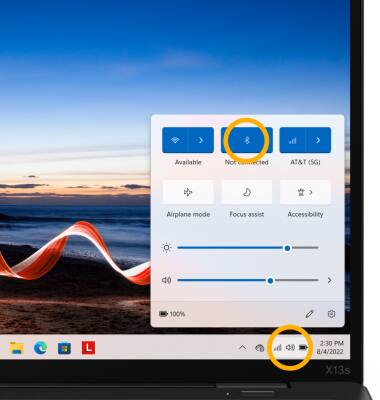
When Bluetooth is on, the  Bluetooth icon will display in the Task bar. To optimize battery life, turn Bluetooth off when not in use.
Enable or disable Bluetooth
1. From the home screen, select the Start icon then select Settings.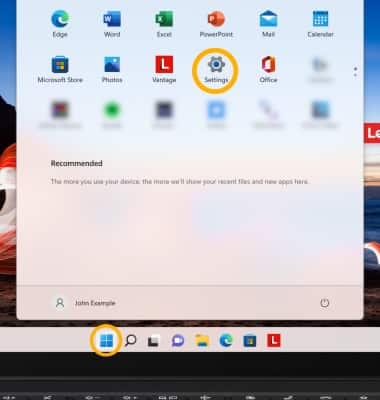
2. Select the Bluetooth & devices tab, 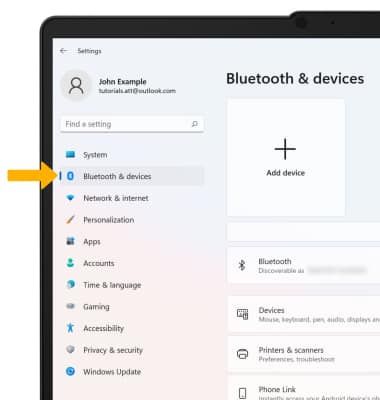
3. Select the Bluetooth switch.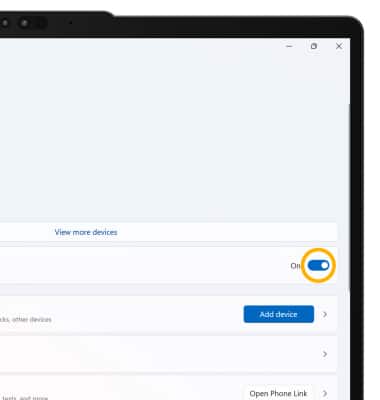
Pair with device
1. Select Add device.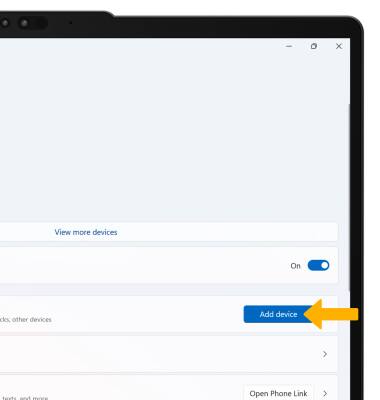
2. Select Bluetooth. Bluetooth will automatically scan for devices.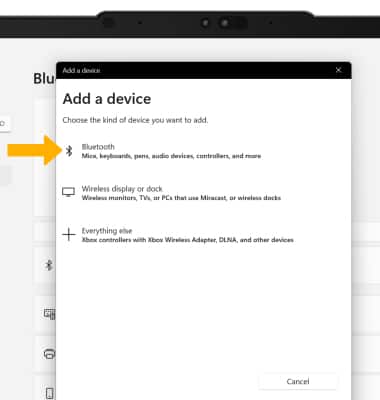
3. Select the desired device.
Note: If prompted, ensure that the PIN on your device matches the device you are trying to pair with then select Connect.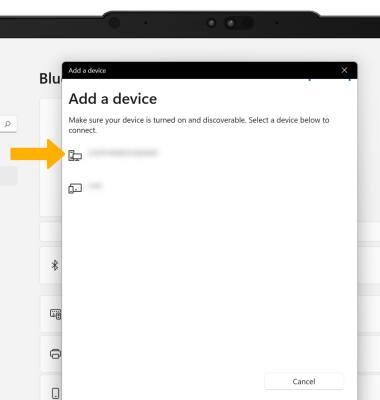
4. When the device is finished pairing, select Done.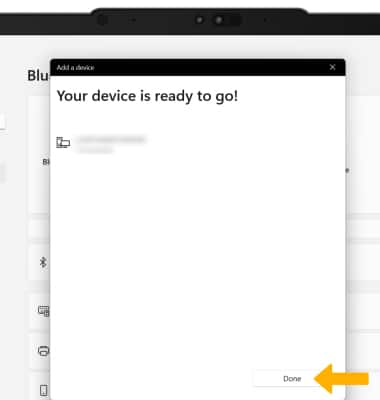
Unpair a device
From the Bluetooth & devices screen, select the  Menu icon next to the desired device then select Remove device.
Note: Select Yes to confirm. If having trouble pairing/unpairing your device with your vehicle, please refer to your vehicle's user manual for additional information.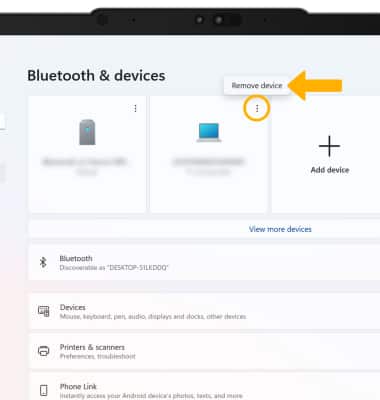
Quickly turn Bluetooth on or off
From the home screen, select the Action Center to access Quick settings then select the Bluetooth icon.