In this tutorial, you will learn how to:
• Access the main browser
• Navigate to a website
• Bookmark a site
• Access bookmarks
• Access, open, and close browser tabs
• Preview URLs for links
• Refresh websites
• Add and access Favorites
• Access Private Browsing Mode
• Access browser settings
• Share a site
• Call and message a number from Safari
• Use Passkey to log in
Access main browser
From the home screen, select the  Safari app.
Note: Learn more about Safari on the Apple website: www.apple.com/safari/.
Navigate to a website
Note: If you don't want to see suggested search terms, from the home screen select the
 Settings app > scroll to and select Safari > select the
  Search Engine Suggestions switch.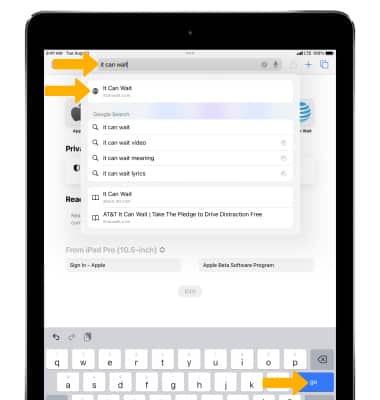
To quickly search a site you've visited before, enter the name of the site followed by your search term. For example, enter 'wiki einstein' to search Wikipedia for 'einstein.'
Note: To turn this feature on or off, from the home screen select the
Settings app > scroll to and select Safari > select Quick Website Search > Quick Website Search switch.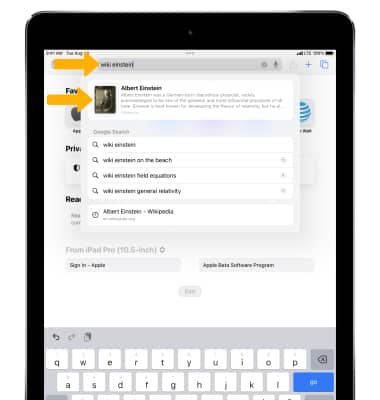
Bookmark a site
1. Select the  Share icon, then select Add Bookmark.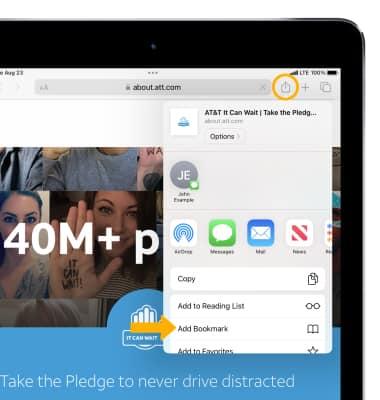
2. Enter the desired name for the bookmark, then select Save.
Note: To change the bookmark location, select the location then select the desired location.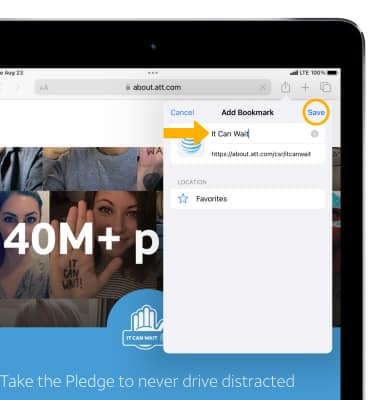
Access bookmarks
1. Select the  Sidebar icon, then select Bookmarks.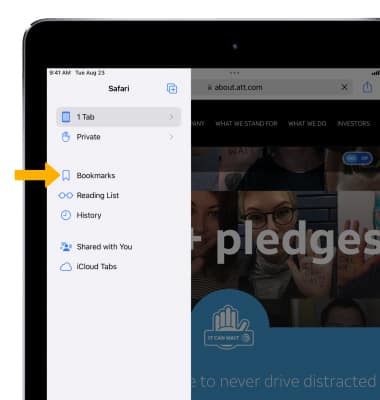
2. Select the desired bookmark.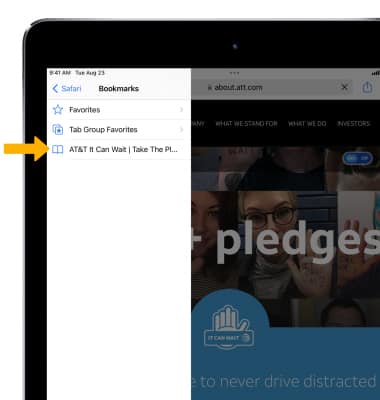
Access, open, and close browser tabs
ACCESS BROWSER TABS: Select the  Tabs icon.
OPEN A NEW TAB: Select the  Add icon.
CLOSE A TAB: Select the X icon or swipe the page to the left.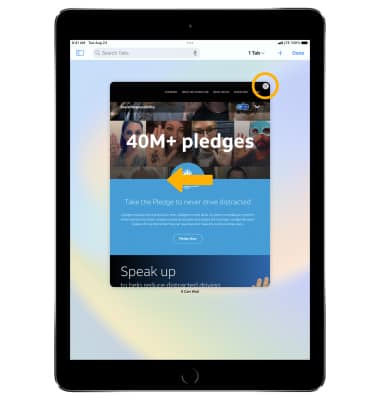
OPEN A LINK IN A NEW TAB: Select and hold the desired link, then select Open in Background.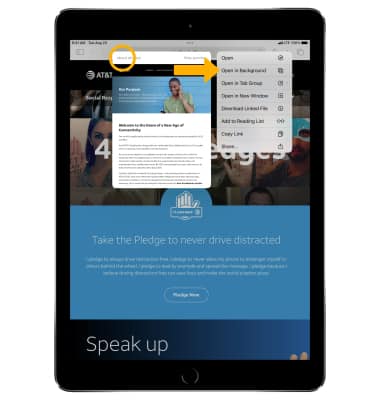
Preview URL of a link
To see the URL of a link, select the link.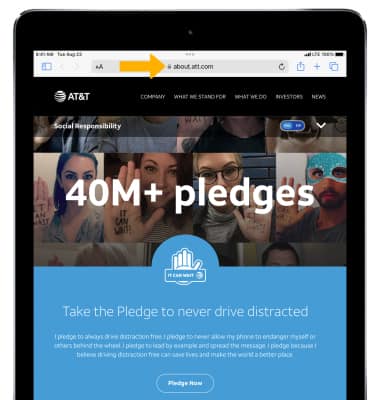
Refresh website
Select the  Refresh icon next to the address in the search field to update the page.
Add and access Favorites
ADD A SITE TO FAVORITES: Select the Share icon, then select Add to Favorites.
Note: When prompted, enter the desired name for the Favorite, then select Save.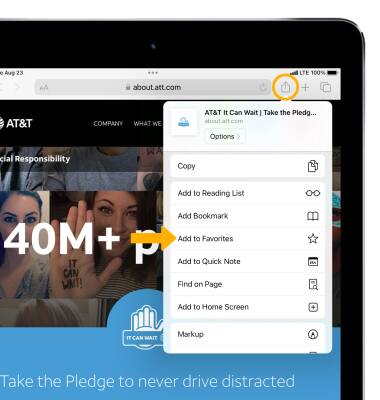
ACCESS FAVORITES: Select the Sidebar icon > Bookmarks > then select Favorites.
Note: When you open a new tab, Favorites will be displayed. Select the desired website that you wish to open. 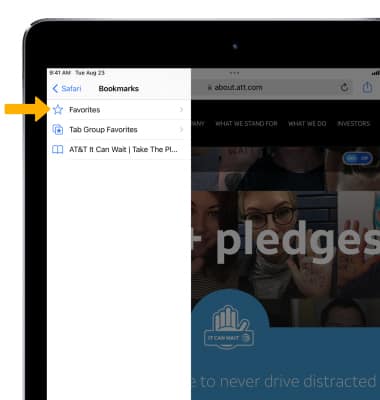
Access Private Browsing Mode
From the new tab page, select the Tabs icon > Start Page > Private. Pages visited, search history, and Autofill information will not be saved when using Private Browsing Mode. 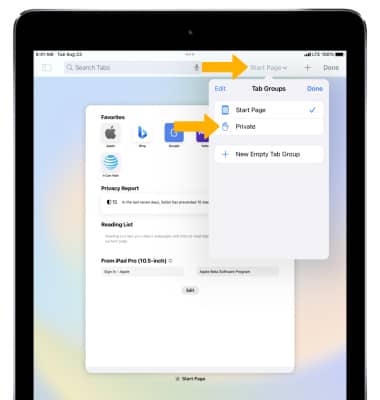
Access browser settings
From the home screen, select the Settings app. Scroll to and select Safari. Edit settings as desired. 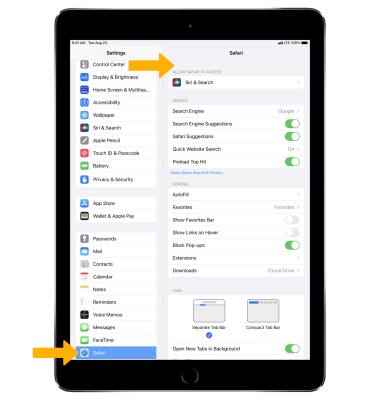
Share a site
With the desired site open, select the Share icon, then select the desired sharing method or select Copy to copy the URL.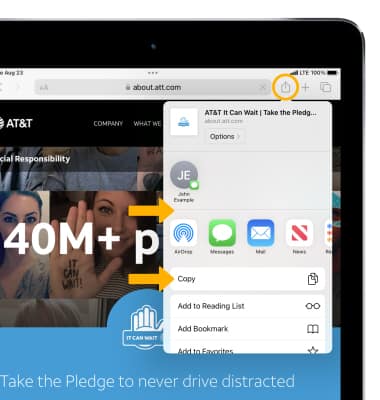
Call and message a number from Safari
Select and highlight the desired phone number, then select Call using iPhone or FaceTime to start a call. Select Send Message to send a message.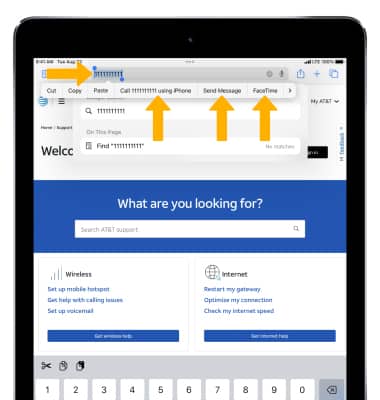
Use Passkey to log in
With iOS 16, you can login to certain websites using a Passkey instead of a password. Passkeys are stored on your device and linked to any other devices you have setup through iCloud Keychain. Websites or apps that support Passkey will have an option to login using a Passkey.
Note: For more information on Passkeys and their security, visit here.