Gestures & Motion
Gestures & Motion
Learn how to use gestures and motions on your phone.
In this tutorial, you will learn how to:
• Access and edit notifications and Quick Settings
• Access additional apps
• Enable/disable gestures
• Access and edit navigation bar settings
• Enable/disable and access jump to camera
Access and edit notifications and Quick Settings
ACCESS: Swipe down from the Notification bar to access Quick Settings. Notifications will be displayed beneath Quick Settings.
Note: You can access Expanded Quick Settings by swiping down twice from the Notification bar.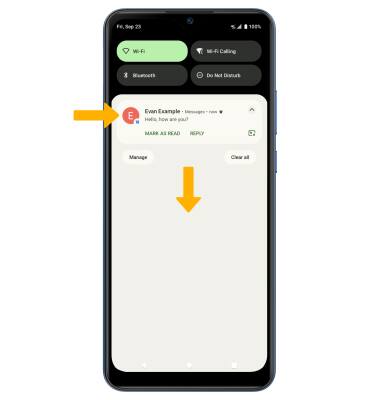
EDIT APPEARANCE: Swipe down from the Notification bar with two fingers to access Expanded Quick Settings, then select the  Edit icon. Select and drag the desired icon to the desired location, then select the back arrow when finished.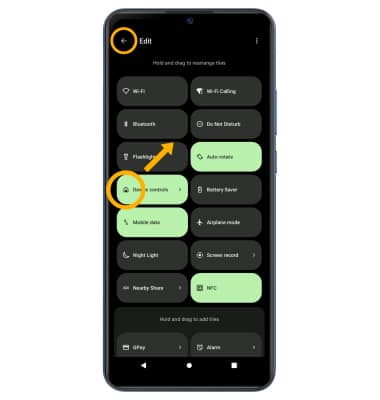
Access additional apps
Swipe up from the home screen to access the Apps tray. 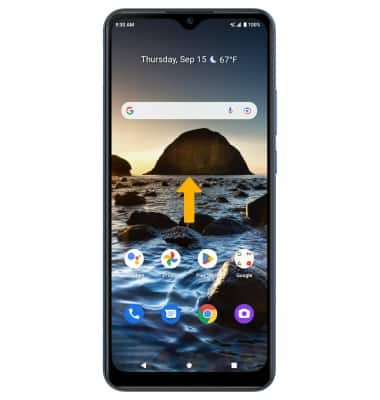
Enable/disable gestures
1. Swipe down from the Notification bar with two fingers, then select the  Settings icon.
2. Scroll to and select System, then select Gestures. 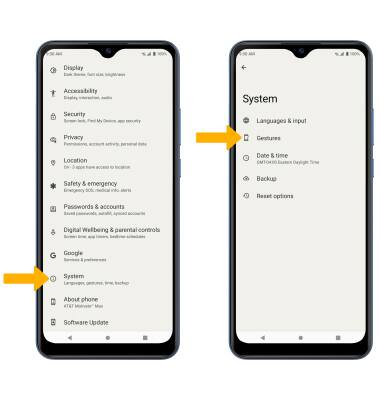
3. Select the desired option to enable or disable the desired gesture. 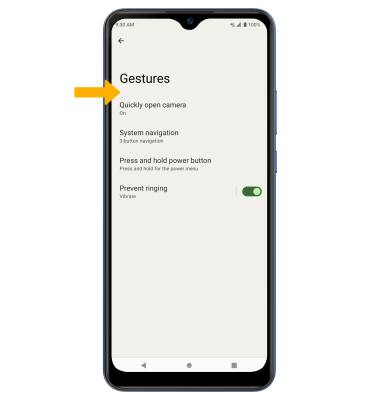
Access and edit navigation bar settings
ACCESS: To change how you interact with the Navigation bar, from the Gestures screen select System navigation.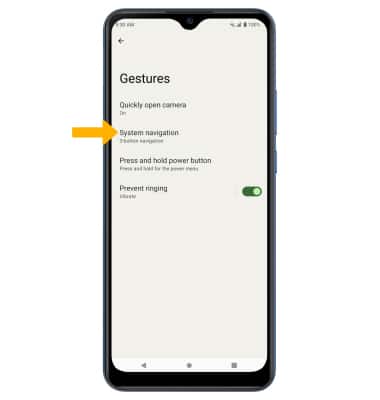
EDIT: From the Navigation bar screen, select the desired option.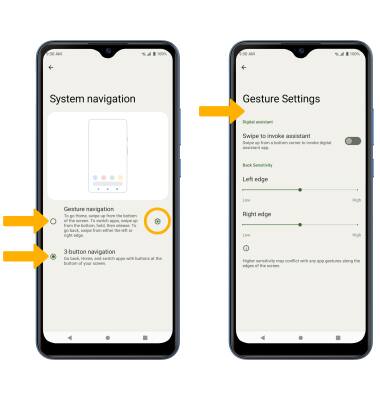
• GESTURE NAVIGATION: Select Gesture navigation to enable a gesture-based navigation bar.
• 3-BUTTON NAVIGATION: Select 3-button navigation to enable a button-based navigation bar.
• EDIT GESTURE SETTINGS: Select the Settings icon next to Gesture navigation, then edit Gesture settings as desired.
Enable/disable and access jump to camera
ENABLE/DISABLE: From the Gesture screen, select Quickly open camera, then select the Quickly open camera switch. 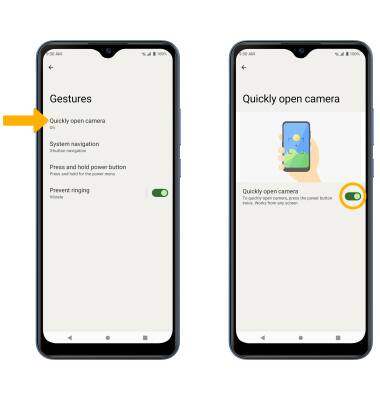
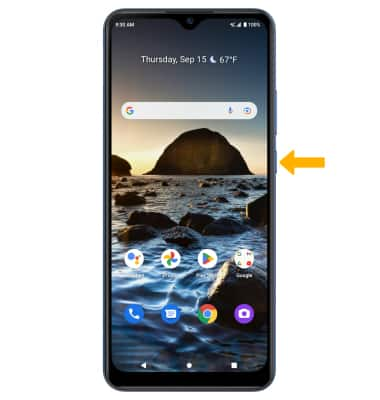
ACCESS: From any screen, press the Power/Lock button twice to access the camera.