
Technology
How to transfer contacts to a new phone
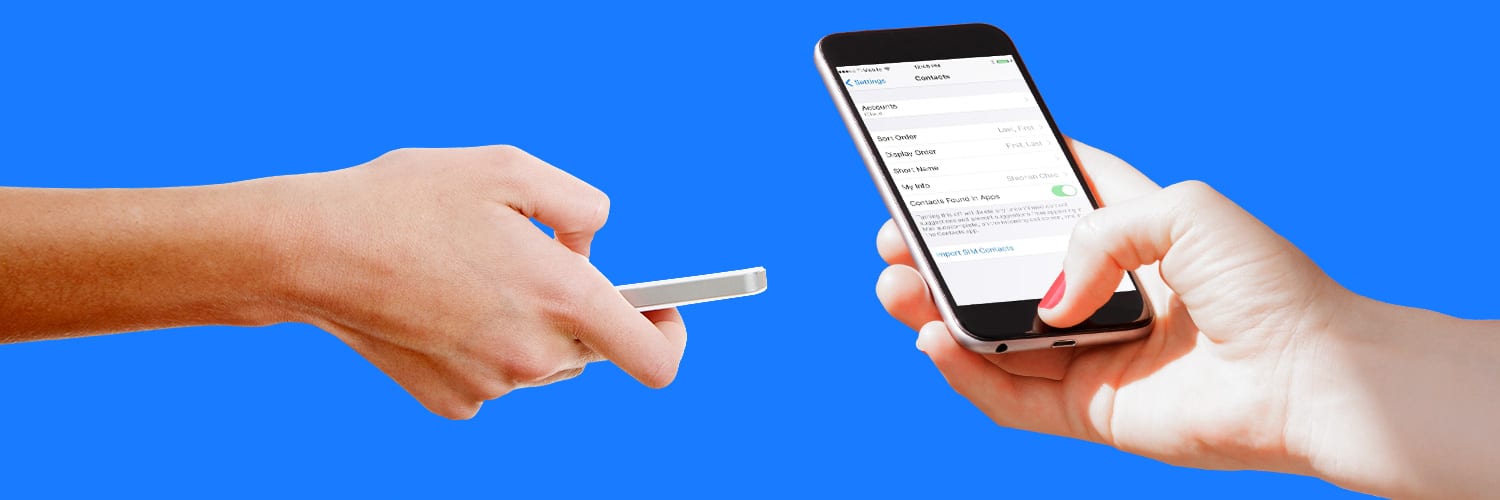
Upgrading to the latest smartphone can make you feel like a kid with a new toy. It’s exciting to have a new gadget and discover all the features it has to offer. But you also need to consider: “How do I transfer my contacts to my new phone?”
The last thing you want to face during an upgrade is the potential loss of your contacts. Luckily, there are several techniques you can use to set up your new phone to minimize the chances of losing any numbers from your contact list.
Getting ready to transfer contacts
Before setting up your new phone, make sure the data on your old phone—including contacts, pictures, videos, and files—is backed up to a cloud service like the AT&T Personal Cloud.
Cloud backups allow you to access your contacts and other data across various devices while keeping them protected during the upgrade process.
When it’s time to start transferring contacts, ensure both phones are charged or plugged in. Also, have your Apple ID or Google account credentials ready. When you’re properly prepared, the whole process feels more seamless.
Back up contacts for iPhone
For iPhone users, Apple’s iCloud service, iTunes, or Finder offers ways to transfer contacts when you move from one phone to another. With iCloud, you can sync contacts automatically across your devices. Finder and iTunes sync contacts by backing them up on one device before restoring them on another.
To get the process going, you can use your phone or computer:
- iCloud Contacts (Recommended)
- Open Settings and tap your name at the top of both phones.
- Navigate to iCloud and, under the list of apps, toggle Contacts.
- If a pop-up appears, you can tap Merge to sync your contacts.
- On your new device, make sure Contacts is turned on to sync automatically.
If you use a computer, the steps depend on the operating system. For example, on older Macs and on Windows PCs, you can use iTunes. Typically, you connect your iPhone to your computer and select your device.
For macOS 10.15 or later, iTunes has been replaced by Finder for full backups and restores. On Windows 10 or later, you can use the Apple Devices app to back up and restore data, including contacts.
Overall, iCloud is typically recommended for a more automated process to help ensure that your contacts will appear on your new phone.
Android syncing with Google account
If you use an Android phone, syncing your contacts with your Google account is one of the most reliable ways to transfer data. Once it’s set up, your contacts will automatically move to your new device.
Before you begin the process, ensure that your contacts are saved under your Google account instead of locally on your phone.
Steps to sync contacts:
- On your old Android phone:
-
- Open Settings and navigate to Accounts > Google.
- Tap your account, then ensure Contacts sync is toggled on.
- On your new Android phone:
-
- Sign in with the same Google account during setup.
- Your contacts will appear automatically once syncing is complete.
Your Android phone might have a brand-specific backup, but it can still use Google Sync. To choose a backup system, go to Settings and look for Backup and restore or Cloud and accounts > Backup and restore. Keep in mind that names might vary by device.
Other methods to transfer contacts
Most phones use various methods to transfer your contacts. With Android, if your old phone and your new one use the same type of SIM card and the contacts are stored there, you can usually use your Settings menu to download your contacts. Copy them from your previous SIM card and save them to your new phone.
However, if you need to fit a smaller (nano) SIM card into a larger slot, you’ll need an adapter or an alternative transfer method, like exporting contacts to a .vcf file. Keep in mind that SIM cards typically don’t hold many numbers and don’t store information like email addresses or photos.
Some new phones are eSIM-only and don’t have a slot for a physical SIM card. Keep in mind that while iPhones can typically import from a SIM card, they’re unable to save or export contacts to a SIM.
If both Android phones have Bluetooth®, you can transfer your contacts wirelessly. From iPhone to iPhone, you can use AirDrop as a reliable option.
If you can’t find a solution that works for your phone, purchase software and cables to copy your contacts to a computer and upload them to your new phone.
Transferring other data
When you’re ready to move files and other data, it makes a difference whether you’re keeping or changing operating systems. The process of moving your apps, photos, and music to your new smartphone may vary. Here are some general tips to help you get started.
iPhone to iPhone
Using Quick Start is generally the recommended method to transfer data from one iPhone to another. Another way is to back up your old iPhone to iCloud or your computer. During the process, you’ll be asked to select Restore from Mac or PC or Restore from iCloud Backup.
iPhone to Android
Some of the major smartphone manufacturers have apps to help you switch from iOS to Android. The Samsung Smart Switch app can make your move much easier. However, if you need to transfer data from your iPhone manually, remember to:
- Disable iMessage (Settings > Messages > turn off iMessage) or your texts won’t be delivered to your new device.
- Add email accounts manually (Settings > Add account > Choose email account) if necessary.
- Use an app like Copy My Data to help transfer calendars, contacts, and photos.
- For music, you can use the Apple Music app from the Google Play Store, a third-party tool like Droid Transfer, or upload to YouTube Music.
Android to Android
If you’re already using the Google Cloud service—and with an Android phone, you should be—transferring data from one Android phone to another is a breeze.
- Wireless transfer: With built-in wireless transfer capabilities, you can turn on both phones, connect them to the same Wi-Fi network, and follow the prompts.
- Get your apps and data: This option lets you restore your new phone with a backup using your primary Google account.
Android to iPhone
Apple makes it easy to switch over to an iPhone with its Move to iOS app. The app transfers calendars, contacts, email accounts, message history, photos, videos, and bookmarks to your new iPhone. It even recommends iOS equivalents of free apps when available.
Once you complete all the steps, you’ll be able to enjoy your new phone and all its capabilities. You’ll be talking, texting, streaming, and scrolling in no time.
Save early, save often
No matter how careful we are or how brilliantly the apps work, losing information during an upgrade is a possibility. To protect important data, be sure you’re backing up your smartphone regularly—especially right before you switch phones.
By being prepared, you’ll make sure the day you get your new phone is a happy one.
If you still need help with “how to transfer my contacts to my new phone,” you can visit your local AT&T store or contact support.
This article was extensively edited by Zoya Cochran on January 15, 2026, to reflect new tools and apps for moving to a new phone on iOS and Android, including Quick Start, Google sync, and Samsung Smart Switch, along with clearer backup and eSIM steps.
This article is AT&T sponsored content written by Allison Jewel, a former TechBuzz contributor and AT&T employee. The statements in this article are his own and don’t necessarily represent the positions, strategies, or opinions of AT&T.
Unlock possibilities
Related articles

by Jobi George | Mar 20, 2026
Learn what network latency is, what causes it, and practical steps to reduce lag for gaming, video calls, and other real-time online activities.

Technology
Internet vs. Wi-Fi: Are they different?
by Jobi George | Mar 17, 2026
Learn the difference between internet and Wi-Fi, how they work together, and why understanding both helps you get the most from your home network.

Technology
Is 500 Mbps fast?
by Jobi George | Mar 13, 2026
Learn what 500 Mbps internet speed means for streaming, gaming, video calls, and multi-device households to determine if it meets your connectivity needs.
Want to stay in the loop?
Get the latest deals, product news, and more from AT&T.