
In this tutorial, you will learn how to:
• Take a screenshot
• Edit or share screenshots immediately
• Capture a scrolling screenshot
• Access and use screen recording
Take a screenshot
Press and quickly release the Side and Volume down buttons.
Note: To access screenshots, from the home screen, swipe up to access the Apps tray then select the  Gallery app.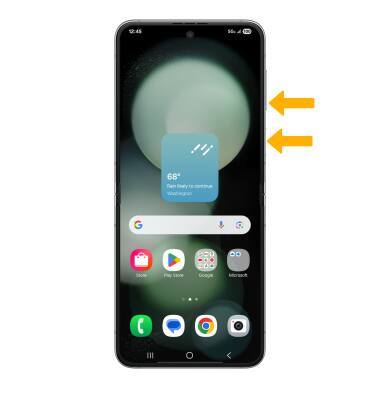
Edit or share screenshots immediately
Immediately after taking a screenshot, a toolbar will appear at the bottom of the screen. Select the desired option:
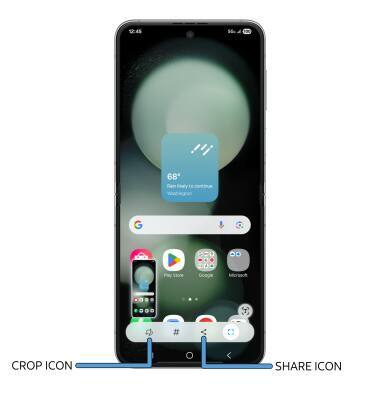
• CROP A SCREENSHOT: Select the Crop icon, then edit screenshot as desired.
• SHARE A SCREENSHOT: Select the Share icon, then follow the prompts to share.
Capture a scrolling screenshot
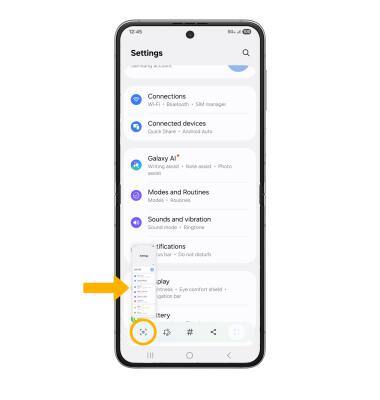
Immediately after a screenshot is captured on a scrollable screen, select the Scroll Capture icon until the preview shows the desired area being captured.
Access and use screen recording
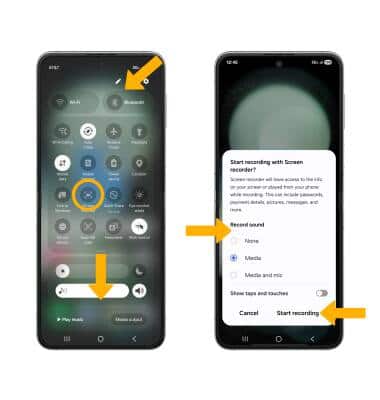
Screen recording lets you capture what’s happening on your phone. Swipe down from the upper right corner of the screen, the swipe down from the icon section of the quick settings screen to access additional buttons. Select the Screen recorder icon. Select the desired sound setting, then select Start recording.
Note: If it is your first time accessing Screen recording, you will be prompted to select the desired sound setting and video quality. When finished, select Done.
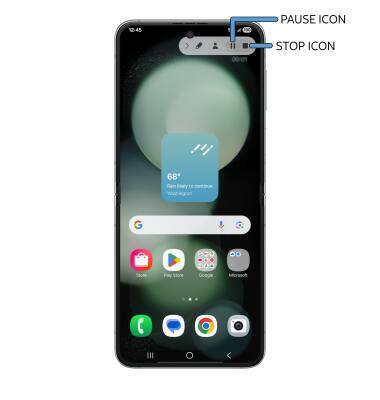
To pause the recording, select the Pause icon. To stop the recording, select the Stop icon.
Note: To access screen recordings, from the home screen, swipe up to access the Apps tray then select the Gallery app > Albums tab > Screen recordings.
Note: If it is your first time accessing Screen recording, you will be prompted to select the desired sound setting and video quality. When finished, select Done.
To pause the recording, select the Pause icon. To stop the recording, select the Stop icon.
Note: To access screen recordings, from the home screen, swipe up to access the Apps tray then select the
Gallery app > Albums tab > Screen recordings.