 To use an eSIM, you will need an activated eSIM card. For more information, visit
 In this tutorial, you will learn how to:
• Set up eSIM
• Manage cellular plans
• Remove eSIM
If you are trying to find your EID for your associated eSIM, visit the Find IMEI & Serial number tutorial.
Set up eSIM
1. If there is an activated eSIM already attached to your device, you will receive a notification that your eSIM is ready to be set up. Select Set Up.
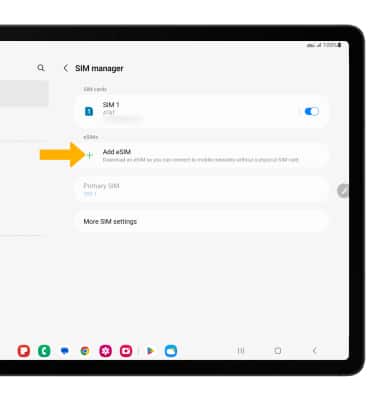
Note: You can also add an eSIM by going through Settings. From the home screen, swipe down from the upper right corner of the screen, then select the  Settings icon > Connections > SIM manager > Add eSIM > follow the prompts.
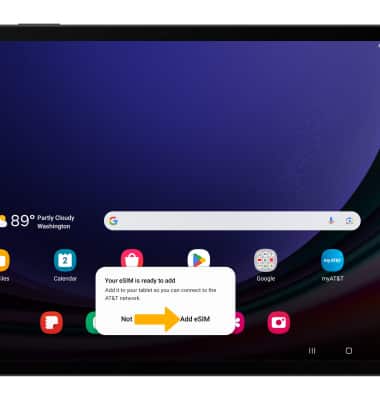
2. Select Add eSIM.
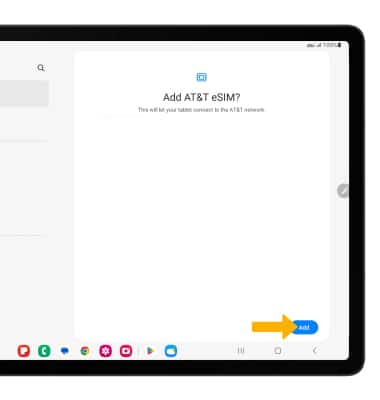
3. Select Add.
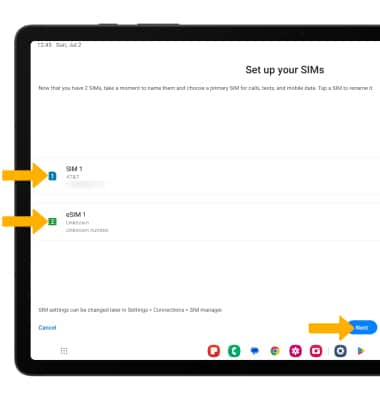
4. If desired, select the desired SIM to change the name of the SIM. When finished, select Next. Your eSIM is ready for use.
Manage cellular plans
1. To switch between cellular plans, from the SIM manager screen, select Primary SIM to view the list of SIMs.
Note: To turn a SIM off, select the switch next to the desired SIM, then select Turn off to confirm.
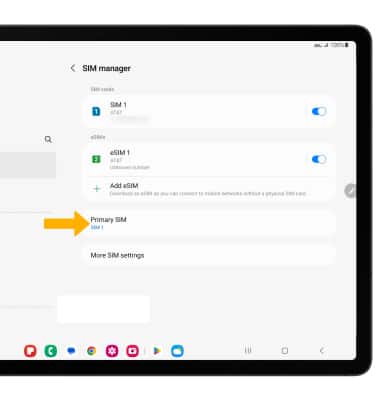
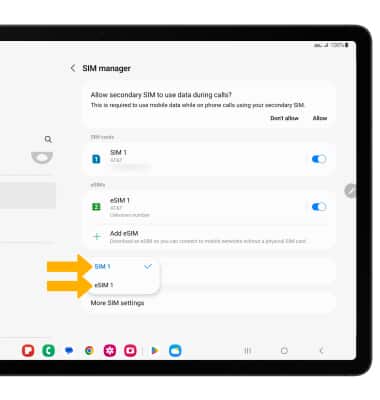
2. Select the desired SIM.
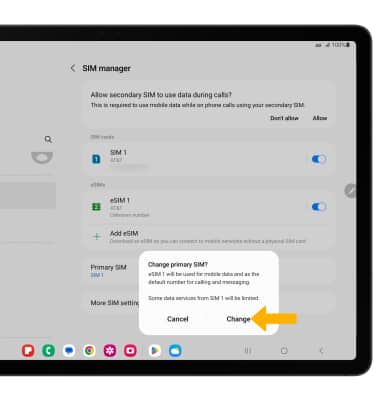
3. Select Change to change the primary SIM.
Remove eSIM
1. From the SIM manager screen, select the desired eSIM that you want to be removed.
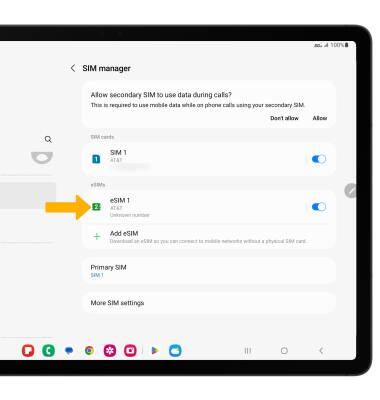
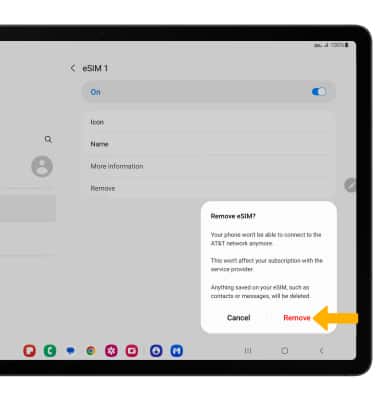
2. Select Remove to remove the eSIM.
Note: Removing the eSIM will not cancel the service or have any other impacts with the carrier.
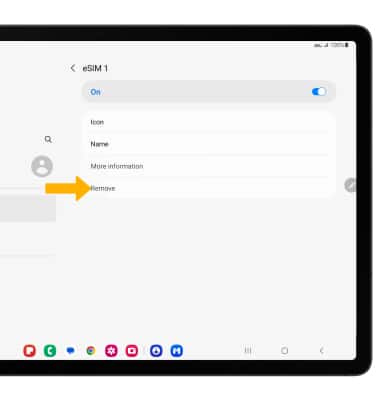
3. Select Remove again to confirm.