In this tutorial, you will learn how to:
• Connect a smartphone to Wi-Fi
• Connect a tablet to Wi-Fi
• Connect a legacy Wi-Fi device
When a device is connected to the 5G Gateway, the  Wi-Fi connected icon will display in the Notification bar.
Connect a smartphone to Wi-Fi
1. From the desired phone’s home screen, swipe down from the Notification bar, then select and hold the  Wi-Fi icon.
2. Toggle Wi-Fi "ON", then select the 5G Gateway's Wi-Fi network.
Note: The 5G Gateway's default Wi-Fi name is displayed on the bottom label of the device.
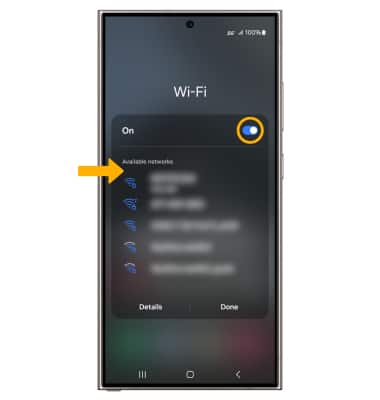
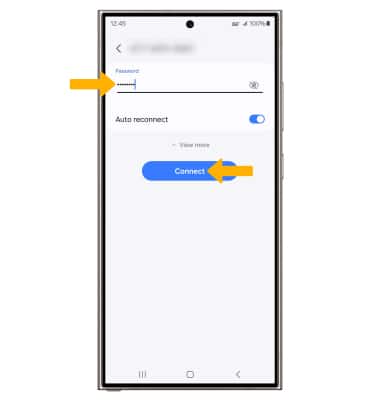
3. Enter the network Password, then select Connect.
Connect a tablet to Wi-Fi
1. From the desired tablet's home screen, swipe down from the Notification bar, then select and hold the Wi-Fi icon.
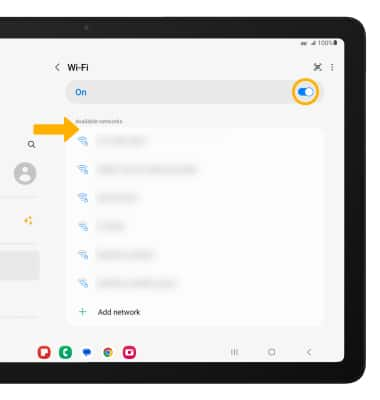
2. Toggle Wi-Fi "ON", then select the 5G Gateway's Wi-Fi network.
Note: The 5G Gateway's default Wi-Fi name is displayed on the bottom label of the device.
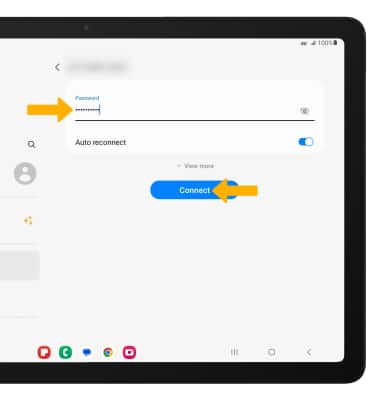
3. Enter the network Password, then select Connect.
Connect a legacy Wi-Fi device
1. From the  Dashboard, select
  Network, then select Wi-Fi.
Note: Alternatively, select the  Wi-Fi icon on the Dashboard.
2. Select the Basic tab, then ensure that Band Steering is turned OFF.
3. From the Radio tab, change the Wi-Fi mode to b/g/n/ax or b/g/n.
4. From the Basic tab, scroll down to the Setting section > Security Setting drop-down list. If your device does not support WPA3 Personal, change to WPA2 Personal.
5. In the Setting section, ensure that there are no special characters or spaces in the Wi-Fi Network Name (SSID) or Wi-Fi Password fields, as some legacy devices do not support them.
6. Connect your legacy Wi-Fi device to the 2.4GHz network.