
In this tutorial, you will learn how to:
• Access messaging settings
• Use messaging settings options
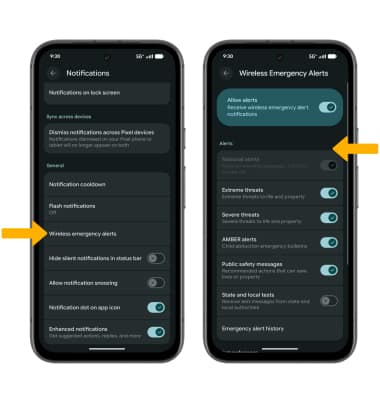
• Enable/disable Emergency Alerts
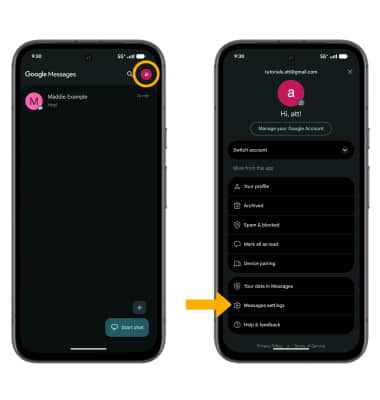
Access messaging settings
 Messaging app.
2. Select the Account icon, then select Messages settings.
Use messaging settings options
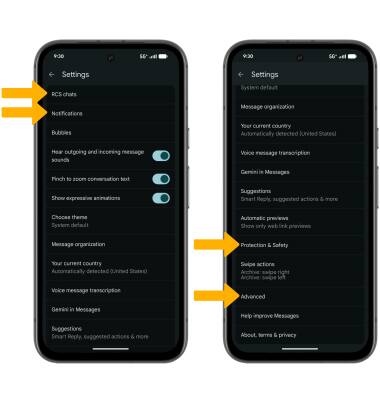
• TURN ON/OF ADVANCED RCS CHAT FEATURES: Select RCS chats > select the Turn on RCS chats switch.
• TURN ON/OFF CHAT READ RECEIPTS: Select RCS chats > select the Send read receipts switch.
• TURN ON/OFF TYPING INDICATORS: Select RCS chats > select the Show typing indicators switch.
• AUTO-DOWNLOAD FILES: Select RCS chats > Auto-download files you receive over mobile data > select the desired file size.
• PROTECTION & SAFETY: Select Protection & Safety > select the Enable protection & safety switch.
• AUTO-DOWNLOAD MMS: Select Advanced > select the Auto-download MMS switch.
• MMS GROUP MESSAGING: Select Advanced > Group messaging > select the desired Group messaging option.
• ACCESS/EDIT MESSAGE NOTIFICATIONS: Select Notifications.
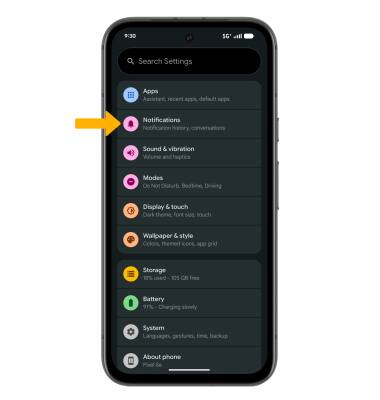
Enable/disable Emergency Alerts
 Settings icon.
 2. Select Notifications.
Note: Learn more about Wireless Emergency Alerts (WEA).