
In this tutorial you will learn how to:
• Turn on Wi-Fi calling
• Use Wi-Fi calling
• Use Wi-Fi calling with Dual SIM
Turn on Wi-Fi calling
1. From the home screen, select the  Settings app.
Note: Wi-Fi calling is turned off by default.
2. Select Cellular, then select Wi-Fi Calling. Select the  Wi-Fi Calling on This iPhone switch.
Note: Alternately, from the settings screen, scroll to and select Phone > select Wi-Fi calling > Wi-Fi Calling on This iPhone switch.
3. Select Enable.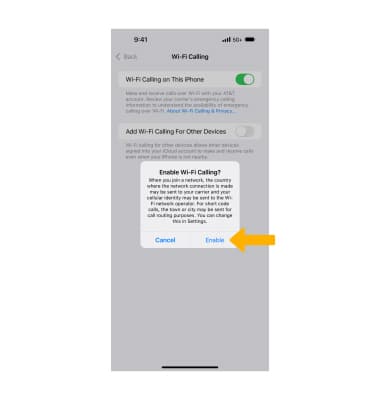
4. Review the Important Information prompt, then scroll to and select Continue. Enter your Emergency 911 Address, then select Verify address.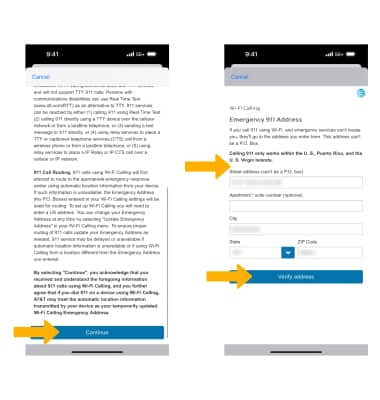
5. Select Update Emergency Address to change your address.
Note: To turn off Wi-Fi Calling, from the Wi-Fi Calling screen, select the  Wi-Fi Calling on This iPhone switch.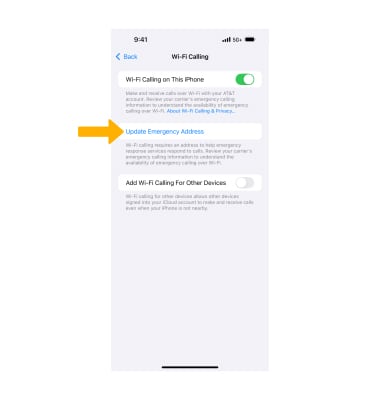
Use Wi-Fi calling
Making a call is the same whether on cellular or Wi-Fi. From the home screen, select the  Phone app. Dial the desired number, then select the Call icon.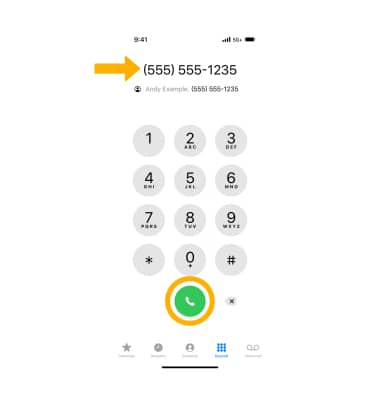
Use Wi-Fi calling with Dual SIM
With Dual SIM enabled, from the Cellular screen select the desired line > Wi-Fi Calling > ensure the Wi-Fi Calling on This Phone switch is in the On position. 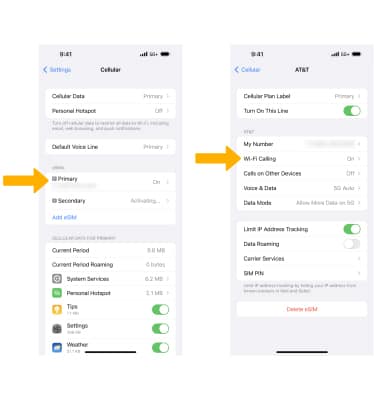
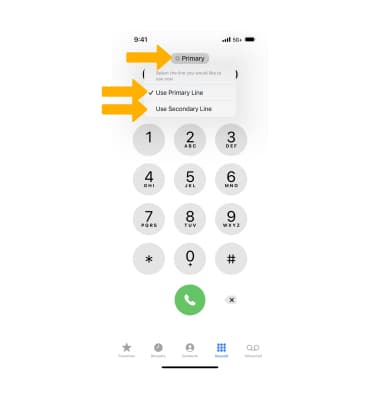
From the phone screen, select the current line, then select the desired option.