In this tutorial, you will learn how to:
• View Data Usage & Set Usage Alert
• View data usage on hotspot
View Data Usage & Set Usage Alert
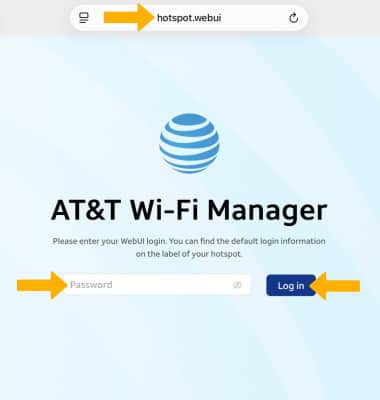
1. From your device's web browser, go to http://hotspot.webui. Enter your password, then select Log in.
Note: If you haven’t logged into the Web admin page before, the default password will be displayed on the Wi-Fi info screen. You will be prompted to change the admin password. Ensure that your device is connected to your GoLink™ 5G Hotspot's Wi-Fi network. For more information, please see the Connect Devices to Wi-Fi or Connect PC or Mac to Wi-Fi tutorials.
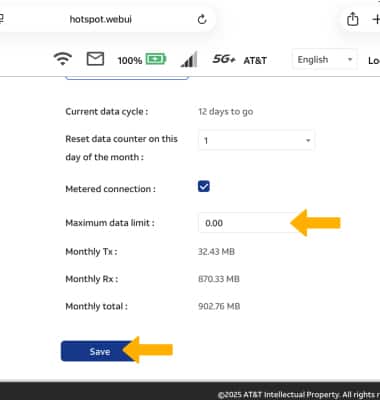
2. Select Data usage on the left side of the screen. Current data usage will be displayed. To enable a data usage limit, select the Metered connection checkbox.
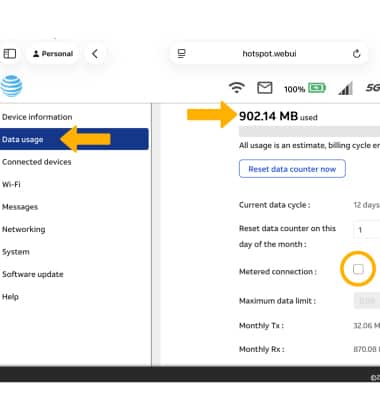
3. Enter the desired maximum data limit, then select Save.
View data usage on hotspot
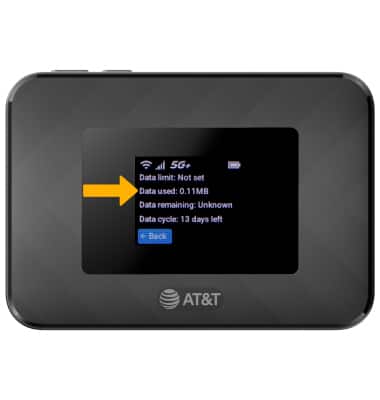
1. From the home screen, press the Select button.
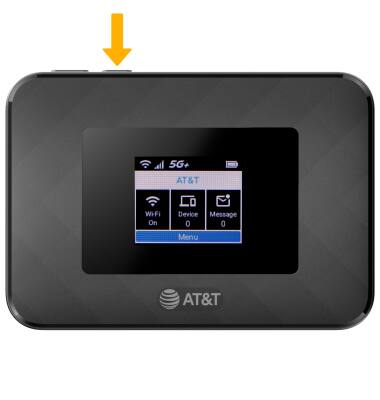
2. Press the Navigation/Power button to navigate to the Data Usage screen, then press the Select button.
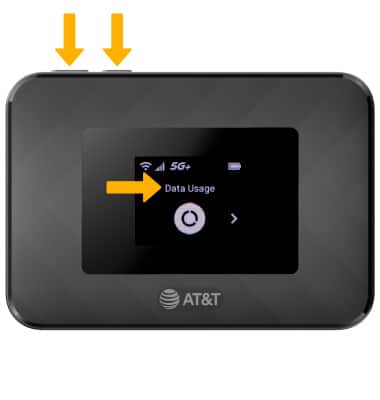
3. Data usage will be displayed.