In this tutorial, you will learn how to:
• View Wi-Fi network name and password
View Wi-Fi network name and password
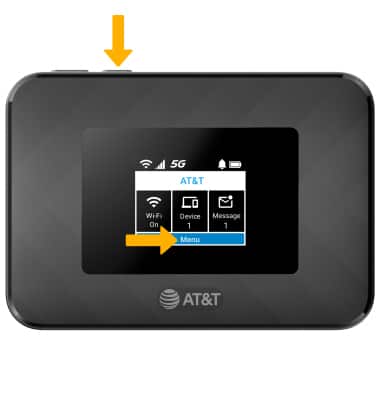
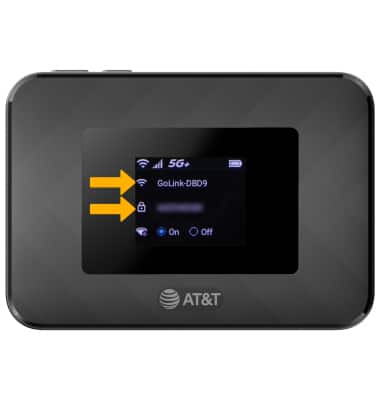
1. To view the Wi-Fi Network Name and password, from the home screen press the Select button to select Menu.
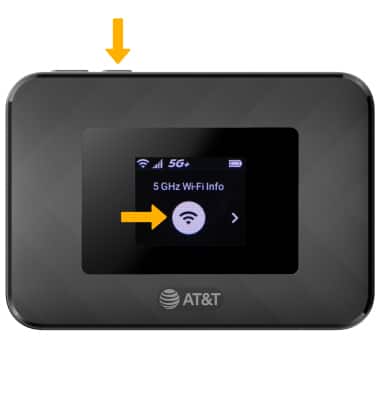
2. With 5Ghz Wi-Fi Info screen displayed, press the Select button.
3. The Wi-Fi Network Name and password will be displayed.
Edit Wi-Fi network name and password
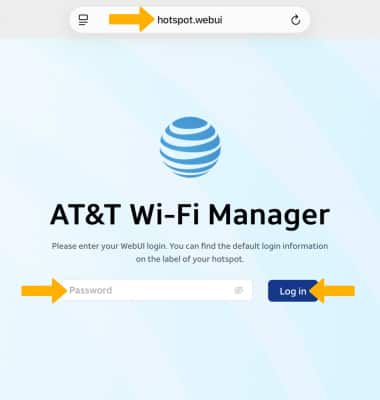
1. From your connected device's web browser, go to http://hotspot.webui. Enter your password, then select Log in.
Note: If you haven’t logged into the Web admin page before, the default password will be displayed on the Wi-Fi info screen. You will be prompted to change the admin password. Ensure that your device is connected to your GoLink™ 5G Hotspot's Wi-Fi network. For more information, please see the Connect Devices to Wi-Fi or Connect PC or Mac to Wi-Fi tutorials.
2. Select Wi-Fi on the left side of the screen, then select the Advanced tab.
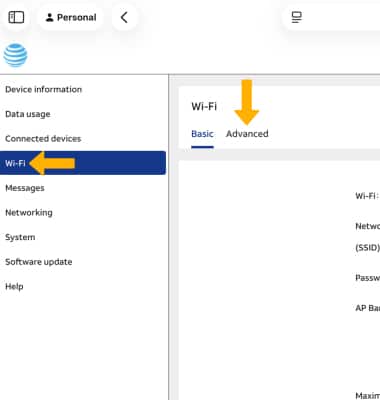
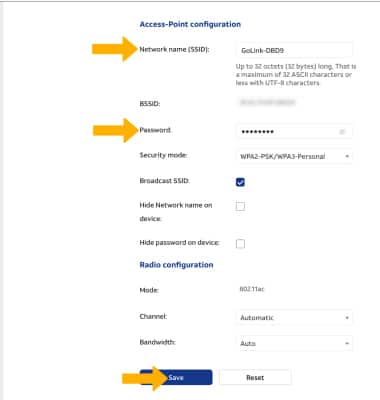
3. Edit the Wi-Fi Name and Password as desired, then select Save.
Note: Select OK to confirm. The Wi-Fi network will restart.