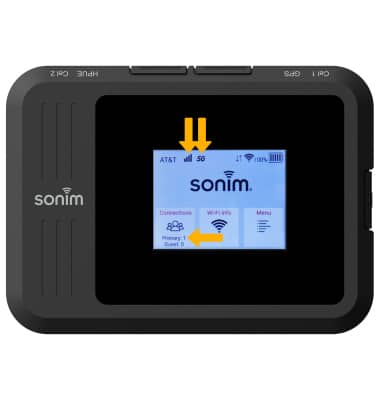
1. The device will display Signal bars and the 5G icon on the device home screen when successfully connected to Wi-Fi. The number of connected devices will be displayed on the home screen.
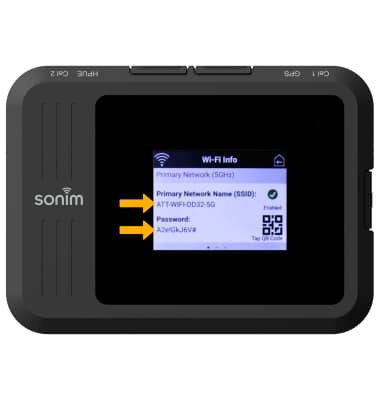
2. From the device home screen, select Wi-Fi Info.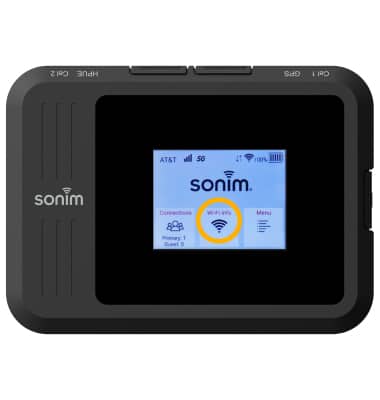
3. The Wi-Fi Network Name and password will be displayed.
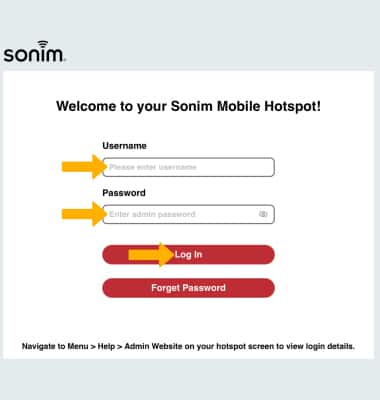
4. From your device's web browser, go to http://sonim.mobilehotspot. Enter your Username and Password, then click Log In.
Note: Ensure that your device is connected to the Sonim MegaConnect's Wi-Fi network. For more information, please visit the Connect Devices to Wi-Fi or Connect PC or Mac to Wi-Fi tutorials. If you haven’t logged into the Web admin page before, the default password will be ‘admin’. You may be prompted to change the admin password.
5. Click Connections.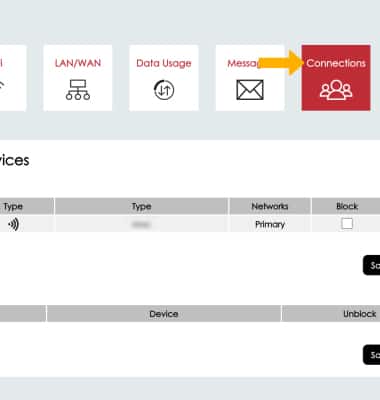
6. Connected devices will be displayed.
Note: Click the arrow under Status to view connected device and additional connection details.
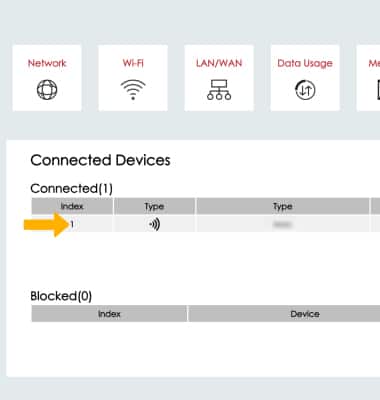
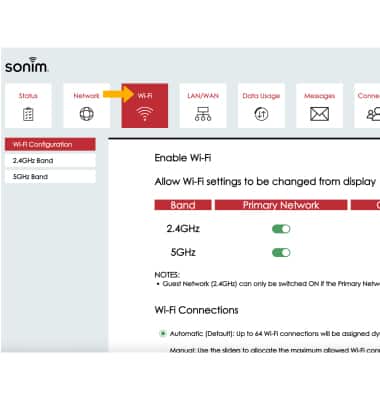
7. Click Wi-Fi to view Wi-Fi network information.