Deals
iPhone deals
Samsung Galaxy deals
Black Friday deals
Business employee
55+
Military
Active first responders
Retired responders
Nurses & physicians
Teachers
Union
Credit card
&More Benefits
Explore wireless
Phone plans
New phones & devices
Upgrade
Bring your own phone
Add a Line
Switch and save
Trade in your device
International phone plans
Shop new iPhones
Shop Certified Pre-Owned
iPhone 17
Samsung Galaxy S25
Why AT&T Wireless
Wireless help
More resources
Explore home internet
Internet plans
Fiber internet
Home Wi-Fi
Check availability
AT&T Internet Air
Moving services
Bundles
Gaming
Home business
Internet help
Speed test
More resources
Access from AT&T
Explore AT&T PREPAID
Prepaid plans
Prepaid phones
Bring your own phone
Prepaid deals
Prepaid account
Activate your service
Lease-to-Own
Home Phone Services
AT&T Phone
AT&T Phone – Advanced
Landline Phone
Lifeline
Phones & accessories
Digital phone help
Landline phone help
Bundles
Internet + Wireless
Internet + Phone
Home office
Smart watches & devices
Smart home
In-car Wi-Fi
All accessories
Headphones
Phone & tablet cases
Chargers
Screen protectors
Speakers & smart home
Internet & TV equipment
PopSockets & more
Gadgets & gaming
Accessory deals
Samsung Galaxy Note9 (N960U)

Hello Bixby

Hello Bixby allows you to quickly set reminders, create voice dictation, search and access content on your phone and on the internet.


INSTRUCTIONS & INFO
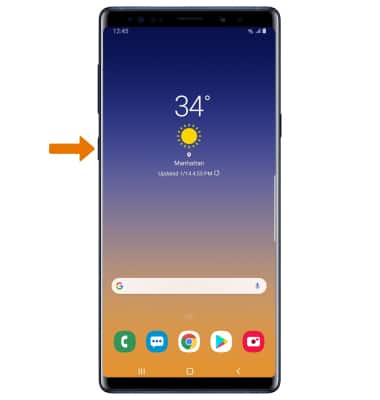
  1. ACCESS HELLO BIXBY: Press the Bixby button located under the Volume buttons.

    Note: To access and use Bixby, you must have and be logged into a Samsung account.
    Step 1

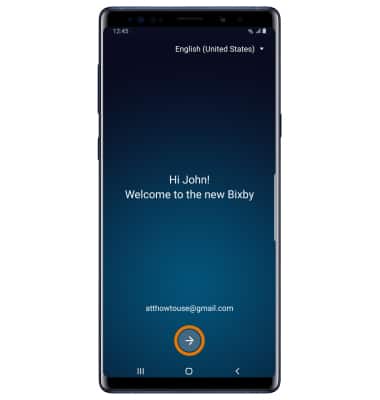
  2. Select the Arrow icon to continue.

    Step 2

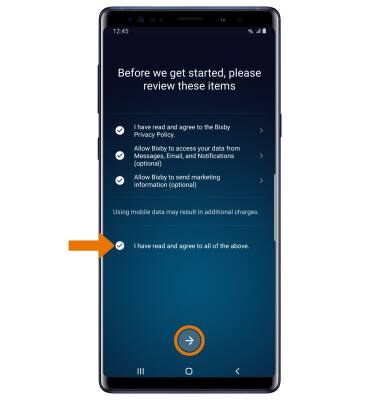
  3. Review the Terms and Conditions, then select I have read and agree to all of the above. Select the Arrow icon to continue.

    Note: You will be prompted with a Bixby tutorial, follow the prompts to continue to the Bixby app.
    Step 3

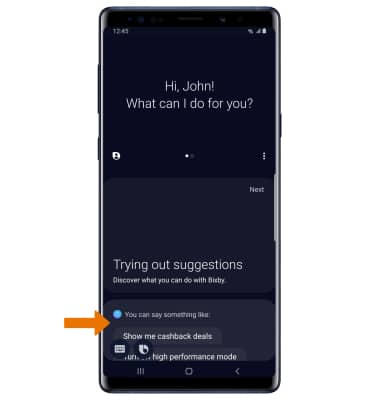
  4. Scroll throughout the Bixby app to find Food recommendations, Upcoming scheduled appointments, Reminders, Emails, News, Sports, Weather, and more. Select the corresponding action to interact with an application featured in the Bixby app.
    Step 4

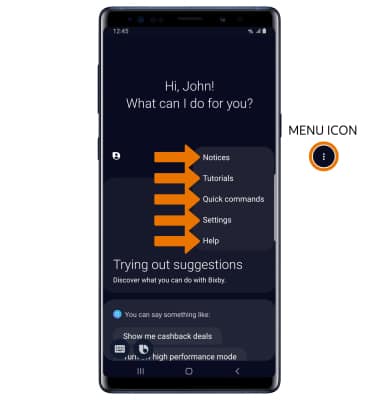
  5. CUSTOMIZE BIXBY: Select the Menu icon on the desired tab, then select the desired option.
    Step 5

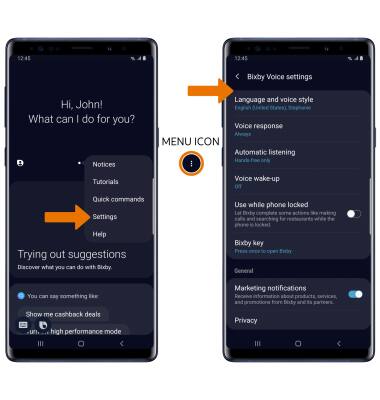
  6. ACCESS BIXBY SETTINGS: Select the Menu icon, then select Settings. Edit settings as desired.
    Step 6

Did you get the help you needed?


Did you get the help you needed?