- ACCESS MAIN BROWSER: From the home screen, select the Internet app.
Note: Upon first use, a popup with information about Secret mode will appear. This feature allows you to browse websites without cookies or history being saved, provides a separate set of bookmarks, and additional security to access. Select OK to continue.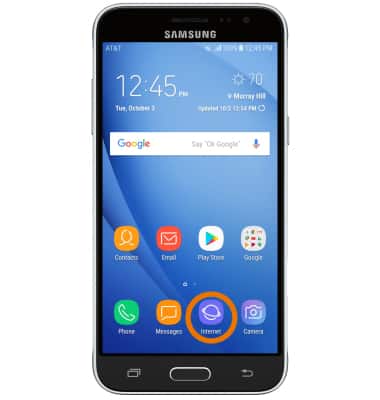
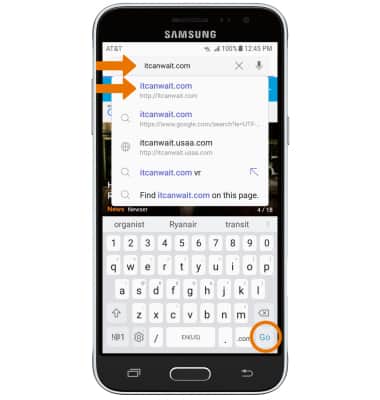
- NAVIGATE TO A WEBSITE: Select the Search field, then enter the desired website. Select a suggestion from the pre-populated list or select the Go key.
- CREATE A BOOKMARK: From the desired website, select the Menu icon then select Add to Bookmarks.
Note: Bookmarks can also be created by selecting the Star icon in the Search field.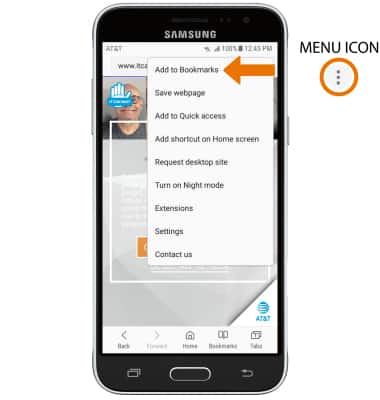
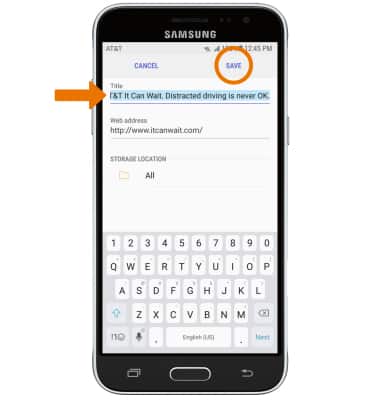
- Enter the desired bookmark name, then select SAVE.
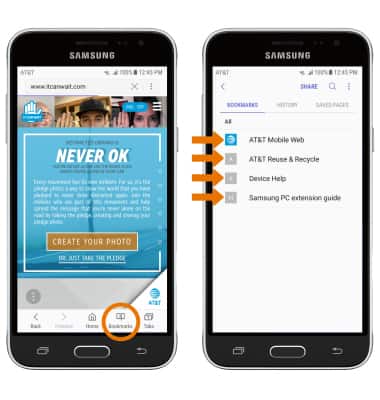
- ACCESS BOOKMARKS: From the Internet app, select Bookmarks then select the desired bookmark.
- ACCESS BROWSER TABS: Select Tabs.
Note: The number on the browser tab icon indicates the number of open tabs.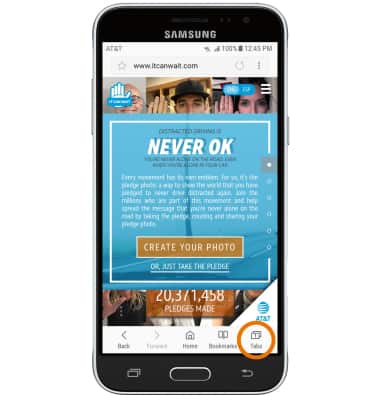
- OPEN A NEW TAB/CLOSE A TAB: From the Tabs screen, select NEW TAB to open a new browser tab. Select the X icon on a desired tab to close a tab. Select CLOSE ALL to close all tabs at once.
Note: You can also select TURN ON SECRET MODE to open a “Secret mode” tab. Secret mode helps you protect your privacy while browsing the internet. When in secret mode, the browser background changes to dark grey. Secret mode has a separate bookmark list that can be password protected. When you turn off Secret mode, all history and cookies are deleted. To set a Secret mode password from the browser, select the Menu icon > Settings > Privacy > Secret mode security > Use password switch > enter the desired password > select CONTINUE > enter the desired password again > OK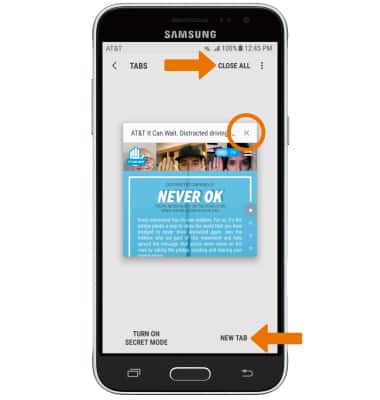
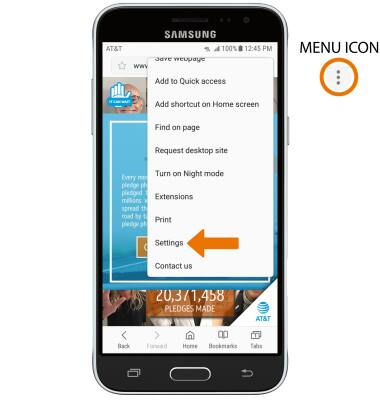
- BROWSER SETTINGS: Access your browser settings to clear browsing history, set a default homepage, adjust text size, block or unblock pop-ups, and change the default browser. Select the Menu icon, then select Settings.
Browse the Web
Samsung Galaxy Express prime (J320A)
Browse the Web
Browse the web, add bookmarks, and access browser settings to clear history and block or unblock pop-ups.
Browse the web
Browse the web, manage browser tabs, and bookmarks.
Browse the web
1:47
INSTRUCTIONS & INFO