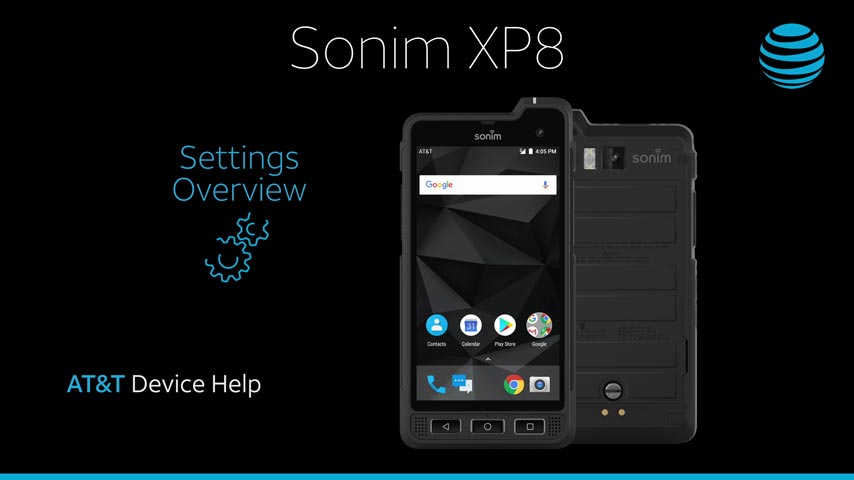
 Before setting up your device, make sure you have completed the online activation process. Please visit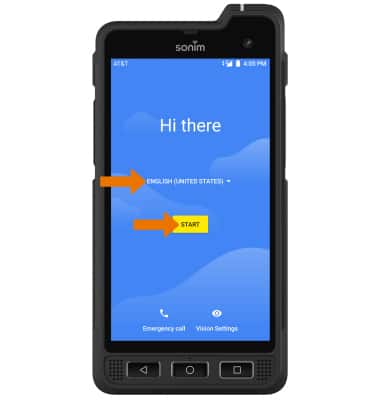
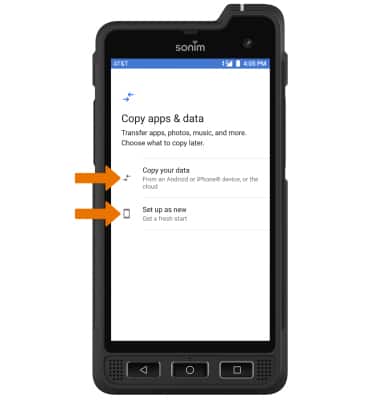
2. If you would like to restore data from your old device to your new device, select Copy your data and follow the prompts. Select Set up as new to set up the device without restoring.
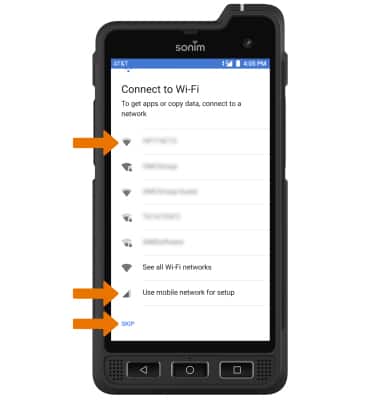
3. If you would like to connect to a Wi-Fi network, select the desired network name and follow the on-screen prompts. Select SKIP to continue without connecting to a Wi-Fi network. Scroll to and select Use mobile network for setup to continue on your mobile network.
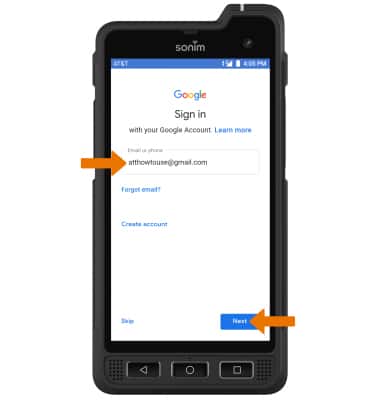
4. Logging into a Google account is required if you intend to use Google Services such as the Play Store, Gmail, Google Maps, and more. If you would like to add your Google account, enter your Email or phone number then follow the prompts. If you do not have an account but would like to add one, select Create account. If you would like to continue without setting up an account, select Skip. Select Next to continue.
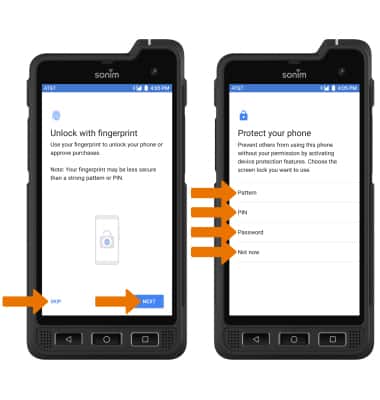
5. Select NEXT and follow the prompts to set up your fingerprint lock. To select a different security lock, select SKIP then select the desired option and follow the on-screen prompts for setup. To proceed without activating device protection features, select Not now.
6. Review the Google services prompt, then select the desired switches. When finished, select ACCEPT.
7. Review the Google Assistant prompt. Select CONTINUE to continue setting up the device.
Note: You will only receive this screen if you added your Google account.
8. Follow the prompts to complete device setup.
What's in the box?
• Nano SIM
• Charging block
• USB-C Cable
• Screwdriver
• Quick Start Guide