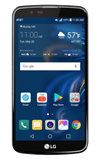
- CHANGE WALLPAPER: Select and hold an empty space on the home screen > Wallpapers > navigate to the desired wallpaper > SET WALLPAPER.
Note: Live wallpapers can increase battery consumption.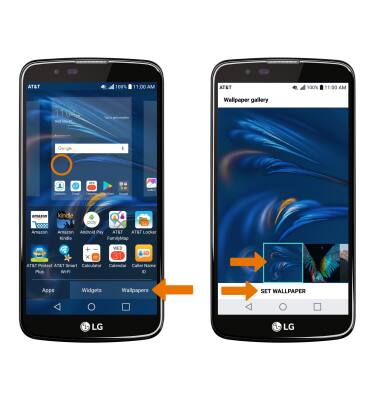
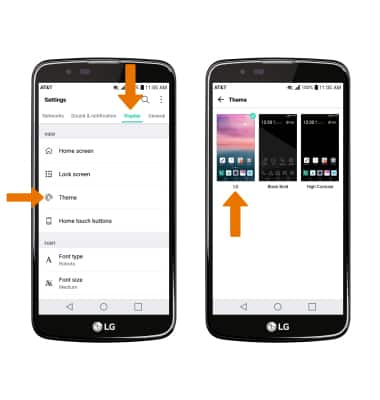
- CHANGE THE DEVICE THEME: From the Settings menu, select the Display tab > Theme > desired Theme.
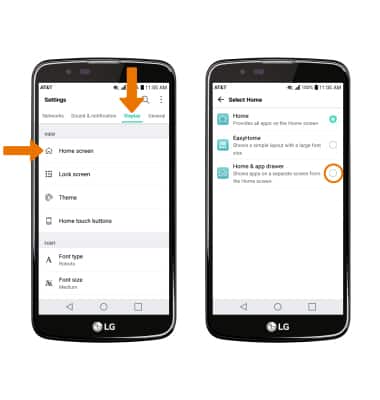
- ENABLE THE APPS TRAY: From the Settings menu, select the Display tab > Home screen > Select Home > Home & app drawer.
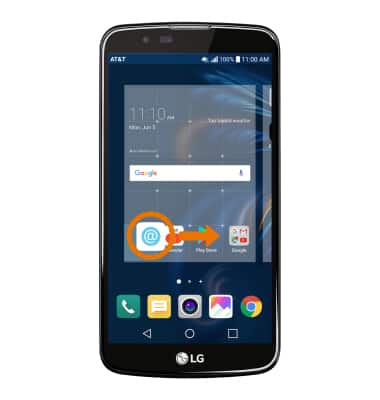
- ADD AN APP TO THE HOME SCREEN: Select and drag the desired app to the desired location on the home screen.
Note: To add an app to the home screen, the Apps tray must be enabled.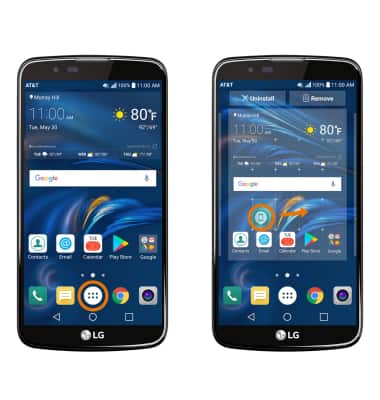
- ADD A WIDGET: Select and hold an empty space on the home screen > Widgets > select and hold the desired widget > drag to the desired location.
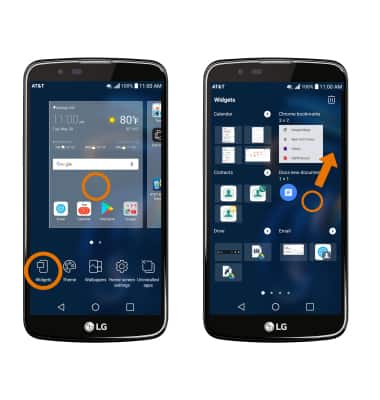
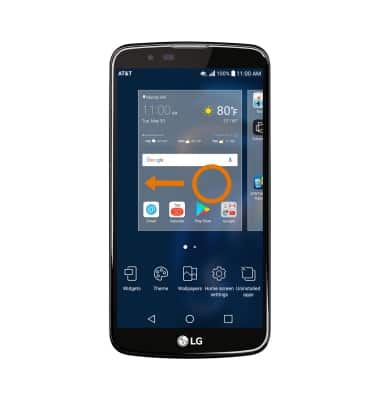
- SET PRIMARY HOME SCREEN PANEL: Select and hold an empty space on the home screen > select and drag the desired panel all the way to the left.
- ADD/REMOVE HOME SCREEN PANEL: Select and drag a desired app to the right of the screen to add a new home screen panel.
Note: To remove a home screen panel, select and drag all apps and widgets onto another panel, or delete/disable them.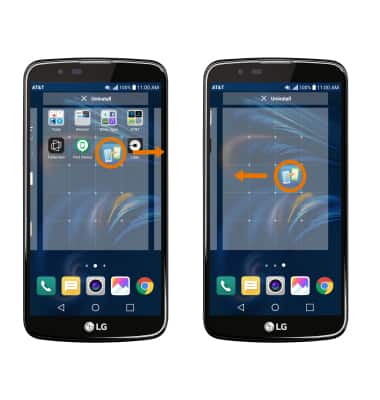
- ADD A FOLDER: Select and drag a desired app on top of another desired app. This will automatically create a new folder.
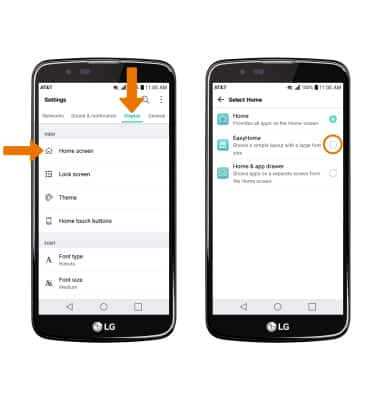
- TURN EASYHOME ON/OFF: From the Display tab, select Home screen > Select Home > EasyHome.
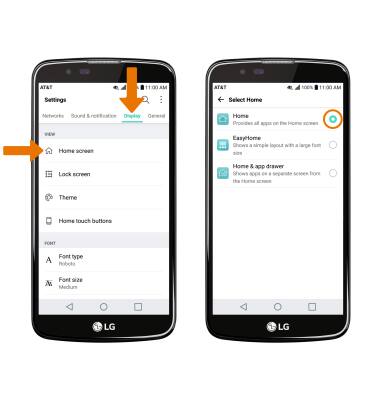
- To switch back to the standard home screen, from the Settings menu select the Display tab > Home screen > Select Home > Home.
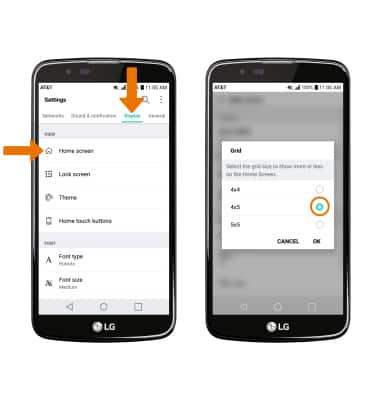
- CHANGE GRID SIZE OF HOME SCREEN ICONS: From the Settings menu, select the Display tab > Home screen > Grid > desired size preference.
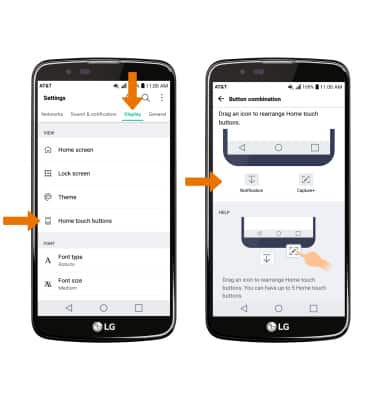
- SET HOME TOUCH BUTTONS: To adjust the 3 icons that appear at the bottom of the screen, from the Settings menu select the Display tab > Home touch buttons > Button combination > desired options.
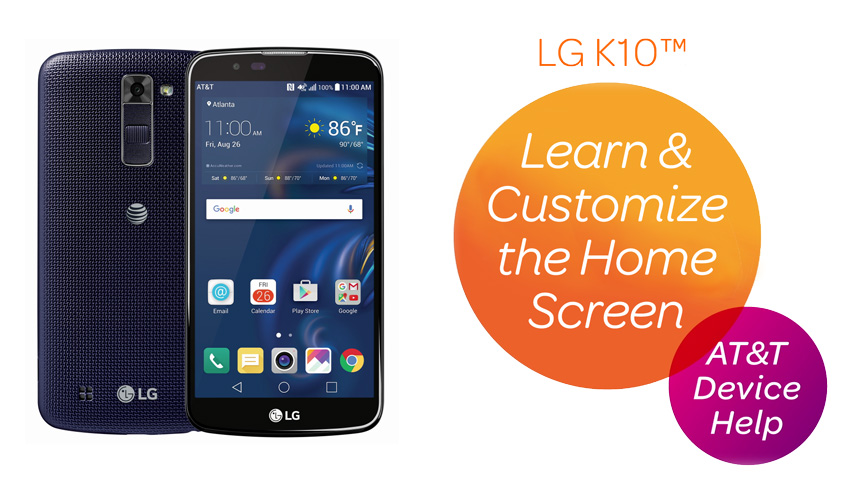
Learn & Customize the Home Screen
LG K10 (K425)
Learn & Customize the Home Screen
Add shortcuts and widgets, access the notification panel, changing wallpaper, and more.
Learn and Customize the Home Screen
Add shortcuts and widgets, access the notification panel, changing wallpaper, and more.
Learn and Customize the Home Screen
1:47
INSTRUCTIONS & INFO