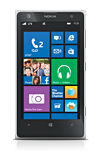
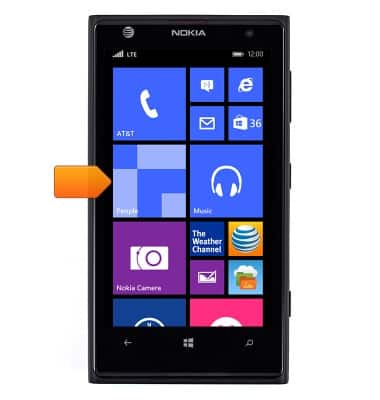
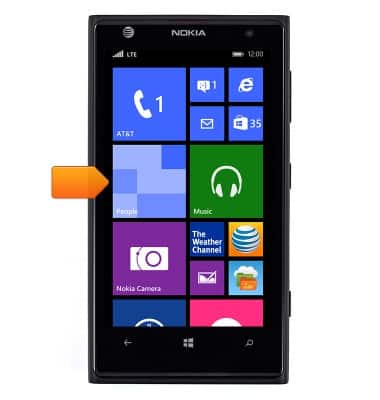
- From the Start screen, tap People.
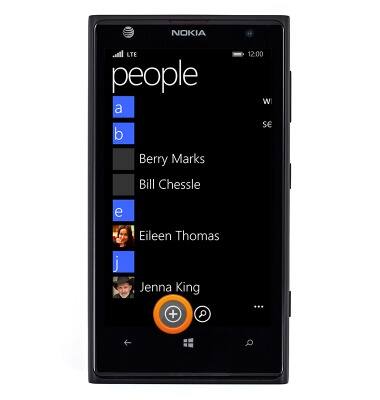
- Tap the Plus icon to add a new contact.
- Tap the account you wish to save your contact to.
Note: AT&T Address Book was chosen for this demonstration.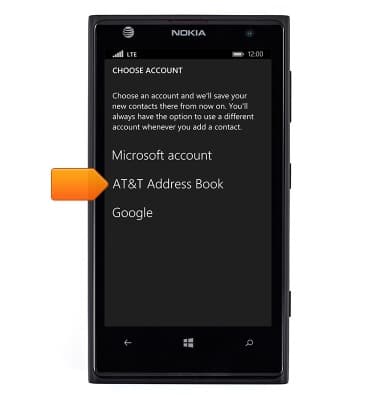
- Tap the Name field, then enter the desired name.
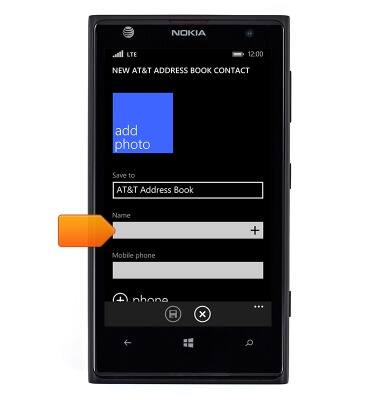
- Scroll to, then tap the Mobile phone field.
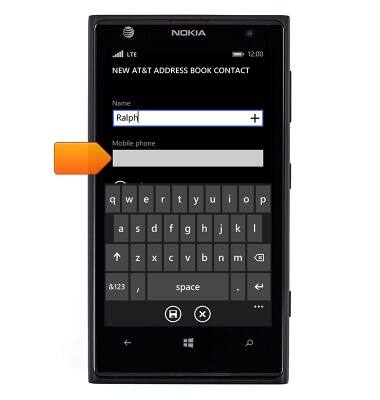
- Enter the desired phone number.
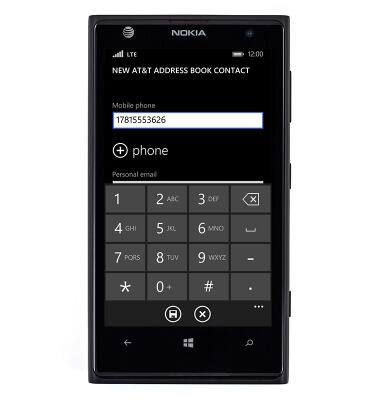
- Scroll up, then tap add photo.
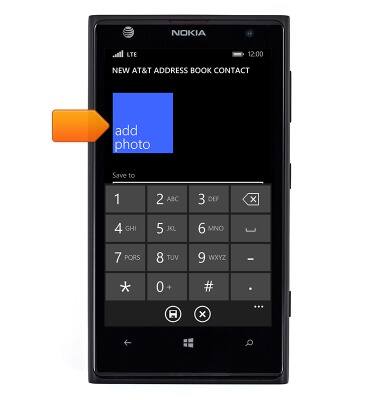
- Tap albums.
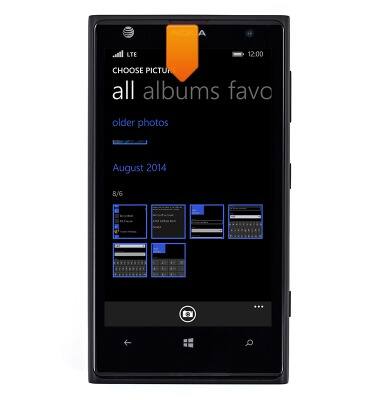
- Scroll to, then tap the desired album.
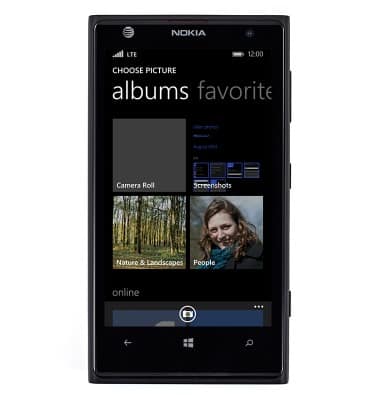
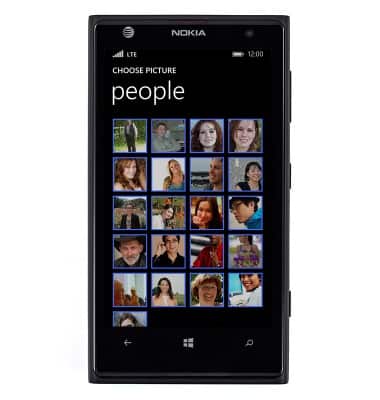
- Scroll to, then tap the desired photo.
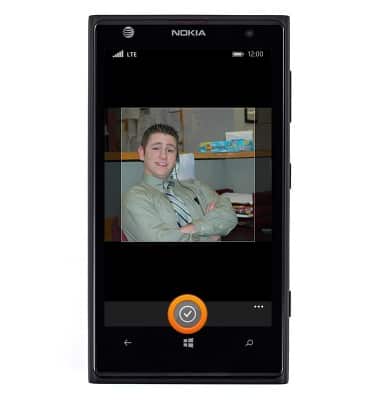
- Touch and drag to crop the photo, then tap the Check icon.
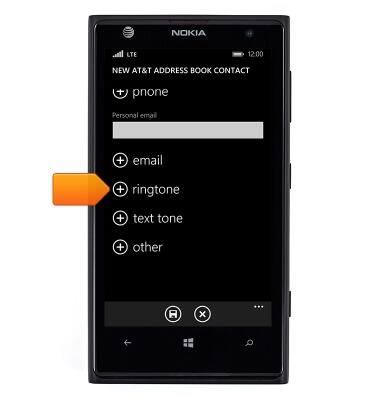
- Scroll to, then tap ringtone.
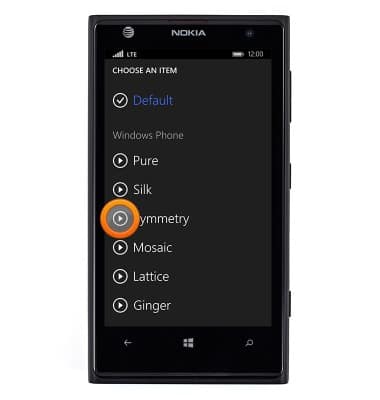
- Tap the Play icon next to a ringtone to preview.
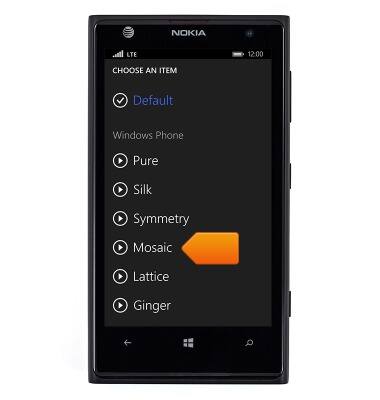
- Tap the desired ringtone.
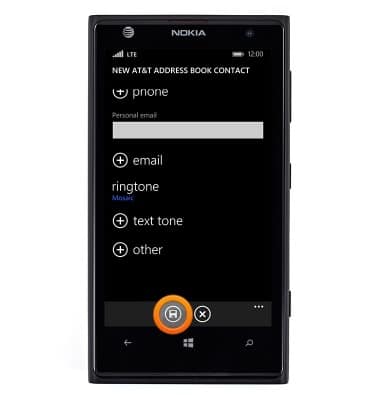
- Edit any additional settings, then tap the Save icon.
- To edit a contact, from the Start screen, tap People.
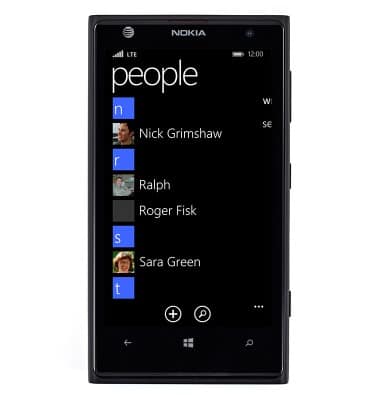
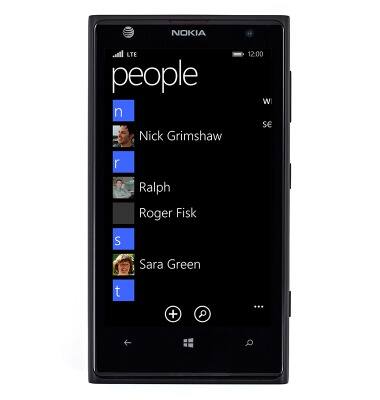
- Scroll to, then tap the desired contact.
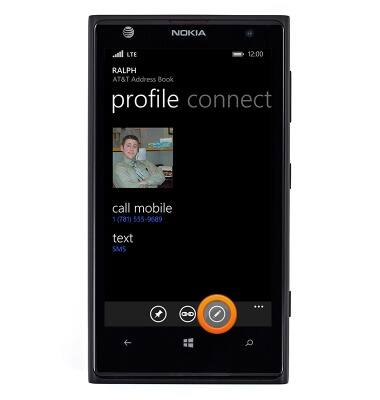
- Tap the Edit icon.
- Make the desired changes.
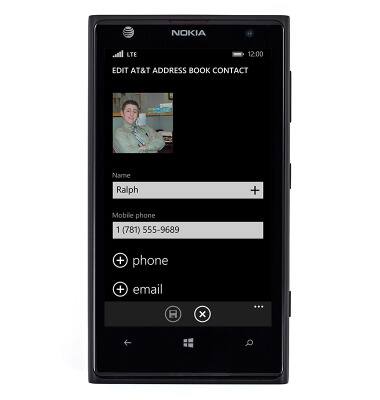
- Tap the Save icon.
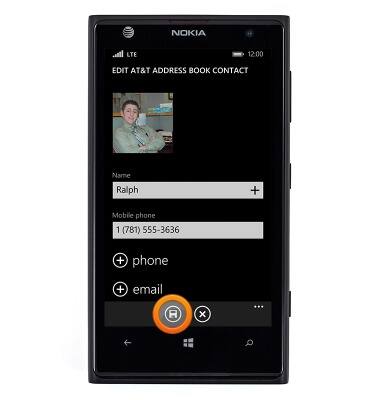
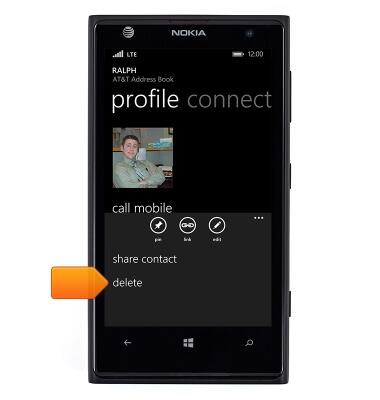
- To delete a contact, from the Start screen, tap People.
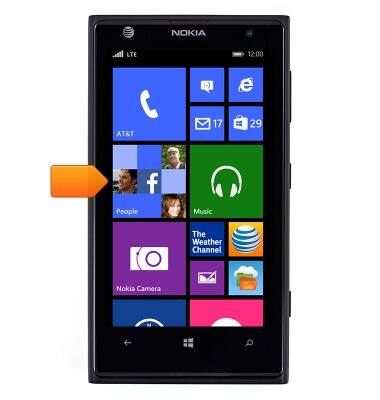
- Scroll to, then tap the desired contact.
- Tap the Menu icon.
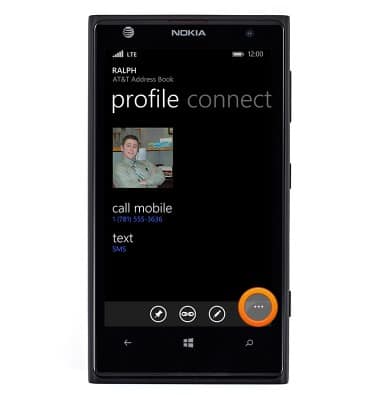
- Tap delete.
Contacts
Nokia Lumia 1020
Contacts
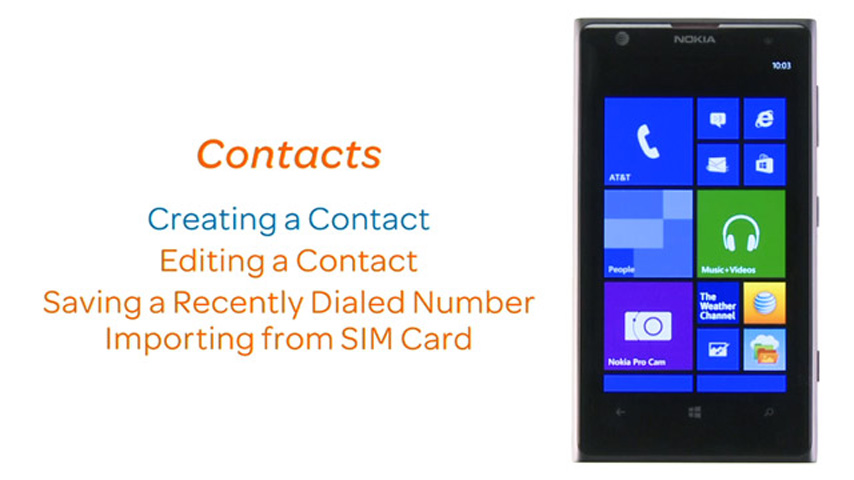
Add, view, delete, and customize contacts by adding a picture or ringtone.
Contacts
Create a new contact, add a recent call as contact, import from SIM, edit a contact.
Contacts
2:39
INSTRUCTIONS & INFO