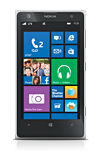
- AT&T Navigator makes your travels easier with GPS-guided maps and directions, traffic alerts, and additional navigation features that give you real-time, on-the-road coverage to help you avoid traffic, find the best routes, and more.
Note: Separate subscription may be required. Data rates apply. For more information, visit the AT&T Navigator website.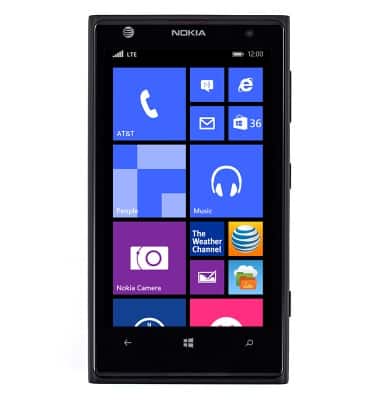
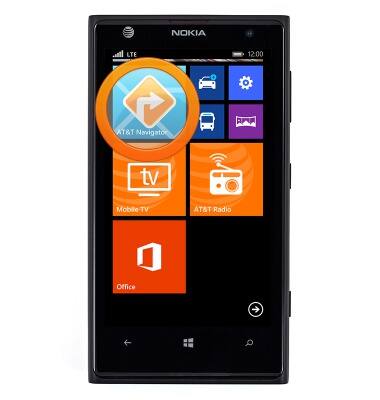
- From the Start screen, scroll to, then tap AT&T Navigator.
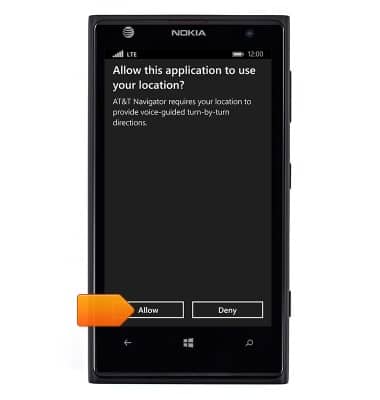
- Tap Allow.
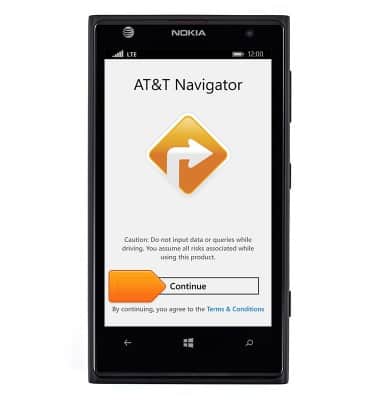
- Tap Continue.
- Tap the desired option.
Note: 'no' is chosen for this demonstration.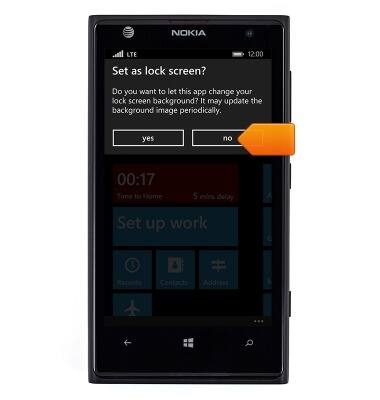
- Tap the desired option.
Note: 'Yes' is chosen for this demonstration.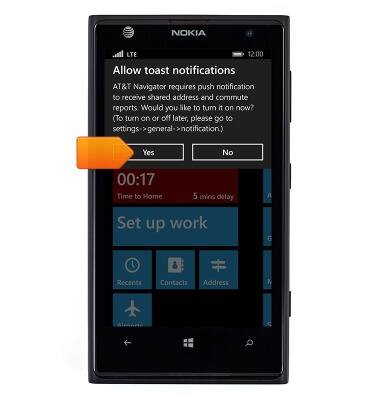
- AT&T Navigator is now ready for use.
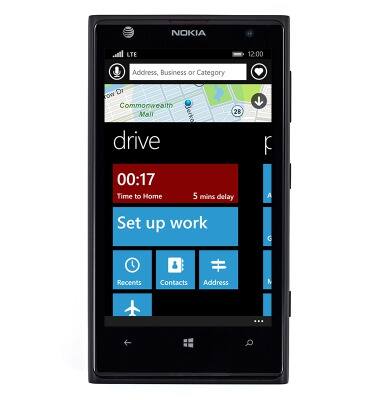
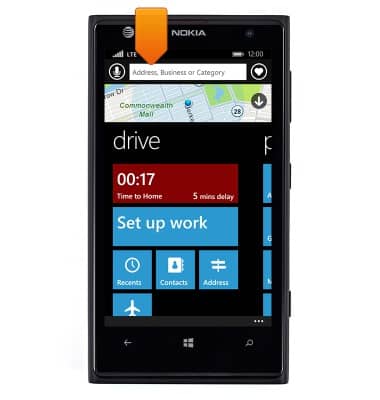
- For on-screen directions, tap the Search field.
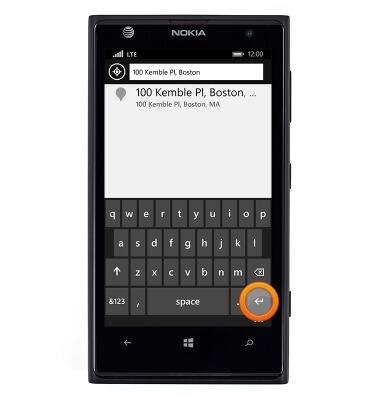
- Enter the desired address, then tap the Enter icon.
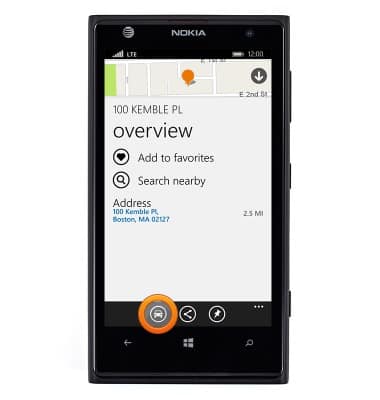
- Tap the Drive icon.
- Tap the desired route.
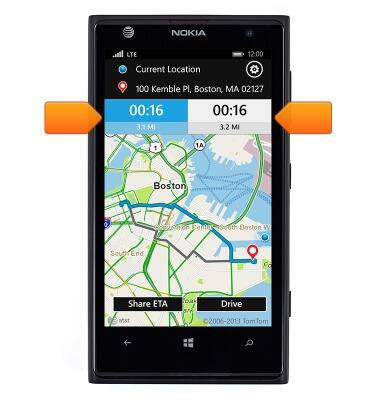
- Tap Drive.
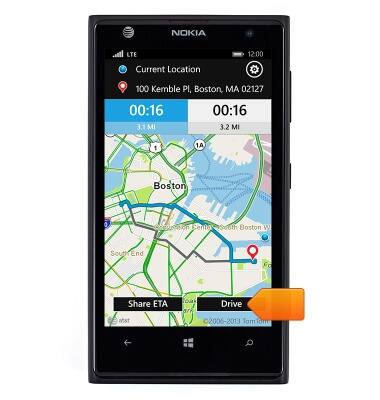
- Follow the on-screen directions.
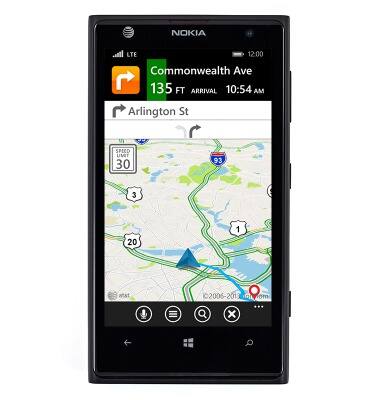
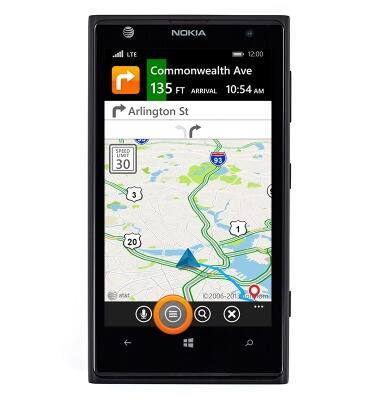
- To view written directions, tap the Route icon.
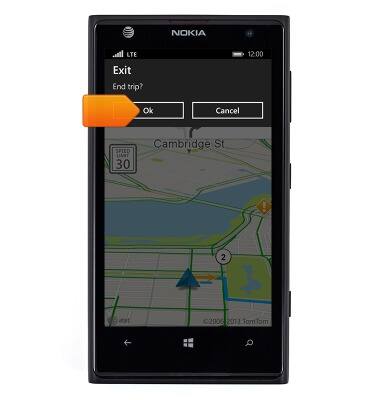
- To exit navigation, tap the Exit icon.
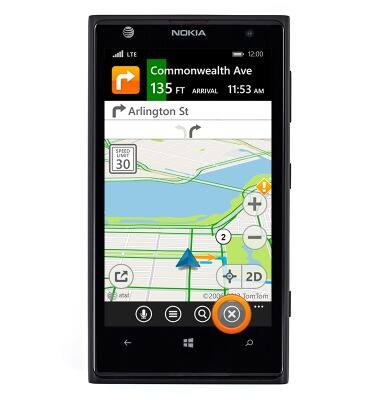
- Tap Ok.
AT&T Navigator
Nokia Lumia 1020
AT&T Navigator
Get directions and navigation using AT&T Navigator.
INSTRUCTIONS & INFO