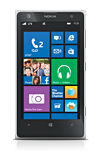
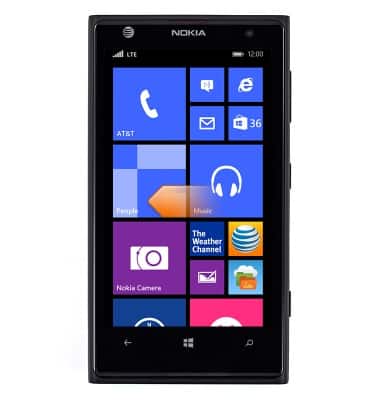
- From the Start screen, swipe left.
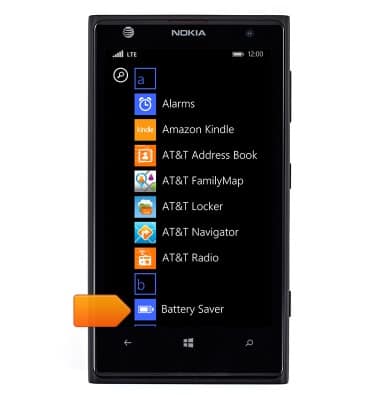
- Scroll to, then tap Battery Saver.
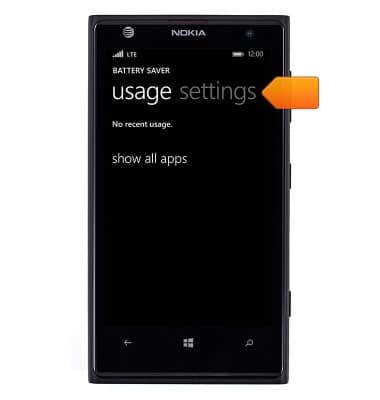
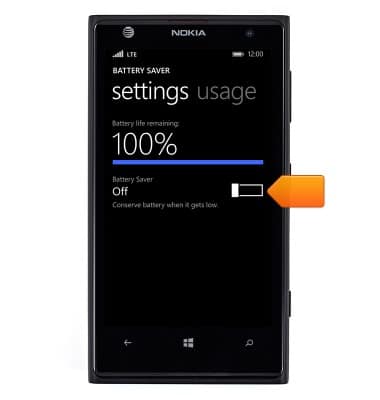
- Battery usage will be displayed. To adjust battery saver options, tap settings.
- Tap the Battery Saver switch to toggle battery saving mode on.
- Toggle on auto-brightness to conserve battery.
Note: From the Start screen, swipe left > Scroll to then tap 'Settings' > Scroll to then tap 'brightness' > Tap the On/Off switch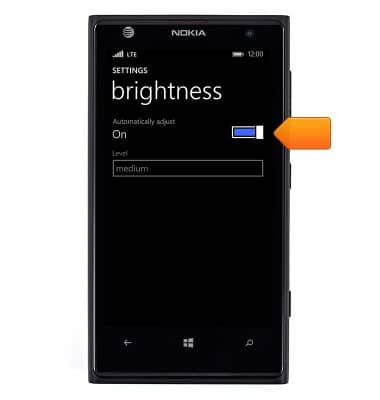
- Toggle Wi-Fi and Bluetooth off to prolong battery life.
Note: Swipe down from the Notification bar > Tap the desired icon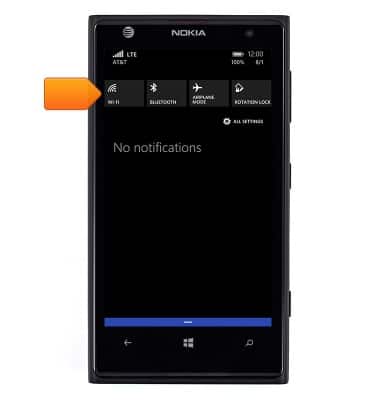
- Toggle Location services off to prolong battery life.
Note: From the Start screen, swipe left > Scroll to then tap 'Settings' > Scroll to then tap 'location' > Tap the Location services switch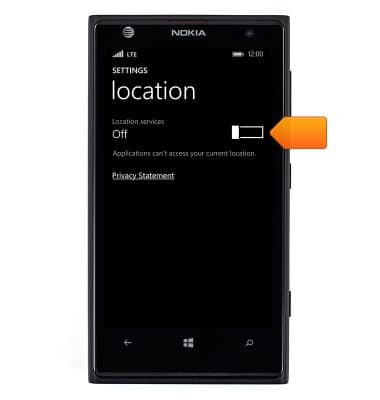
- Toggle automatic application updates off to prolong battery life.
Note: From the Start screen, swipe left > Scroll to then tap 'Settings' > Swipe left to the 'applications' menu > Scroll to then tap 'store' > Tap the 'Update apps automatically' switch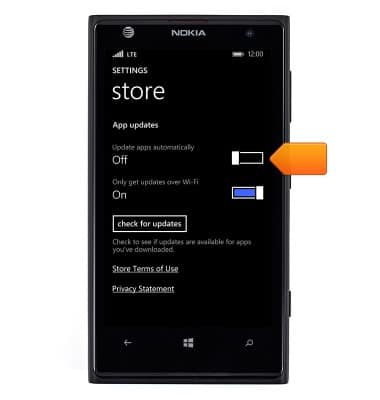
- Toggle account auto-sync options off to prolong battery life.
Note: From the Start screen, swipe left > Scroll to then tap 'Settings' > Tap 'email+accounts' > Tap 'Microsoft account' > Tap the 'Download new content' drop-down > Tap the desired option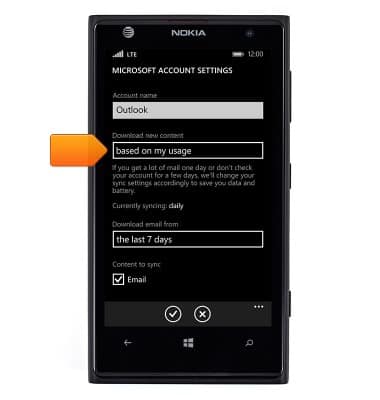
- Toggle Mobile data off to prolong battery life.
Note: From the Start screen, swipe left > Scroll to then tap 'Settings' > Scroll to then tap 'cellular+SIM' > Tap the 'Data connection' switch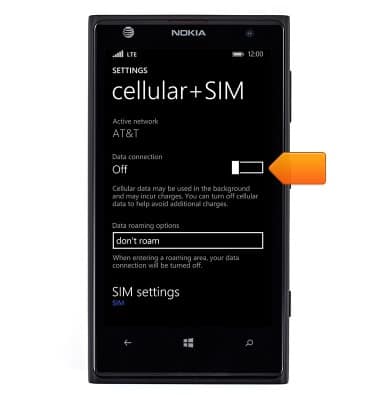
Battery life
Nokia Lumia 1020
Battery life
Tips & tricks to extend your battery performance.
INSTRUCTIONS & INFO