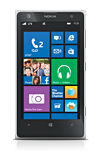
- To rearrange tiles, touch and hold the desired tile.

- Drag the tile to the desired location.

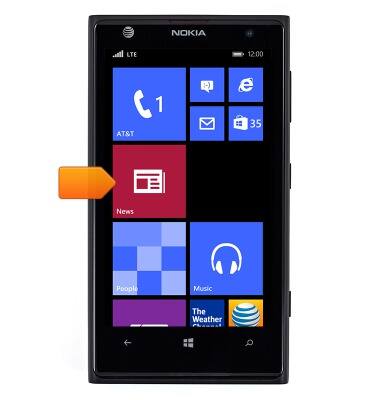
- Tap the tile.
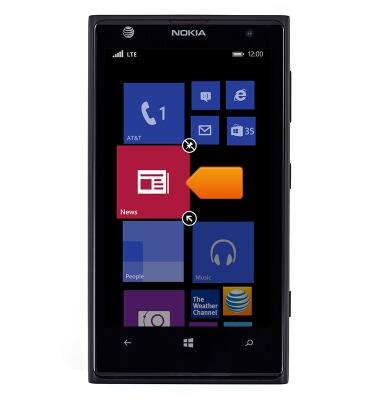
- To remove a tile, touch and hold the desired tile.
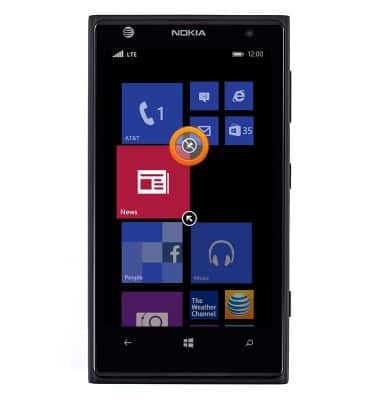
- Tap the Unpin icon.
- To add a new tile, from the Start screen, swipe left.
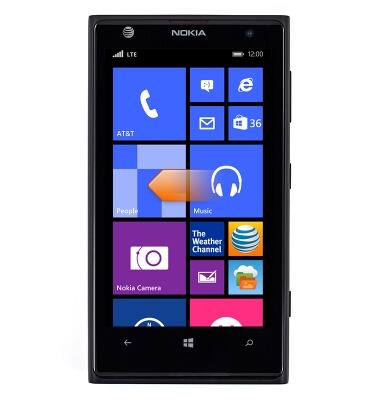
- Touch and hold the desired application.
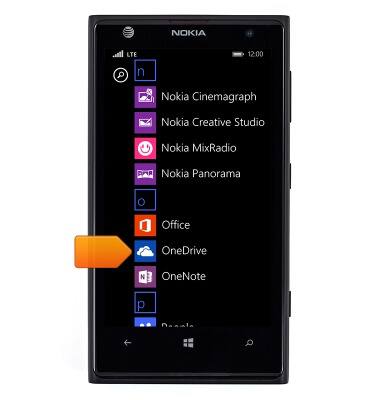
- Tap pin to start.

- To change the size of tiles, touch and hold the desired tile.

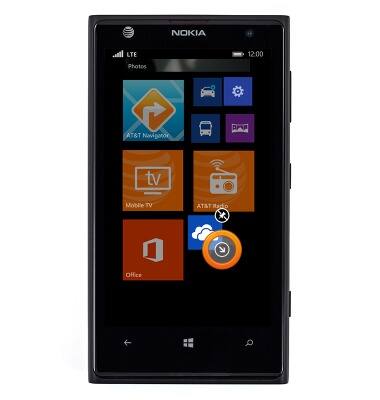
- Tap the Arrow icon to decrease tile size.
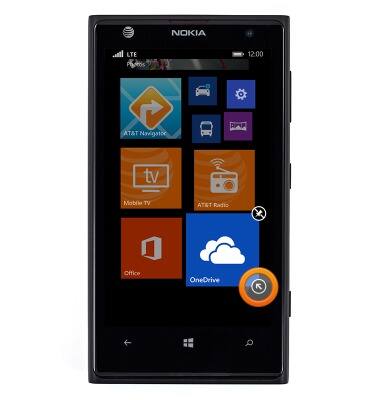
- Tap the Arrow icon again to increase tile size.
- To add a third column to the Start screen, from the Start screen, swipe left.
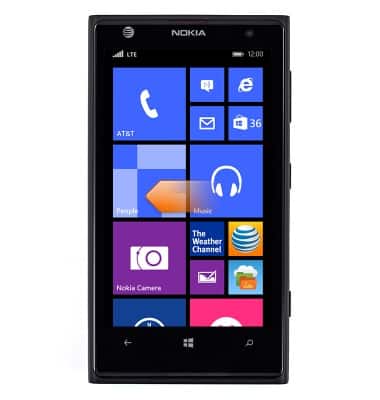
- Scroll to, then tap Settings.

- Scroll to, then tap start+theme.
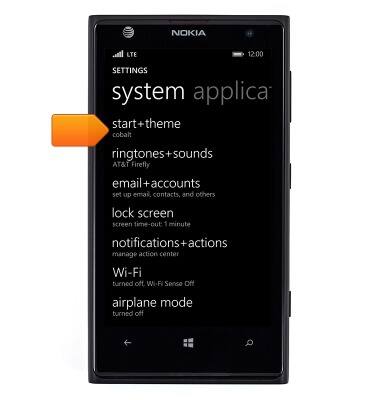
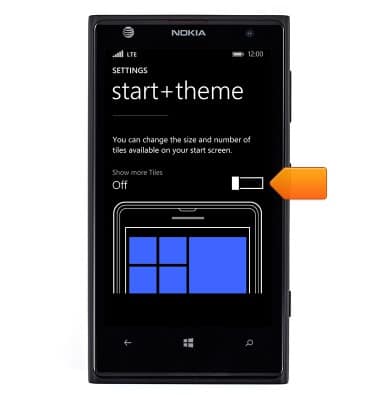
- Scroll to, then tap the Show more Tiles switch.
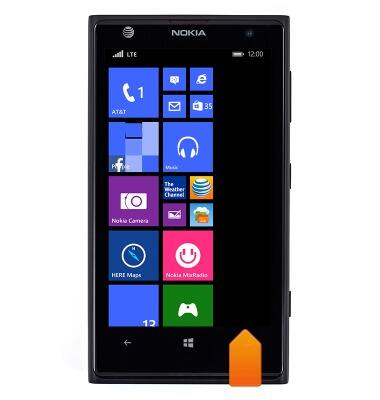
- A third column will now appear on the Start screen.
- To change the screen brightness, from the Start screen, swipe left.
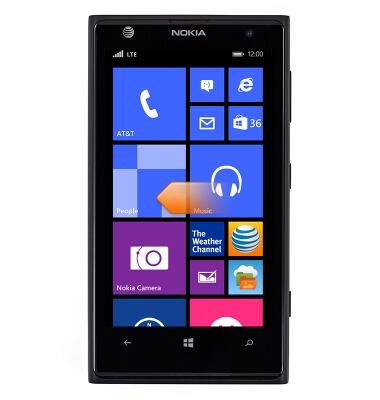
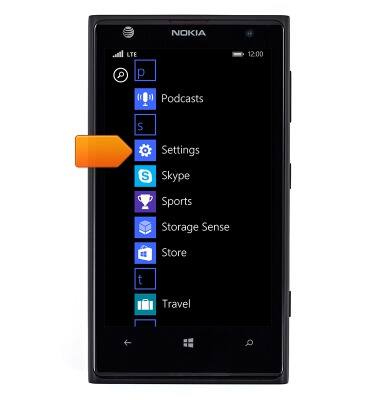
- Scroll to, then tap Settings.
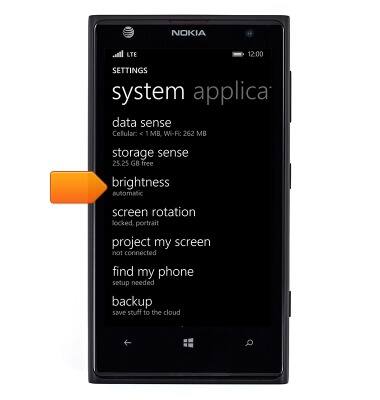
- Scroll to, then tap brightness.
- Tap the Automatically adjust switch.
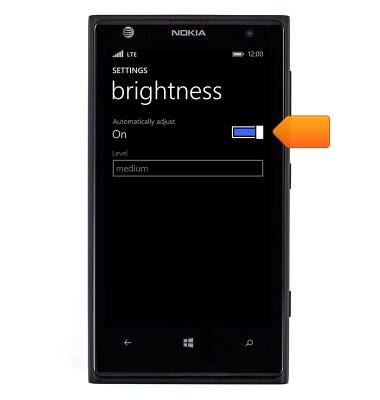
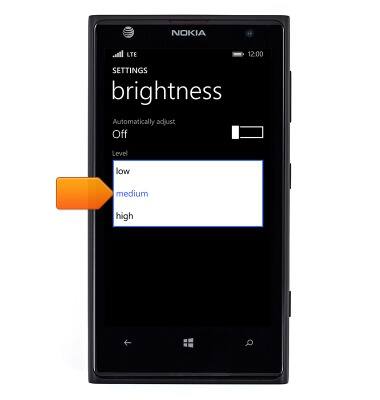
- Tap the Level field.
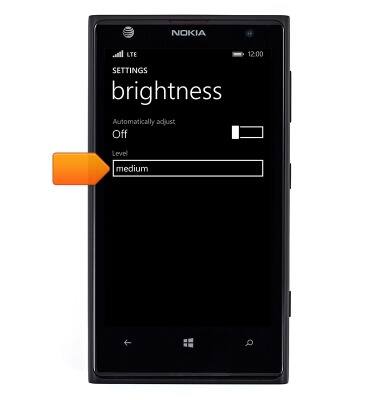
- Tap the desired brightness level.
Learn & customize the home screen
Nokia Lumia 1020
Learn & customize the home screen
Add shortcuts and widgets, access the notification panel, changing wallpaper, and more.
Interacting with the Start screen
Review and explanation of home screen icons and menus, customize home screen, touchscreen gestures.
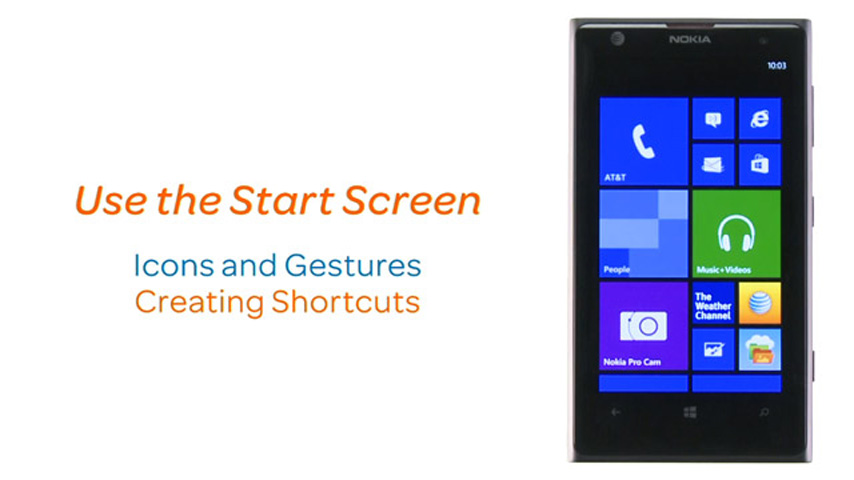
Interacting with the Start screen
1:46
INSTRUCTIONS & INFO