
- From the home screen, press the Right Soft key.

- Select Calendar, then press the Center Nav key.

- To change the calendar view, press the Left Soft key.

- Select Weekly View or Monthly View, then press the Center Nav key.

- To create a new event, from the calendar view, press the Center Nav key.

- Select New Appointment or New To do, then press the Center Nav key.
Note: This tutorial selects "New Appointment."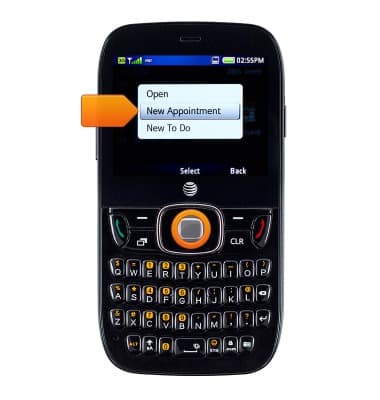
- Enter the desired subject
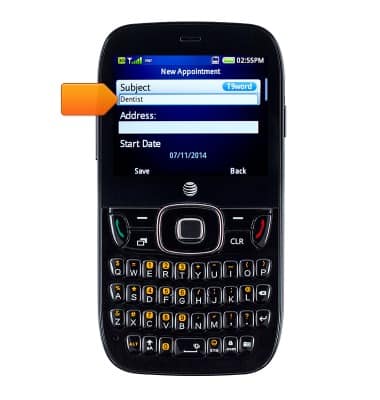
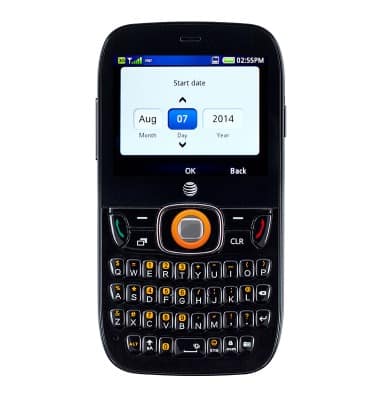
- Select Start Date, then press the Center Nav key.
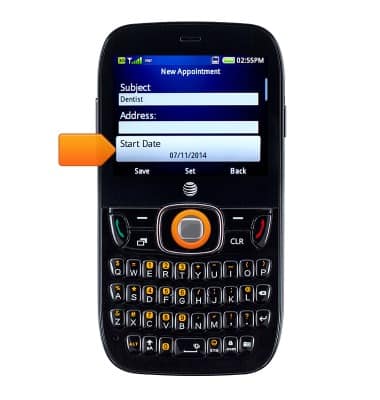
- Using the Navigation keys, select the desired start date.
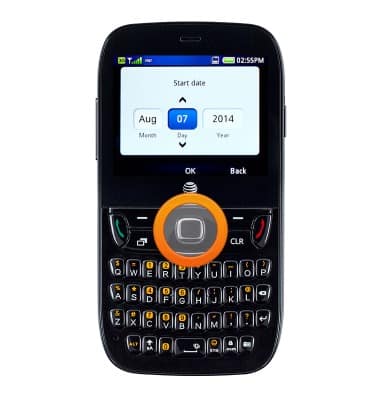
- Press the Center Nav key to confirm.
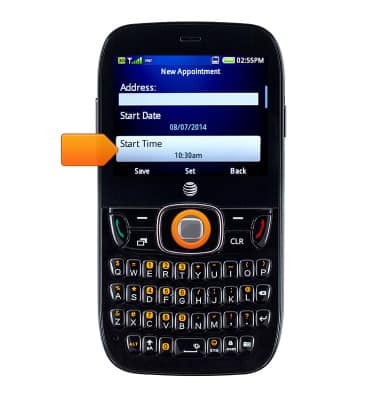
- Select Start Time, then press the Center Nav key.
- Using the Navigation keys, select the desired start time.

- Press the Center Nav key to confirm.

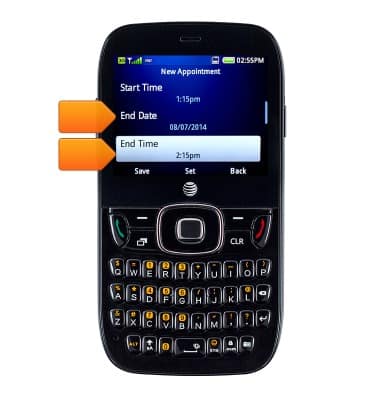
- Repeat the steps # 10 - 14 to set End date and End Time.
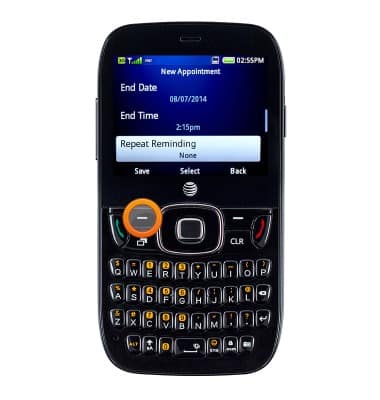
- Adjust any other desired options, then press the Left Soft key to save the event.
- To edit an event, select the desired date, then press the Center Nav key.

- Select Open, then press the Center Nav key.
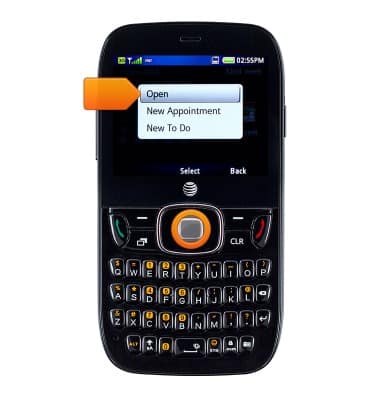
- Select the desired event, then press the Center Nav key.

- Press the Center Nav key to edit.

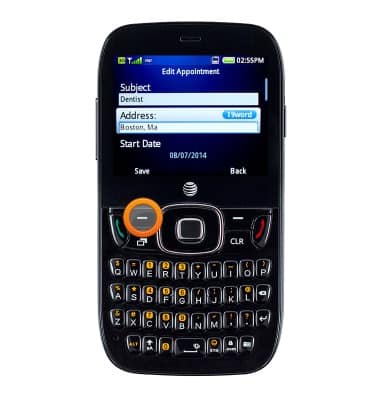
- Make the desired changes.
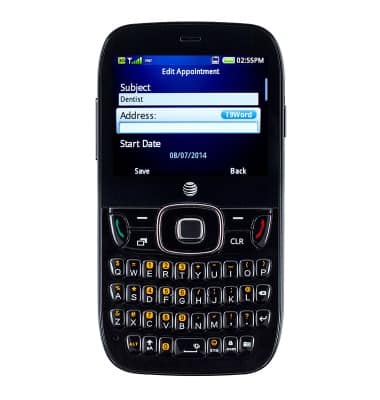
- Press the Left Soft key to save the changes.
- To delete an event, from the calendar view, select the desired date, then press the Center Nav key.

- Select Open, then press the Center Nav key.
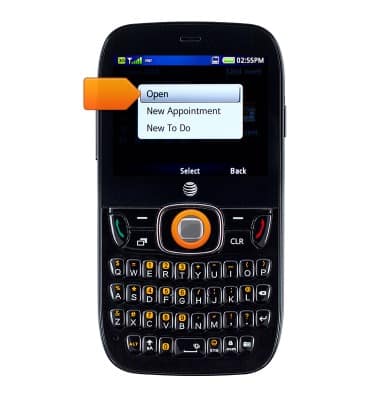
- Select the desired event, then press the Left Soft key.

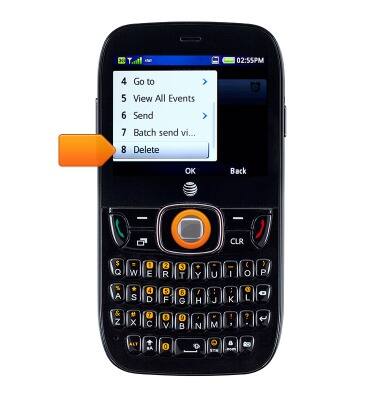
- Select Delete, then press the Center Nav key.
- Press the Left Soft key to confirm.

- Event icon displayed in the Notifications bar indicates an upcoming event in the calendar.

Calendar
ZTE Z432
Calendar
This article describes how to access the calendar.
INSTRUCTIONS & INFO