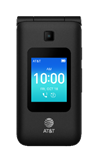
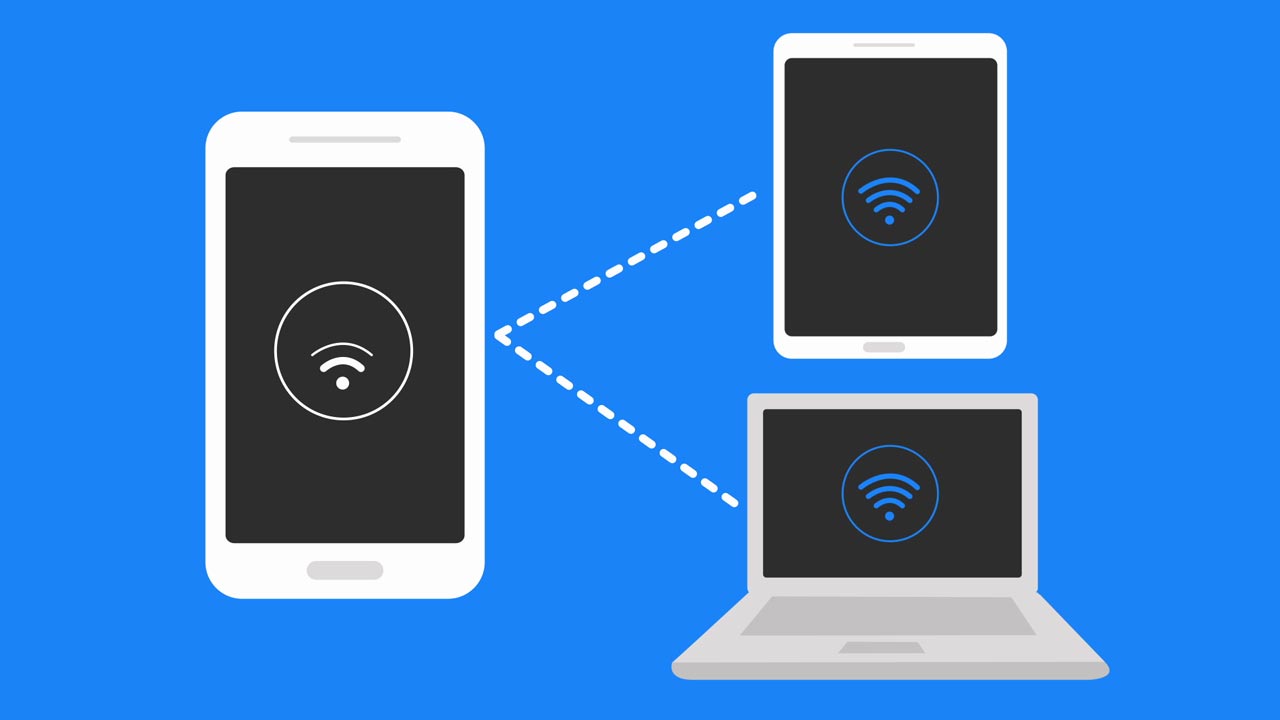
- Use your AT&T smartphone as a mobile hotspot to share your data connection with Wi-Fi-capable devices such as: other smartphones, tablets, netbooks, MP3 players, and more.
Note: Eligible data plan required, learn more.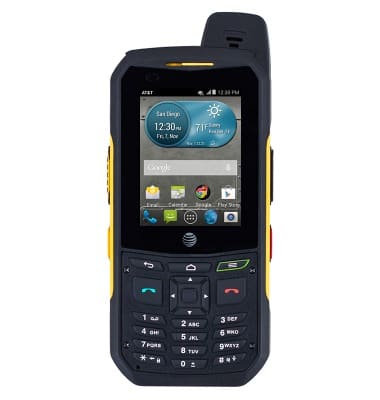
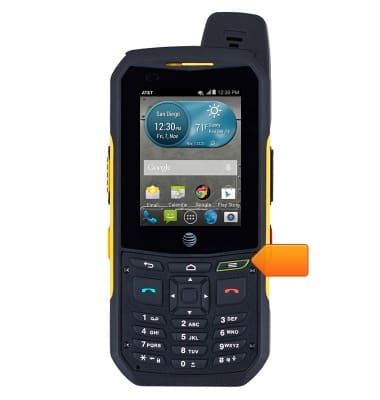
- From the home screen, press the Menu key.
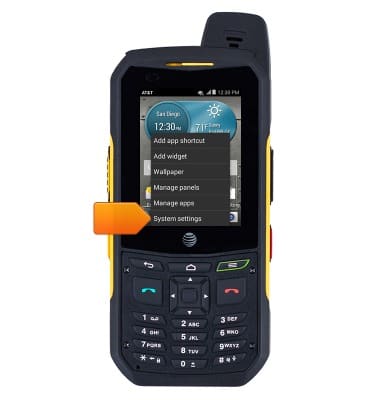
- Tap System settings.
- Tap More....
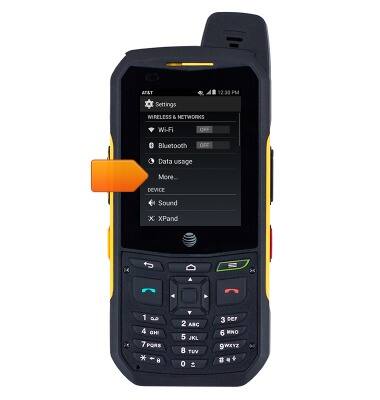
- Tap Tethering & portable hotspot.
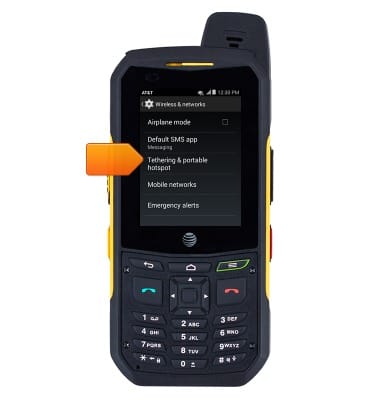
- Tap Set up Wi-Fi hotspot.
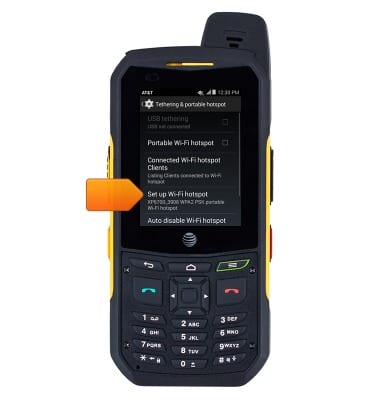
- Tap the Network SSID field to enter the desired name for the mobile hotspot.
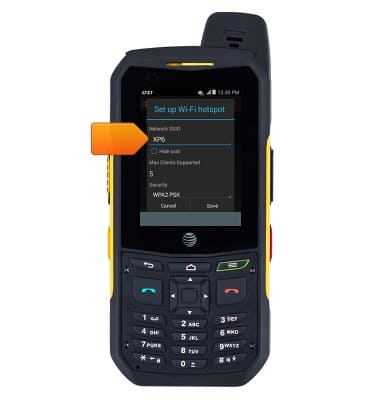
- Tap the Security field to select the desired security setting.
Note: It is recommended to enable security to prevent unintended data usage.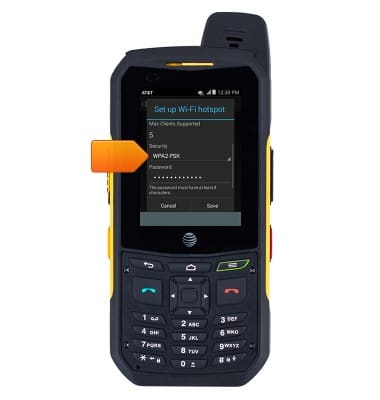
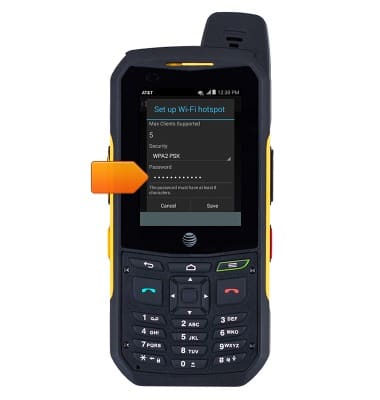
- Tap the Password field to enter a personalized password for the mobile hotspot.
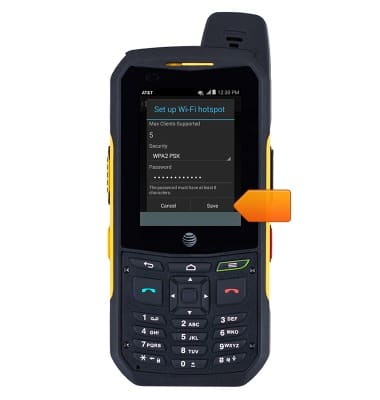
- Tap Save.
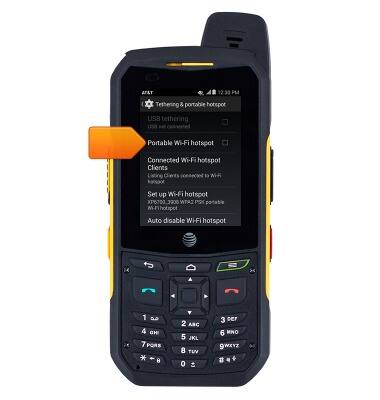
- To enable or disable a mobile hotspot, tap the Portable Wi-Fi hotspot box.
- Tap OK.
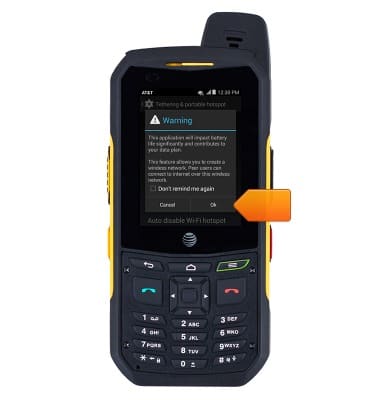
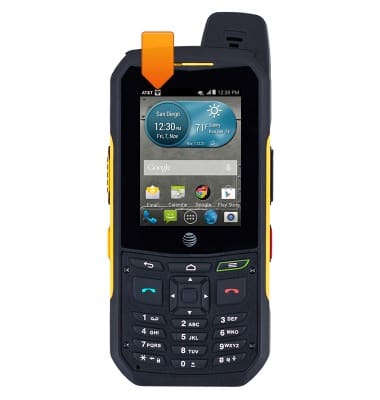
- When Mobile hotspot is on, the Mobile hotspot icon will display in the notification bar.
Mobile hotspot
AT&T Cingular Flip 3 (Q28A)
Mobile hotspot
How to set up your device as a mobile hotspot to share your data connection with Wi-Fi-capable devices.
How to Set Up a Personal Mobile Hotspot
Learn what you need to use your smartphone as a personal mobile hotspot and how to set it up.
How to Set Up a Personal Mobile Hotspot
2:03
INSTRUCTIONS & INFO