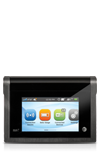
- File sharing allows you to share the files on a microSDHC card via USB cable or web browser.
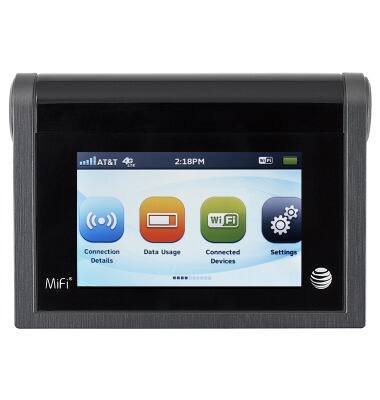
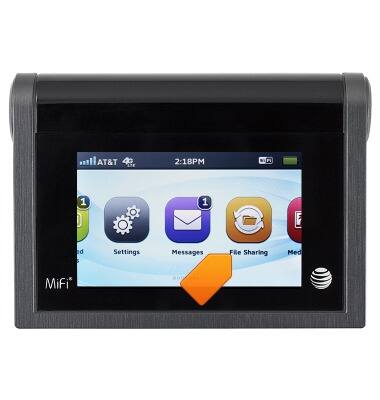
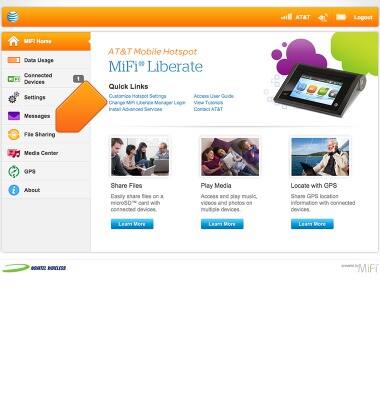
- From the home screen, swipe to, then tap File Sharing
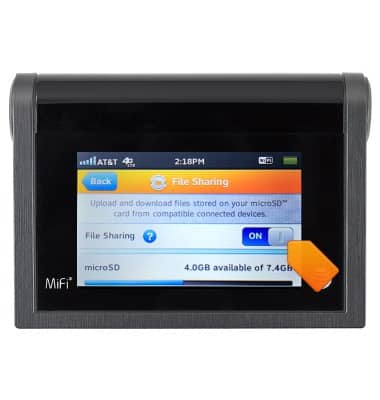
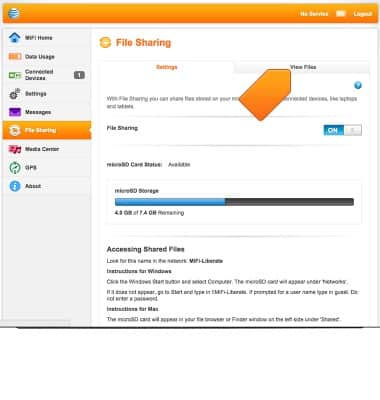
- To turn file sharing on or off, tap the File Sharing switch.
- To view file sharing settings from the MiFi Liberate Manager on the connected device, tap File Sharing.
- The settings will be displayed. To view content on the microSD card in the device, tap View Files.
- Scroll up or down to view the content.

- To share the files with a connected device, from the Finder window, click mifi-liberate under SHARED.
Note: This tutorial demonstrates file sharing with a Mac. When using Windows, Click the Windows Start button > Computer. The microSD card will appear under "Networks".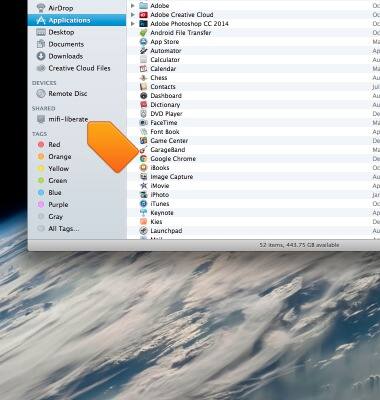
- Click the Share folder.
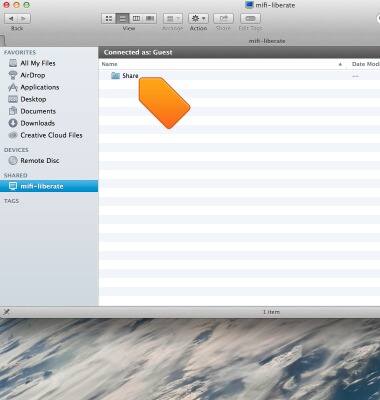
- Drag and drop the desired files/folders to and from the MiFi Liberate and connected device.

File sharing
AT&T Mobile Hotspot MiFi Liberate
File sharing
This tutorial describes how to share files.
INSTRUCTIONS & INFO