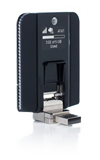
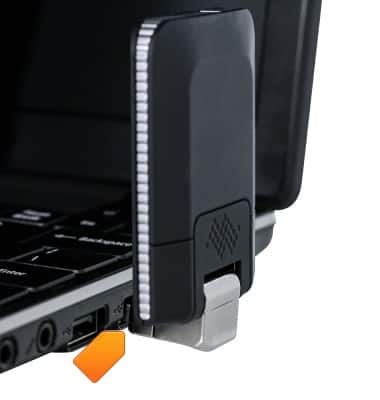
- Insert the USB connector of the Beam into an open port on the desired device.
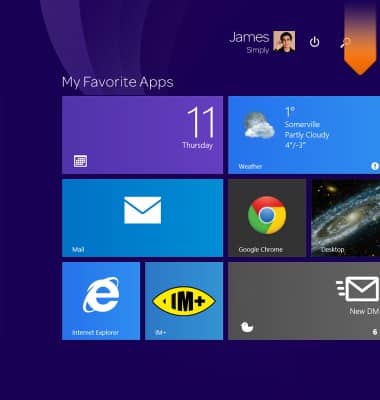
- On the Windows 8 device, drag the mouse down from the top right corner of the screen to reveal the Charm bar.
- Click the Settings icon.
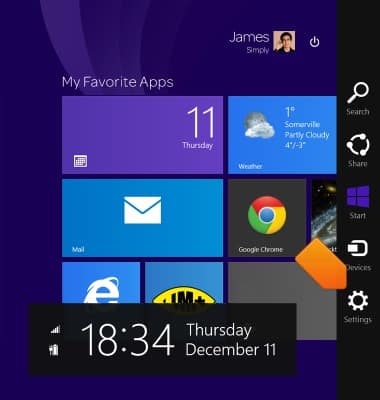
- Click the Network icon.
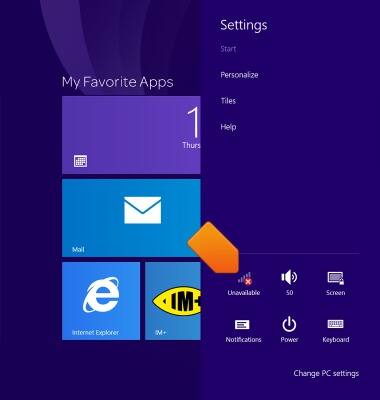
- Click AT&T (4G LTE).

- Click Connect.

- The latest AT&T AllAccess app will install in the background.
Note: You can also download and install AT&T AllAccess from the AT&T AllAccess website.

- From the Start screen, click the Arrow icon.
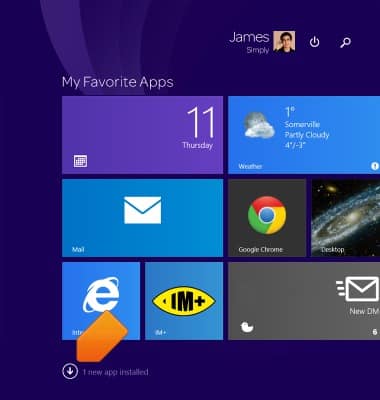
- Click AT&T AllAccess.

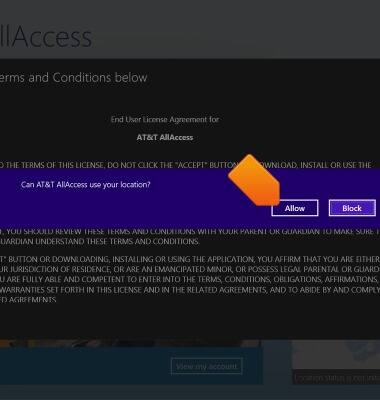
- Click Allow.
- Click Accept.
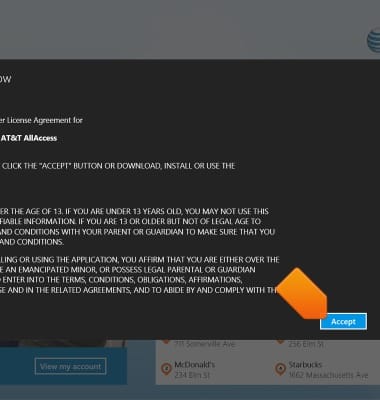
- AT&T AllAccess is now ready for use.
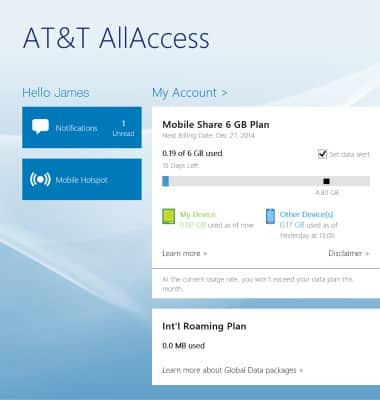
Install AT&T AllAccess - Windows 8 or RT
Sierra Wireless Beam (AC340U)
Install AT&T AllAccess - Windows 8 or RT
This tutorial shows how to install AT&T AllAccess on Windows 8 or RT.
INSTRUCTIONS & INFO

Starting December 31, 2022, the AT&T AllAccess app is going away. As a result, some features on your device may no longer be supported. You'll be able to view data usage and notifications on your myAT&T account page, and you can explore other options to stay connected with your device on the go. Learn more about mobile hotspot options.