
- AT&T Navigator makes your travels easier with GPS-guided maps and directions, traffic alerts, and additional navigation features that give you real-time, on-the- road coverage to help you avoid traffic, find the best routes, and more.
Note: Separate subscription may be required. Data rates apply. For more information, visit the AT&T Navigator website.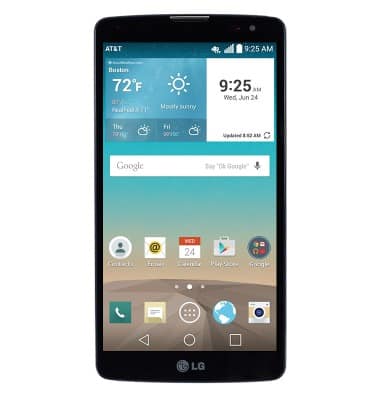
- From the home screen, swipe to then tap the AT&T folder.
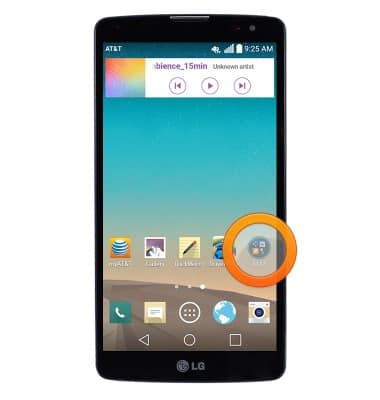
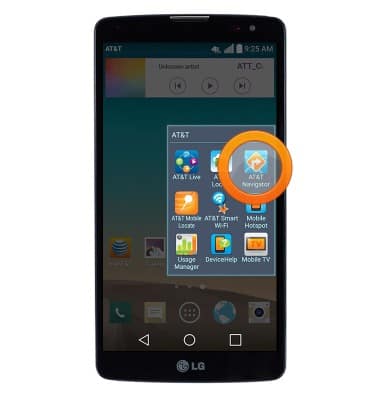
- Tap AT&T Navigator.
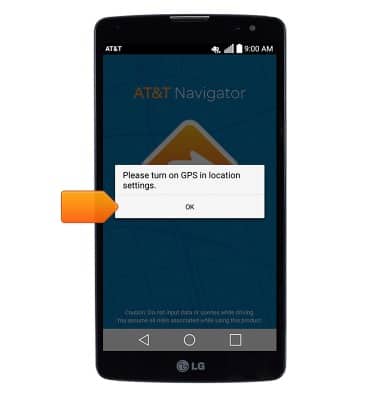
- If prompted to turn on GPS, tap OK > Location switch > AGREE > Press the Back key.
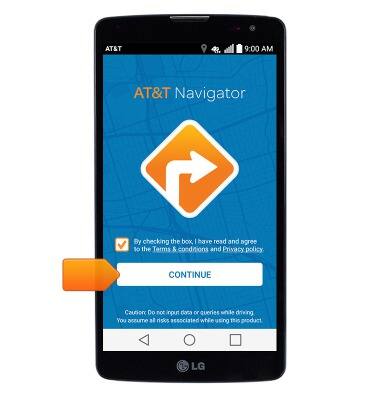
- Agree to the Terms & Conditions and Privacy Policy, then tap CONTINUE.
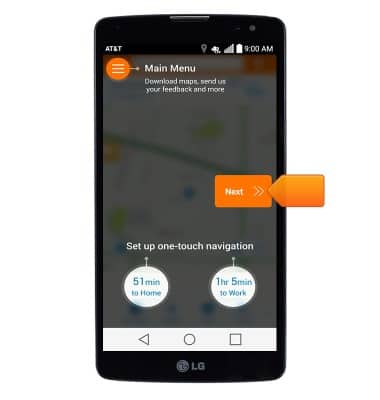
- If prompted, tap Next, then proceed through any additional introductory prompts.
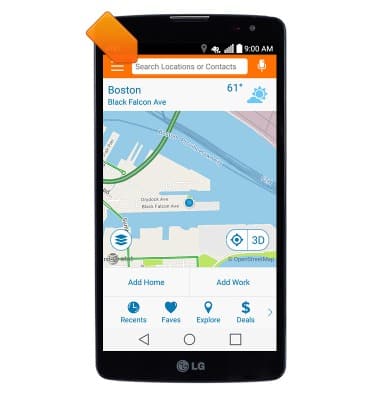
- Tap the Search field then enter the desired destination.
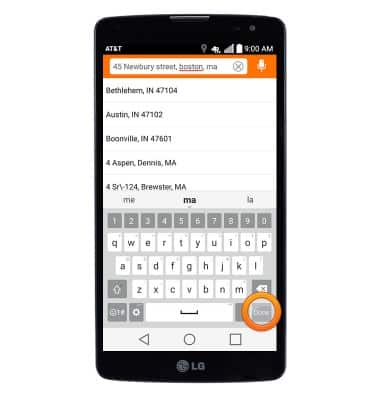
- Tap a suggested search, or tap Done.
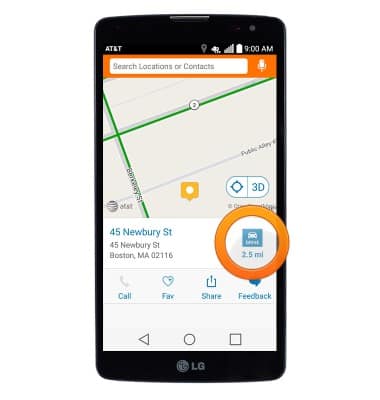
- Tap DRIVE next to the desired destination.
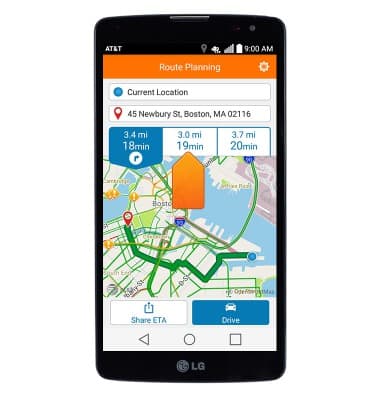
- Tap the desired route.
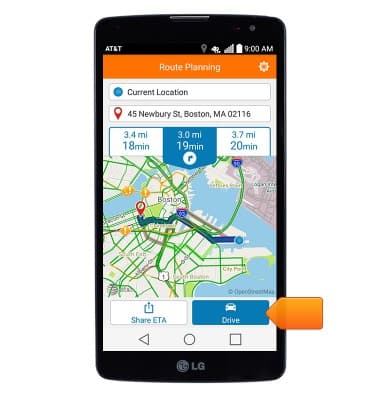
- Tap Drive to begin navigation.
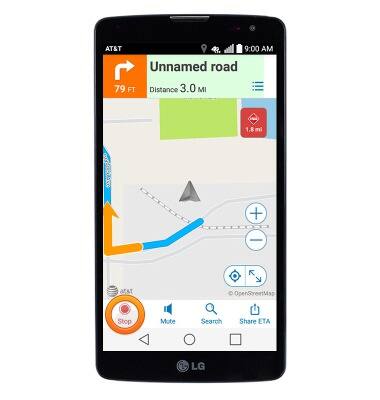
- Tap the screen to display navigation options.
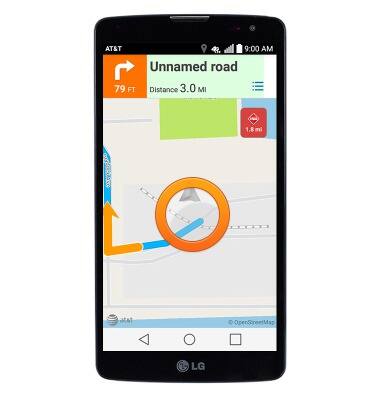
- Tap Stop to end navigation.
AT&T Navigator
LG G Vista (D631)
AT&T Navigator
Get directions and navigation using AT&T Navigator.
INSTRUCTIONS & INFO