
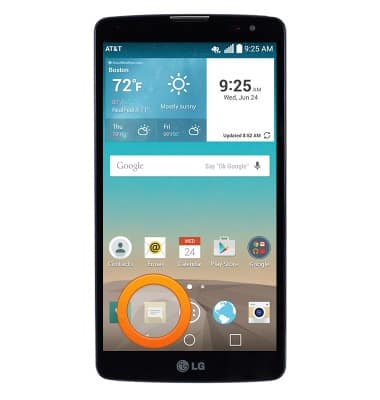
- From the home screen, tap the Messaging icon.
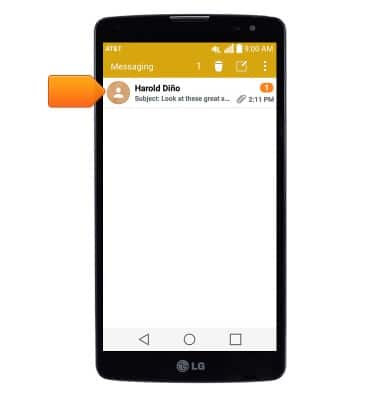
- Tap to open the desired message thread.
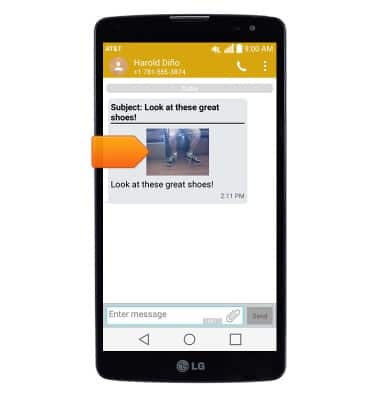
- Tap an attachment to view it.
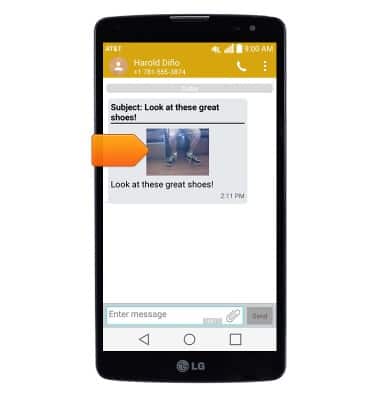
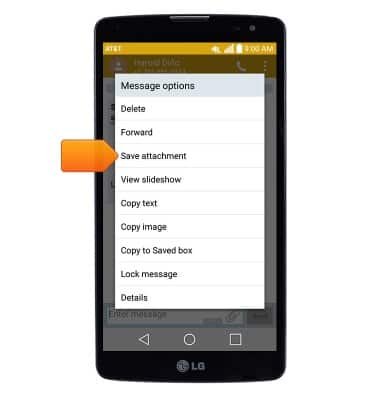
- To save an attachment, touch and hold the desired attachment.
- Tap Save attachment.
- The attachment will be saved to the indicated location.
Note: Please add the following note to step 6: By default attachments will be saved to the "Download" folder (Apps > File Manager). Images can also be viewed in the Gallery.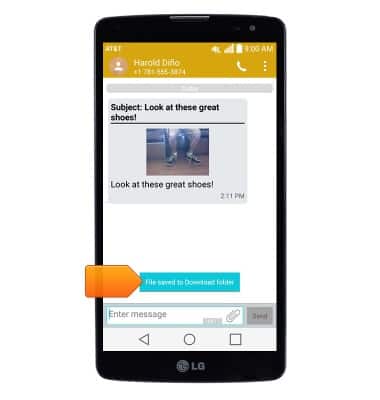
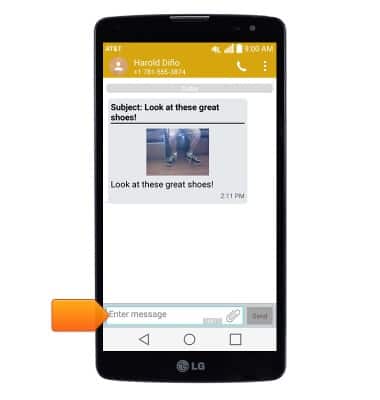
- To reply to a message, tap the Message field.
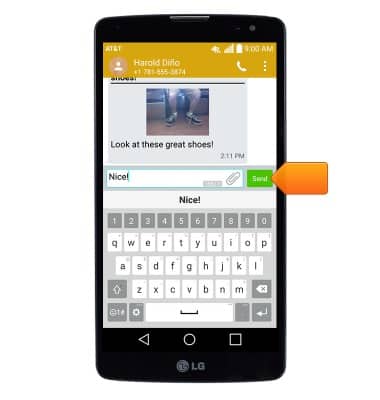
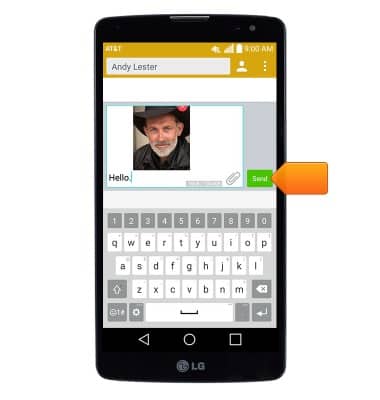
- Enter the desired message, then tap Send.
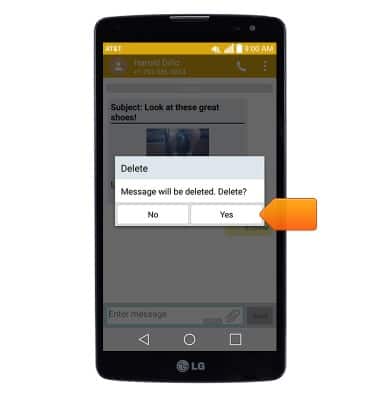
- To delete a single message, touch and hold the desired message.
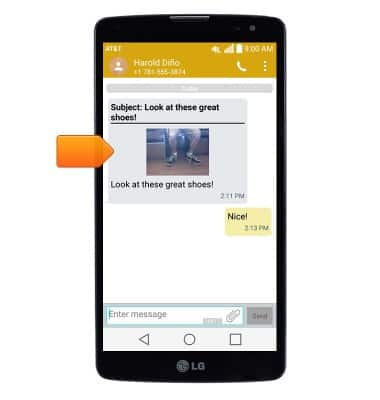
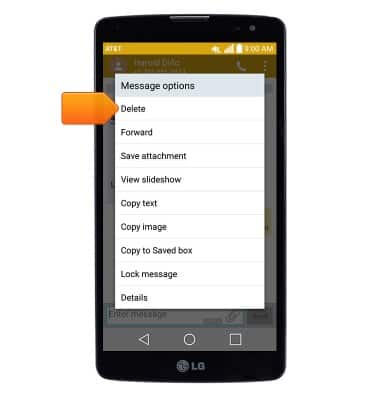
- Tap Delete.
- Tap Yes.
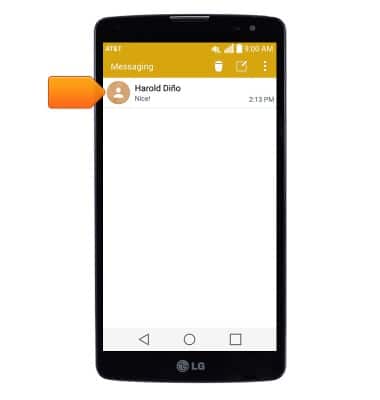
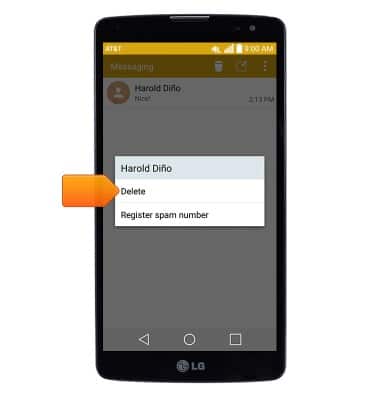
- To delete an entire conversation, from the Messaging inbox, touch and hold the desired message thread.
- Tap Delete.
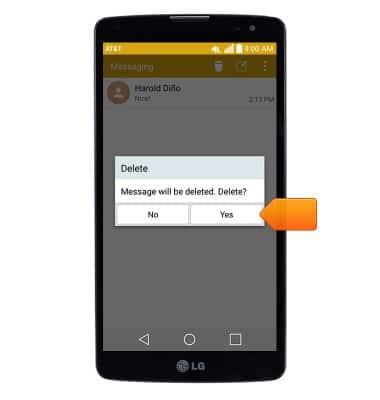
- Tap Yes.
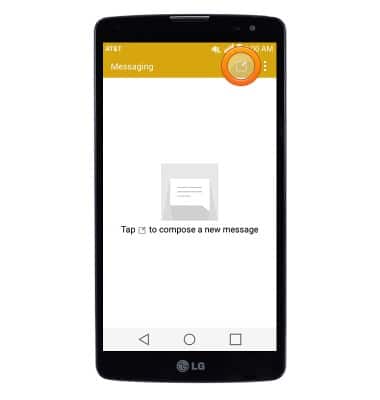
- To compose a new message, tap the Compose icon.
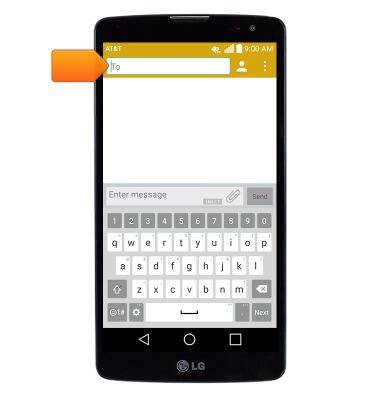
- Enter the desired recipients in the To field.
- Tap the Message field then enter the desired message.
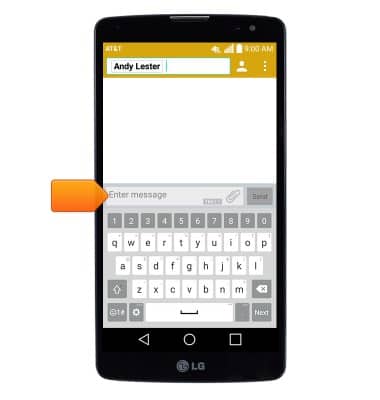
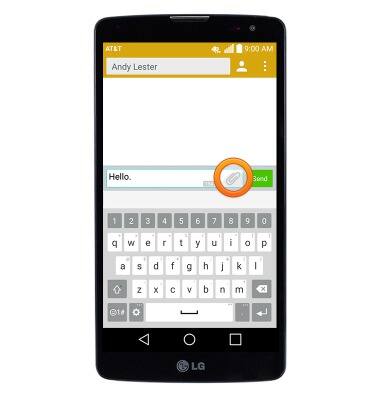
- To attach a file, tap the Attachment icon then follow the on-screen prompts.
- Tap Send to send the message.
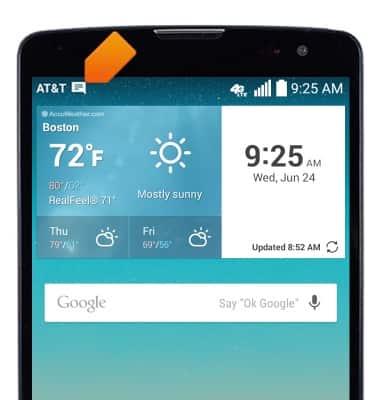
- When a new message is received, the Message icon will display in the notification bar.
Send & receive messages
LG G Vista (D631)
Send & receive messages
How to send, receive, and delete picture (MMS) and text (SMS) messages.
Text Messaging
This video explains the text messaging features of the device.
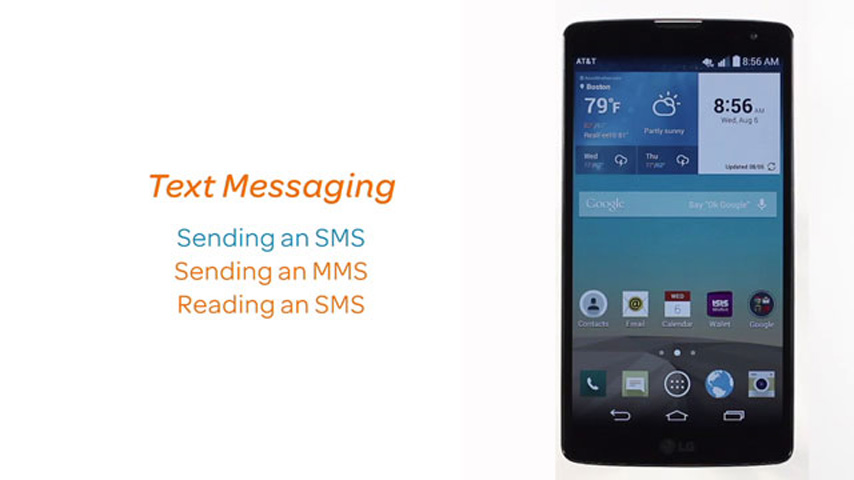
Text Messaging
1:16
INSTRUCTIONS & INFO