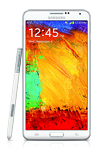
- Samsung S Health turns your device into a personal-health-management powerhouse. You can track health statistics, like blood pressure, blood glucose levels, and weight. You can view and track environmental conditions, and even track your exercise regimen.
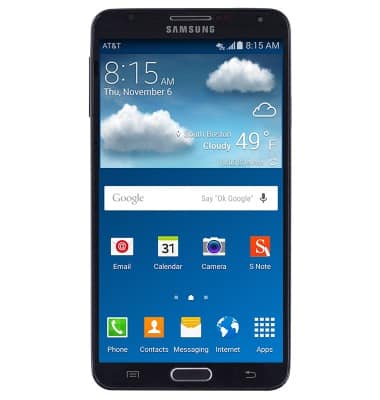
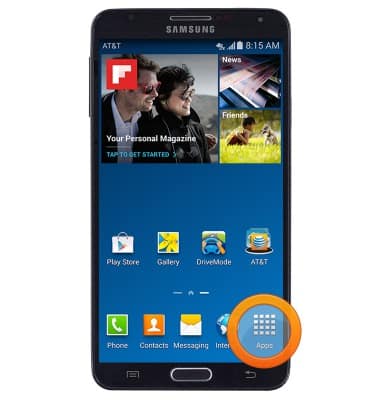
- From the home screen, tap Apps.
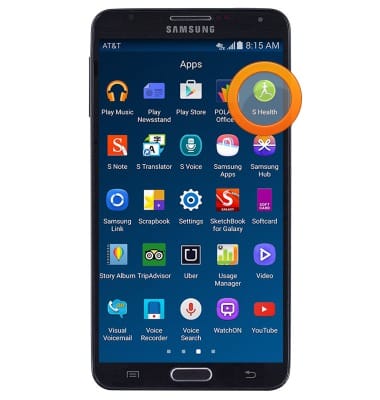
- Swipe to then tap S Health.
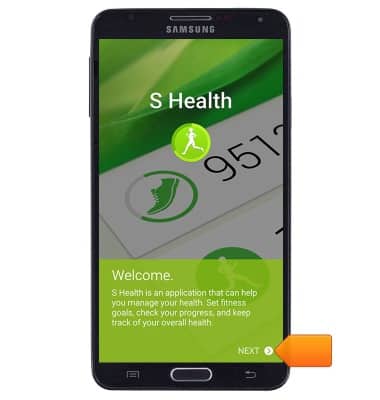
- Tap NEXT.
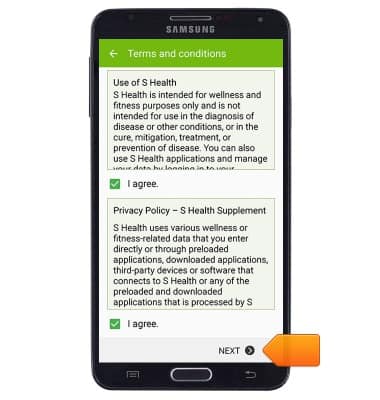
- Agree to both sets of Terms and conditions, then tap NEXT.
- Tap the desired option.
Note: If you are not signed into a Samsung account on your device, a Sign up screen will display rather than the screen shown here.
For this demonstration, tap 'SKIP'.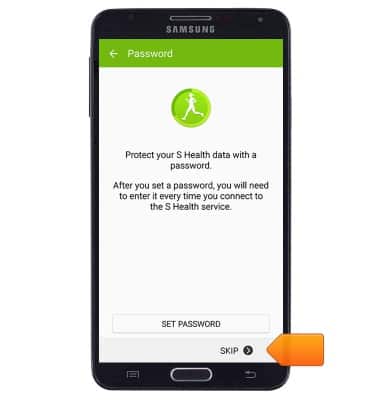
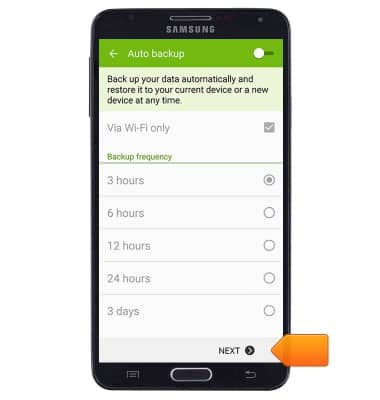
- Edit Auto backup settings as desired, then tap NEXT.
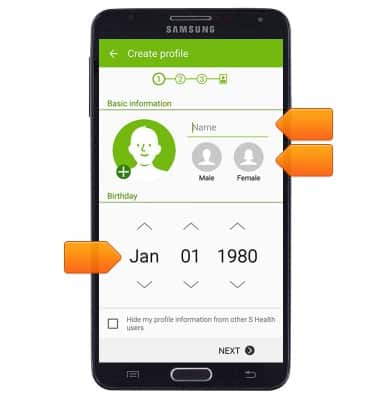
- Enter the desired Name, Gender and Birthday.
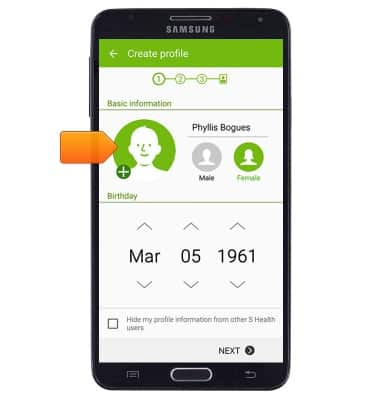
- To select a profile picture, tap the Profile photo icon then follow the on-screen prompts.
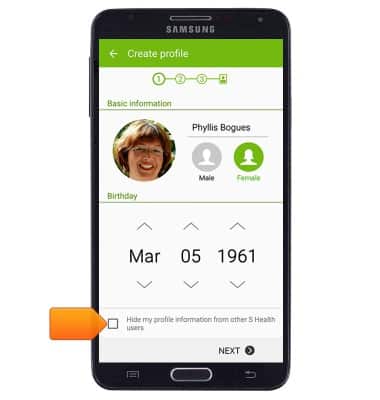
- Tap the Privacy checkbox to show or hide your profile information.
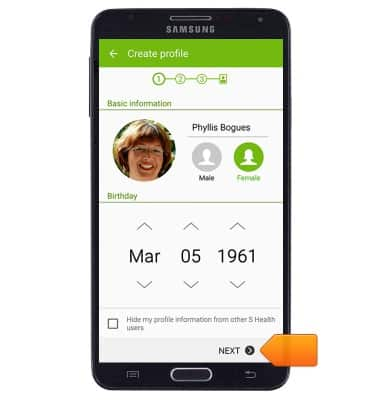
- Tap NEXT.
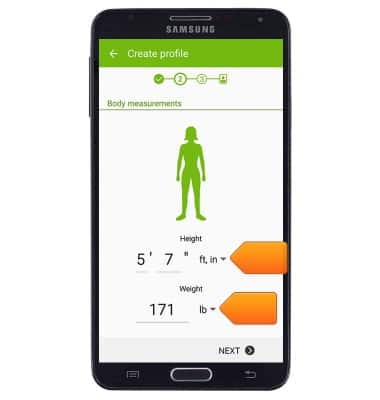
- Tap the Height and Weight fields then input the desired height and weight.
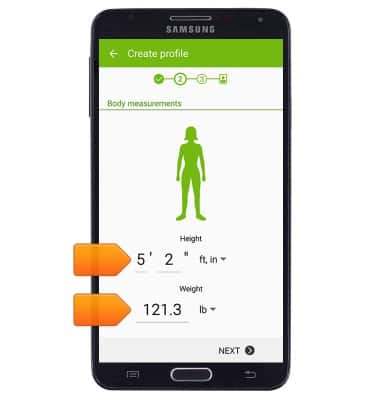
- If desired, tap the Unit drop-down menus to change the units of measurement for your height and weight.
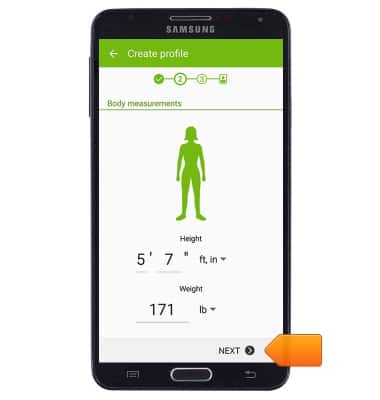
- Tap NEXT.
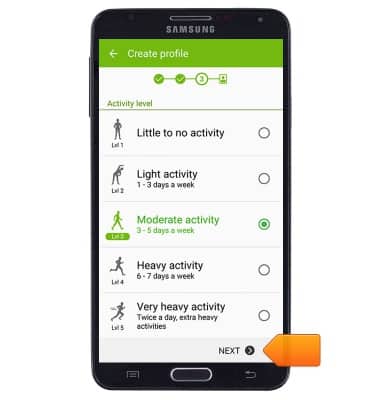
- Select the desired activity level, then tap NEXT.
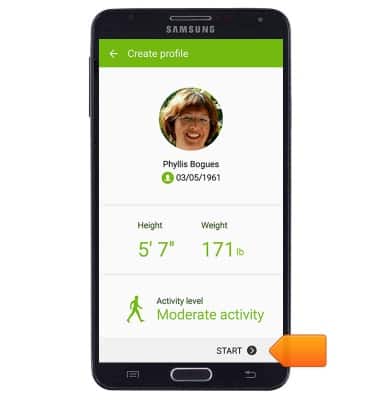
- Review your profile information, then tap START.
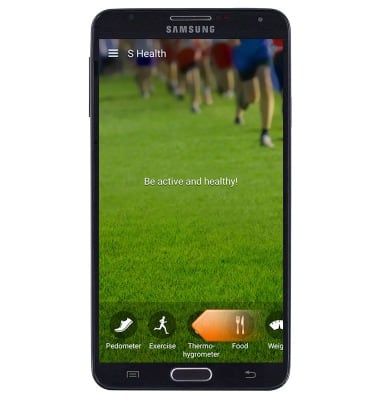
- To access S Health apps, swipe to then tap the desired app along the bottom of the screen.
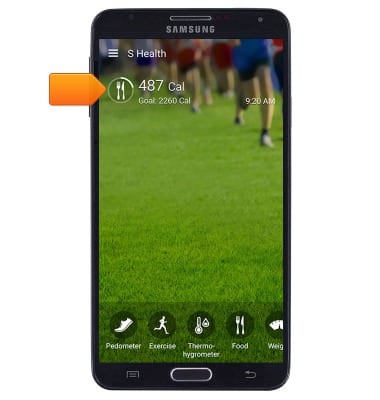
- Records from your S Health apps will display on the S Health homepage.
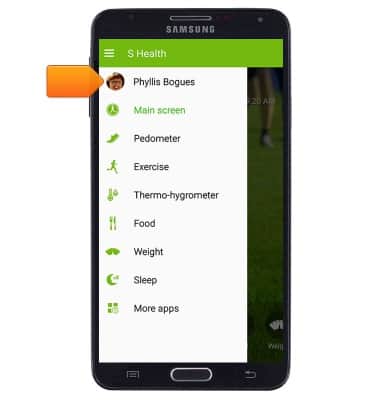
- To view and edit your profile information, tap the Menu icon.
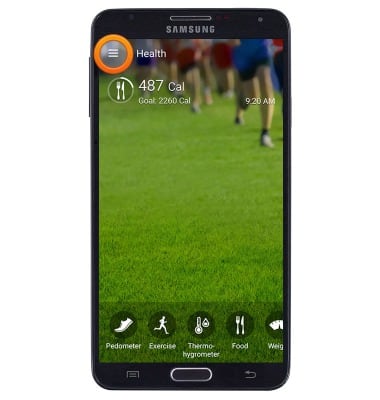
- Tap your profile name.
S Health
Samsung Galaxy Note 3 (N900A)
S Health
Use S Health to help manage your health by tracking statistics and your exercise program.
INSTRUCTIONS & INFO