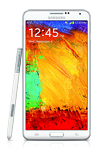
- Access Usage Manager to determine which apps and features are consuming the most battery.
Note: Swipe to then tap the AT&T folder > Tap 'Usage Manager' > Tap the 'BATTERY' tab > Scroll down to view battery usage data > Tap the desired app/feature to view details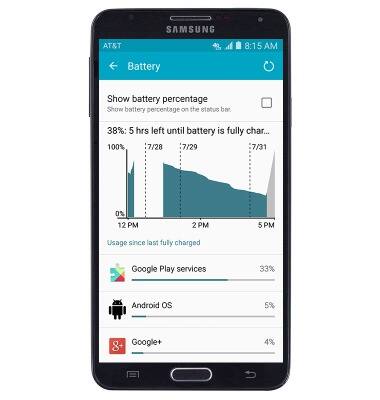
- Enable Power saving mode to prolong battery life.
Note: From the home screen, swipe down from the Notification bar > Tap the Settings icon > Under the GENERAL tab, scroll to then tap the 'Power saving mode' switch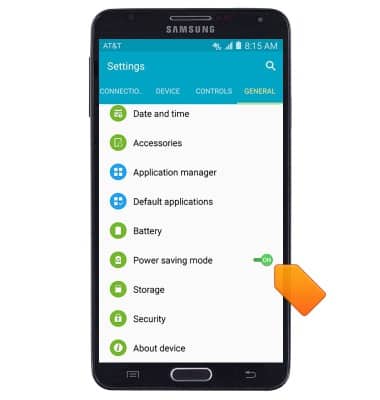
- Set the Brightness to Auto or Low.
Note: From the home screen, swipe down from the Notification bar > Drag the Brightness slider to the desired level, or tap the 'Auto' checkbox.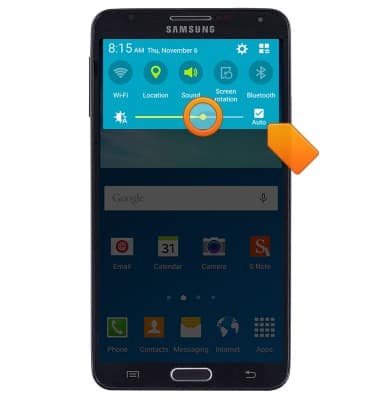
- Set the Screen timeout to a shorter duration.
Note: From the home screen, swipe down from the Notification bar > Tap the Settings icon > Under the DEVICE tab, tap 'Display' > Tap 'Screen timeout' > Tap the desired option.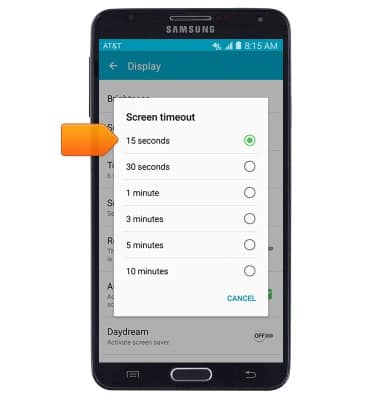
- Turn off Bluetooth, Wi-Fi and NFC when not in use.
Note: Swipe down from the Notification bar with two fingers > Tap to disable the desired features.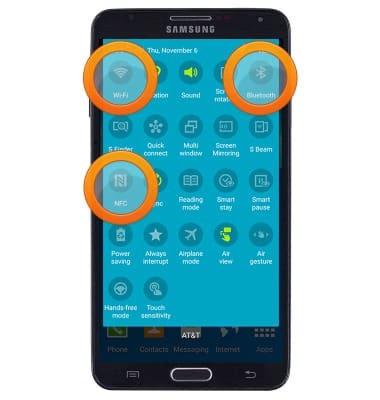
- Avoid using Live wallpapers.
Note: From the home screen, press the Menu key > Tap 'Wallpapers' > Swipe to then select a standard wallpaper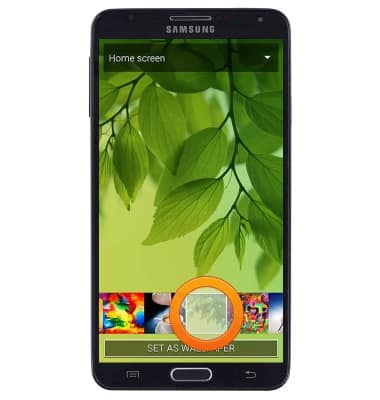
- Turn off Location services.
Note: Swipe down from the Notification bar > tap 'Location' to disable.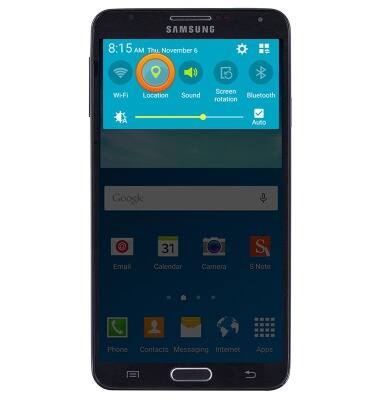
- Turn off the Auto-update apps setting in the Play Store.
Note: From the home screen, swipe to then tap 'Play Store' > Tap the Play Store tab > Tap 'Settings' > Tap 'Auto-update apps' > Tap 'Do not auto-update apps'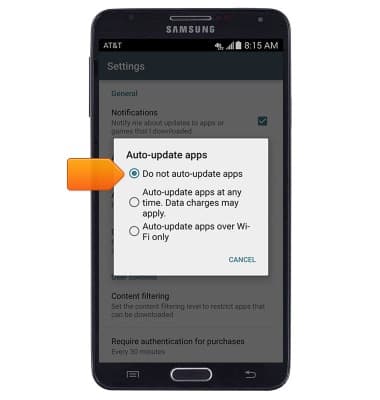
- Disable automatic Sync.
Note: Swipe down from the Notification bar with two fingers > Tap 'Sync' to disable.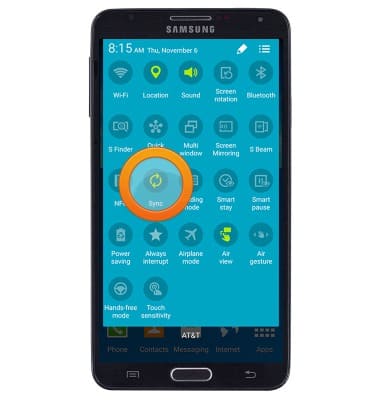
- If you are traveling and do not have access to mobile or Wi-Fi networks, switch to Airplane mode.
Note: Swipe down from the Notification bar > Tap 'Airplane mode' to enable.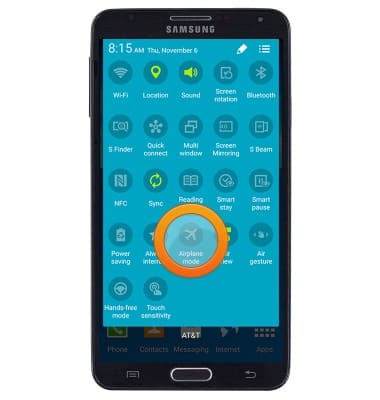
- For information about charging your battery, search tutorials for ‘Charge battery’.
Battery life
Samsung Galaxy Note 3 (N900A)
Battery life
Tips & tricks to extend your battery performance.
INSTRUCTIONS & INFO