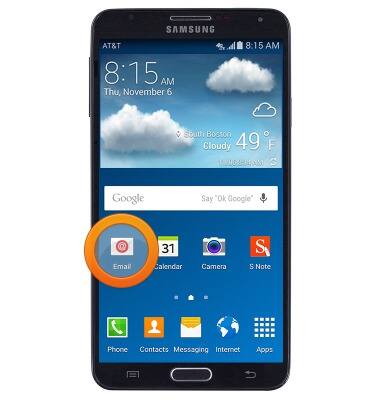
- From the home screen, tap Email.
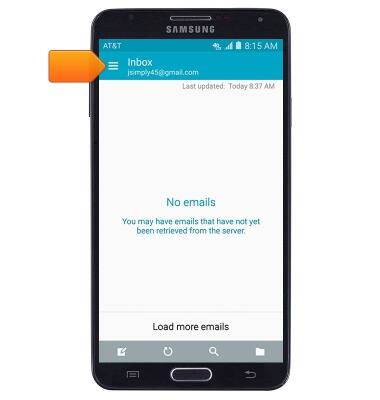
- Tap the Mailbox tab to switch between mailboxes.
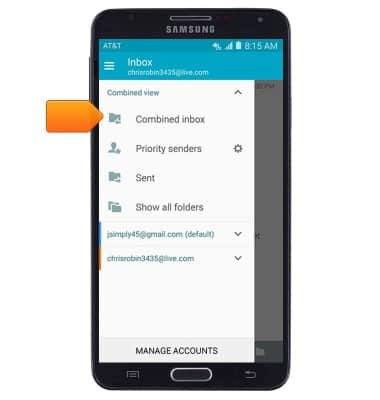
- Tap the desired mailbox.
- The inbox will refresh automatically. Tap to view the desired email.
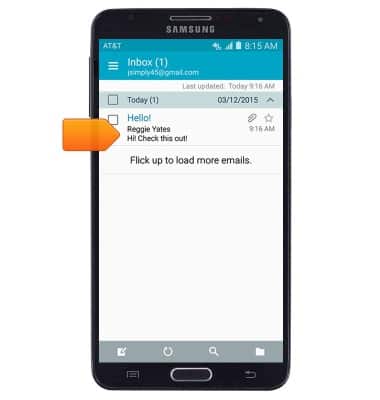
- Tap Reply to reply to the author of an email.
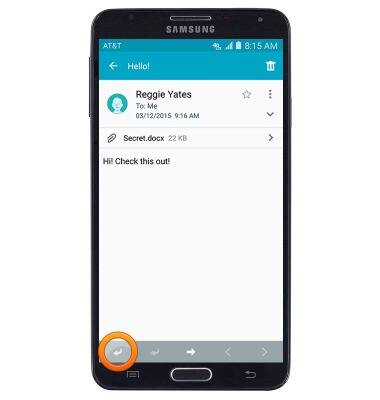
- Tap Reply all to reply to the author and all other recipients of an email.
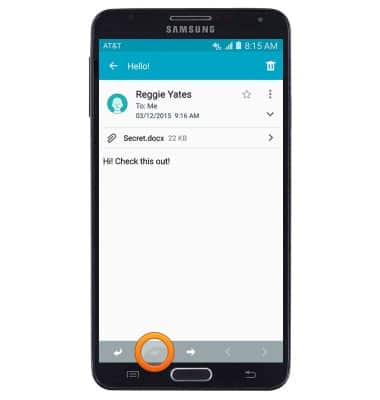
- Tap Forward to forward an email to new recipients.
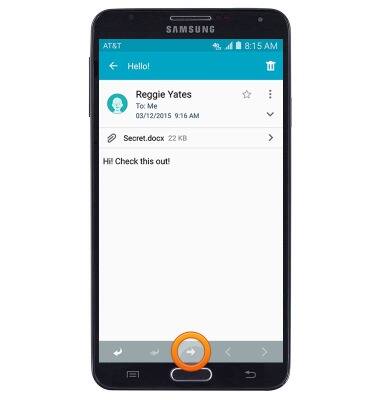
- To view or download an attachment, tap the desired attachment, then tap PREVIEW or DOWNLOAD.
Note: By default, downloaded attachments will save to the 'Download' folder (Apps > My Files > Device Storage > Download). Images can also be viewed in the Gallery.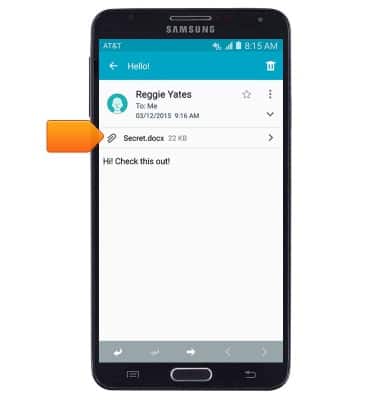
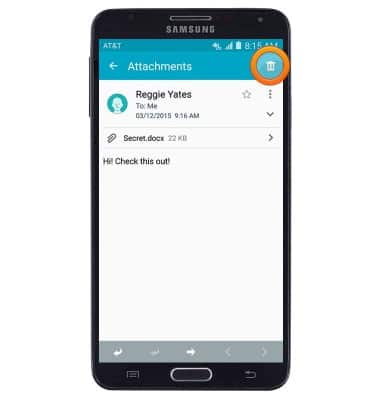
- To delete an email, tap the Delete icon.
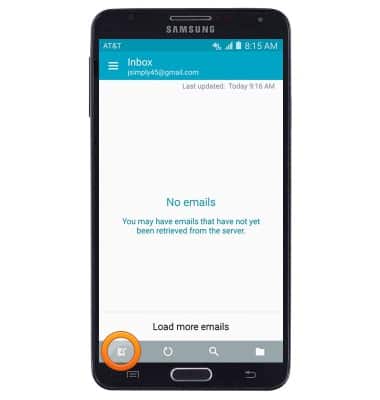
- To compose a new email, tap the Compose icon.
- Enter the desired recipients.
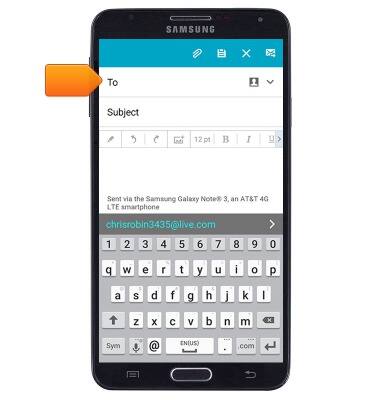
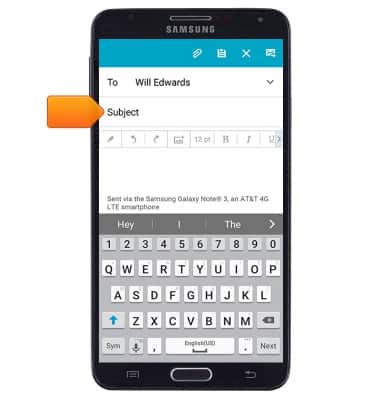
- Tap the Subject field then enter the desired email subject.
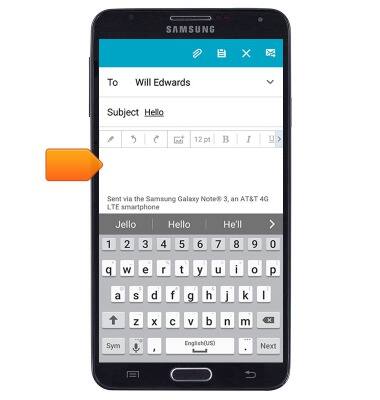
- Tap the Message field then enter the desired message.
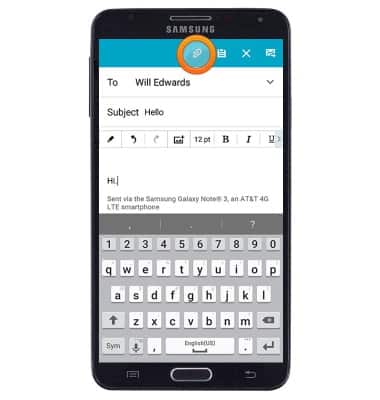
- To attach a file, tap the Insert icon then follow the on-screen prompts.
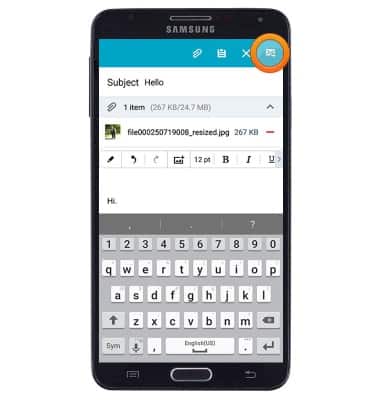
- Tap the Send icon to send.
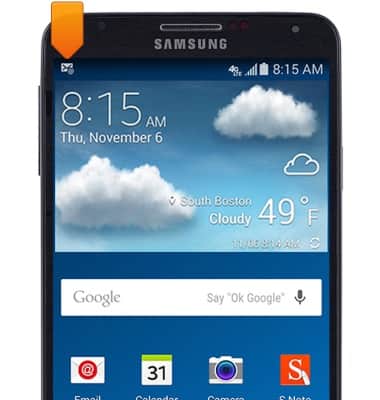
- When a new email is received, the Email icon will display in the notification bar.
Send & receive email
Samsung Galaxy Note 3 (N900A)
Send & receive email
Add and download email attachments, respond to an email and more.
How to send and receive emails.
Email
1:19
INSTRUCTIONS & INFO