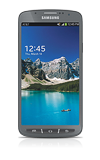
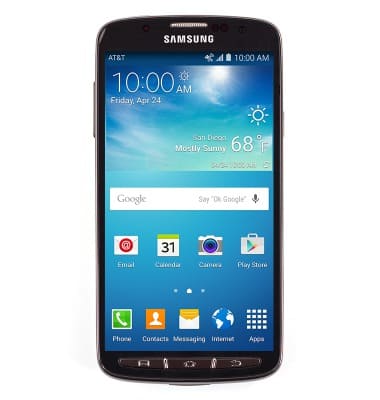
- From the home screen, swipe down from the Notification bar.
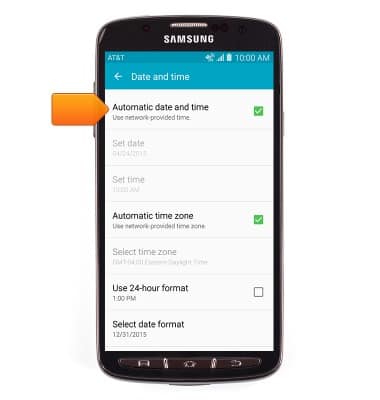
Note: The device will automatically attempt to set the date and time from the network. This tutorial demonstrates how to manually set the date and time on your device.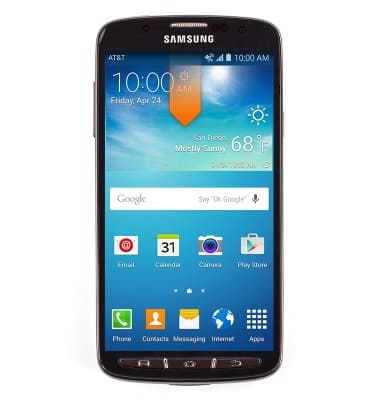
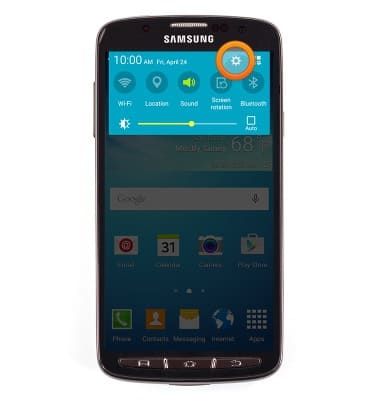
- Tap the Settings icon.
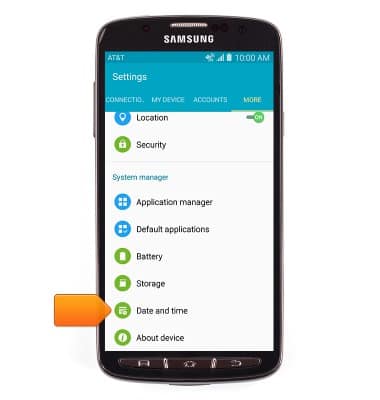
- Swipe to the MORE tab, then tap Date and time.
- Tap Automatic date and time to disable.
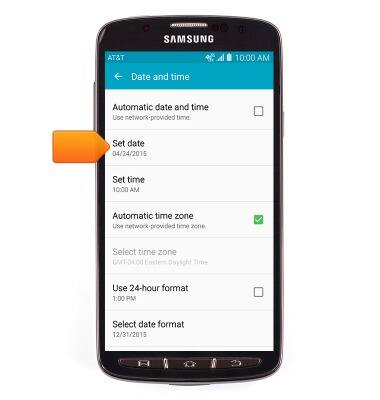
- To change the date, tap Set date.
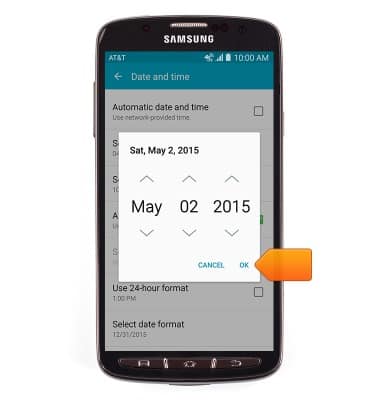
- Scroll to the desired date, then tap OK.
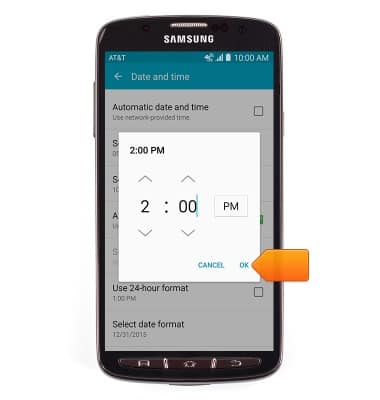
- To change the time, tap Set time.
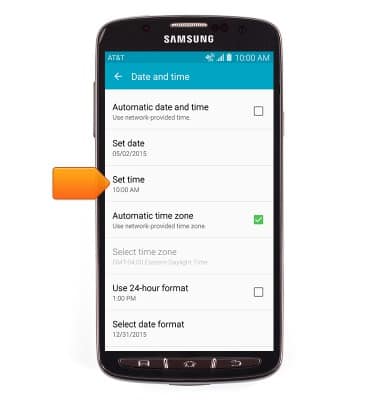
- Scroll to the desired time, then tap OK.
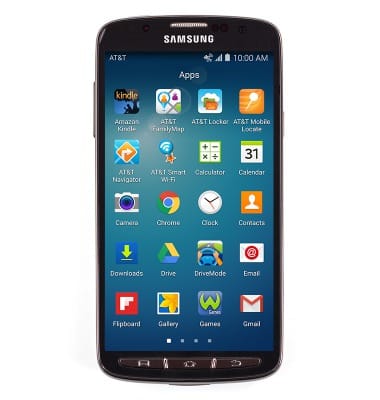
- To set an alarm, from the home screen, tap Apps.
- Tap Clock.
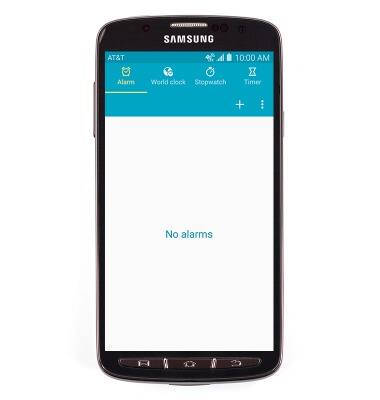
- Tap the Add alarm icon.
- Scroll to the desired time.
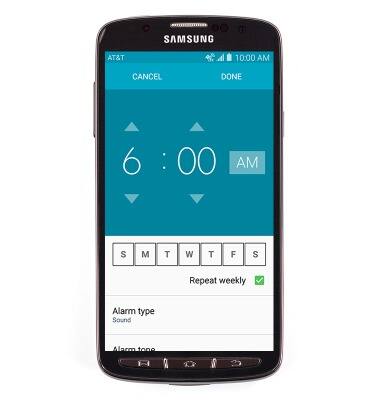
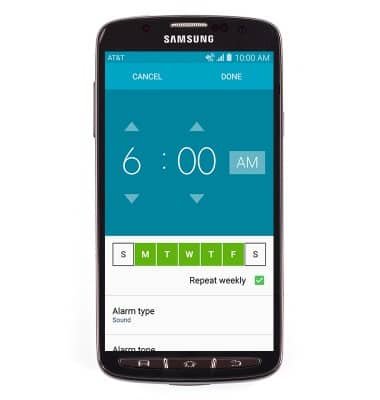
- Select the desired repeat days.
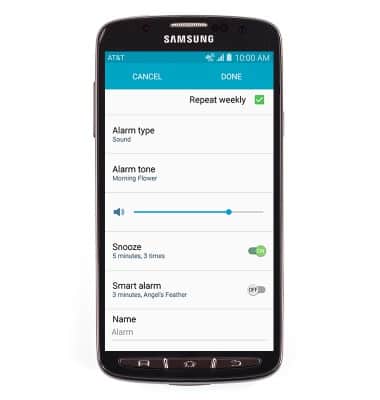
- Adjust any additional details, then tap DONE.
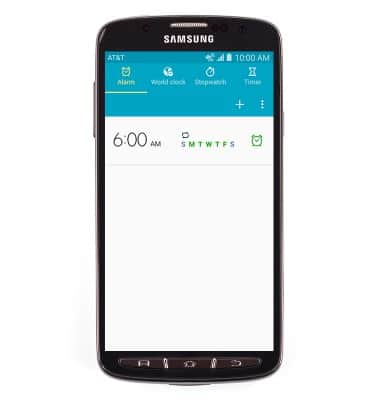
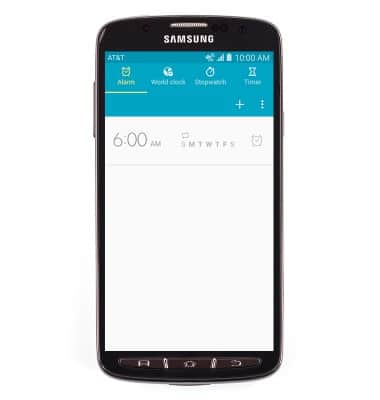
- Tap the Alarm icon to toggle on or off.
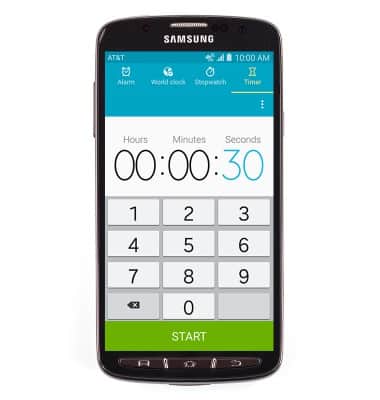
- To set a timer, tap Timer.
- Enter the desired time in the fields, then tap START.
Date & time
Samsung Galaxy S4 Active (I537)
Date & time
Set the date & time.
INSTRUCTIONS & INFO