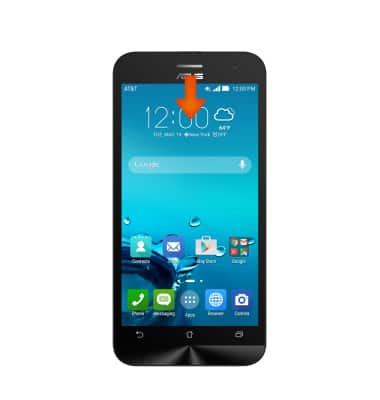
- To access the notification bar swipe down from the Notification bar with 1 finger.
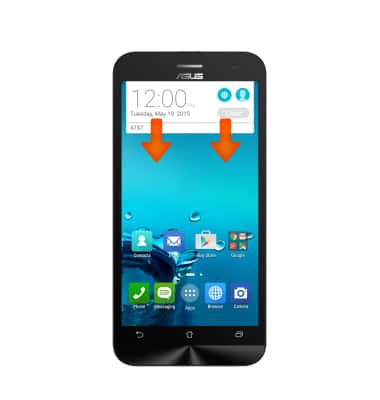
- To customize quick settings, swipe down from the Notification bar with 2 fingers.
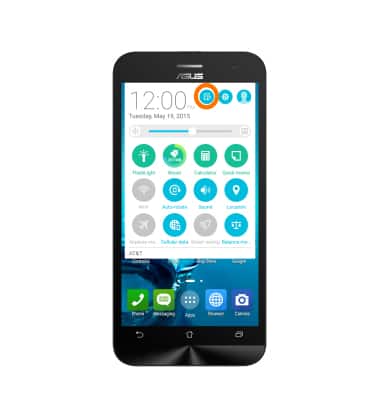
- Tap the Edit list icon.
- Tap Desired options you want to remove from your quick settings.
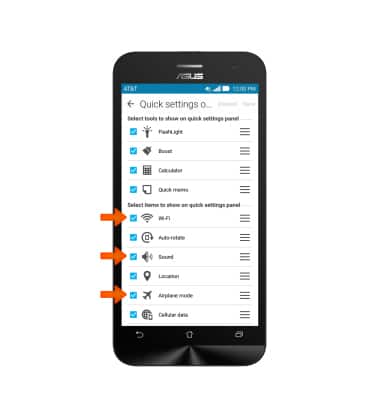
- Scroll to and tap Desired options you want to add to your quick settings menu.
Note: A maximum of 8 items can be shown at one time.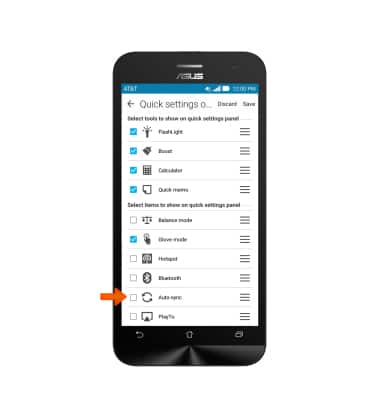
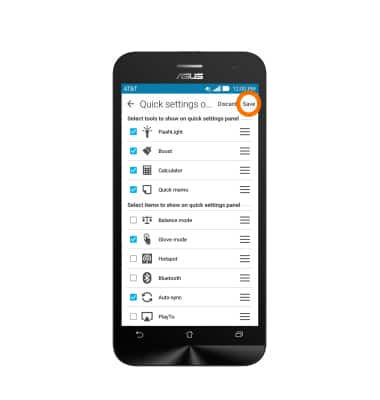
- To save changes, tap Save.
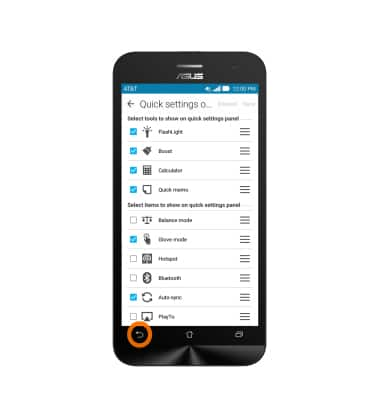
- To return to the home screen, tap Back.
- The changes you made will now be reflected in the quick settings menu. Tap the Home key to return to the home screen.
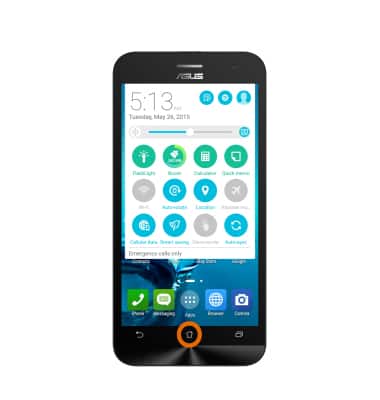
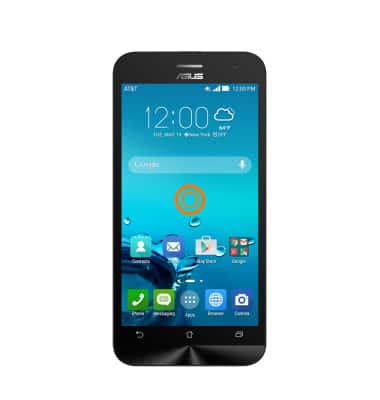
- To change and customize the home screen, tap and hold in an Empty space on the home screen to access the screens menu.
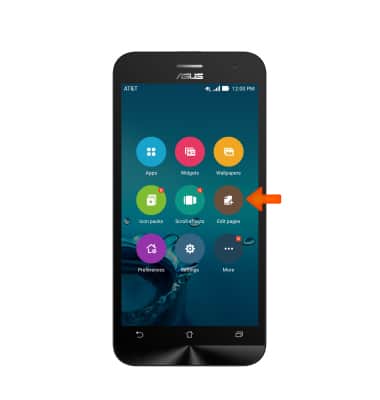
- To change the default home screen, tap Edit pages.
- To change the order of home screens, touch and hold the Desired home screen.
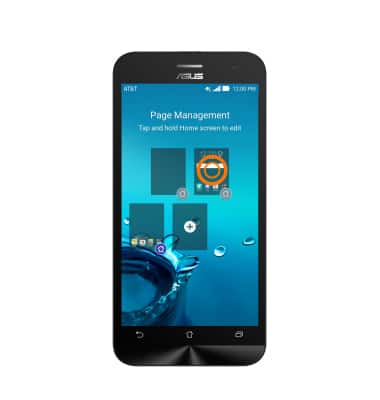
- Drag the home screen to the Desired location and order, then release.
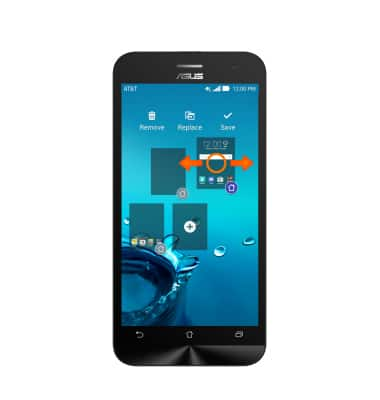
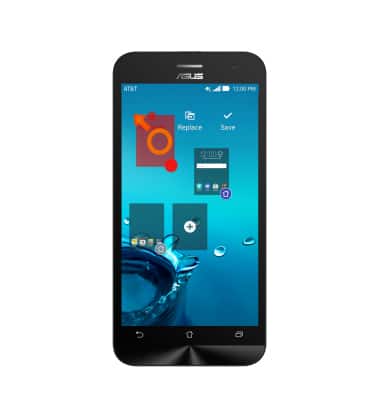
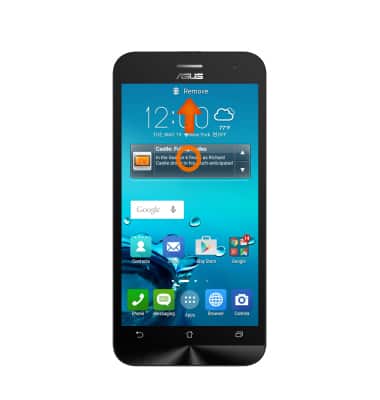
- To remove a home screen, touch then drag the Desired home screen to the Remove icon.
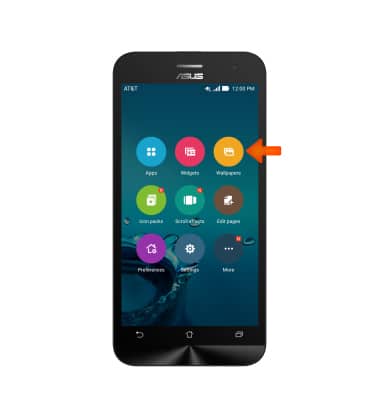
- To change the wallpaper, from the screens menu, tap Wallpapers.
- Swipe to and tap the Desired wallpaper, then tap Apply.
Note: Live wallpapers can increase battery consumption.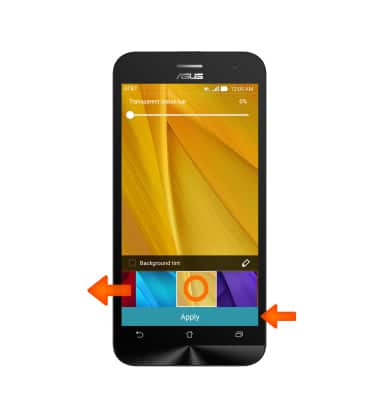
- The new wallpaper will be set. To get back to the screens menu touch and hold on an Empty space on the screen.
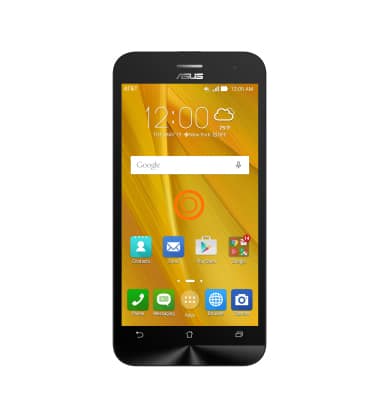
- To add a widget (a mini app that runs on your home screen), from the screens menu, tap Widgets.
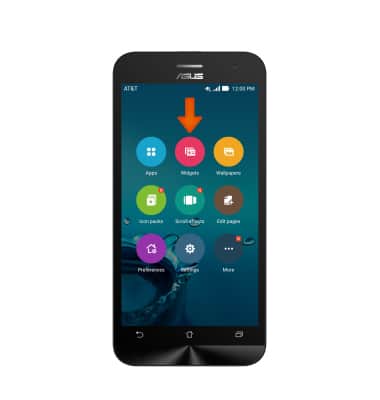
- Touch and hold the Desired widget to add to the home screen.
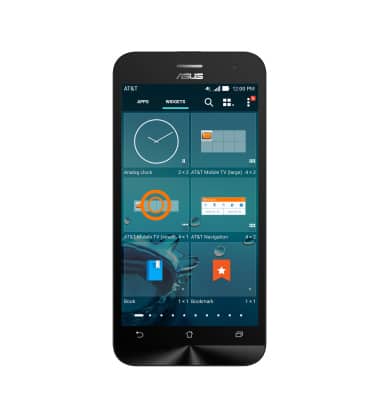
- Drag the widget to the Desired location, then release.
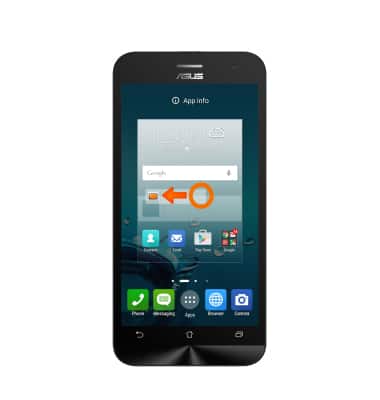
- To relocate the widget or app, touch and hold the Desired widget and drag it to the Desired location, then release.
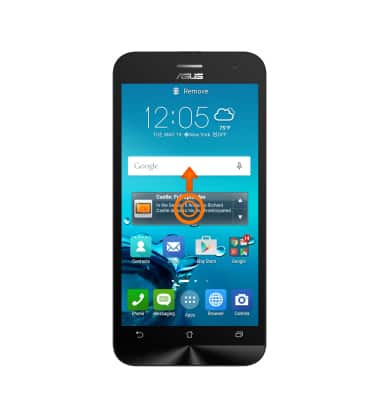
- To resize a widget, touch and hold the Widget until a box around the widget appears.
Note: Not all widgets can be resized.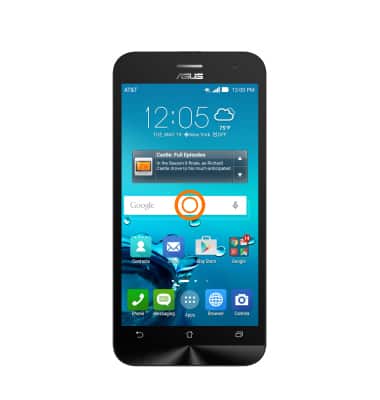
- Touch and drag the Circles to the desired size.
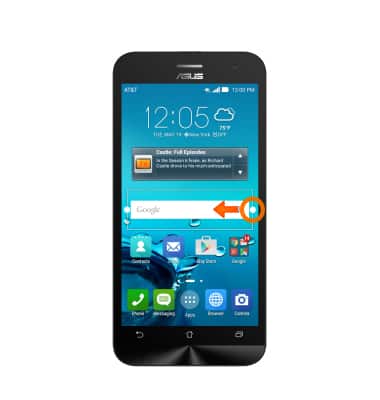
- Tap Outside the widget to set.
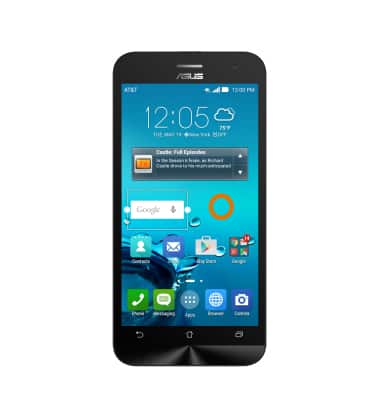
- To remove a widget, touch and hold the Desired widget.
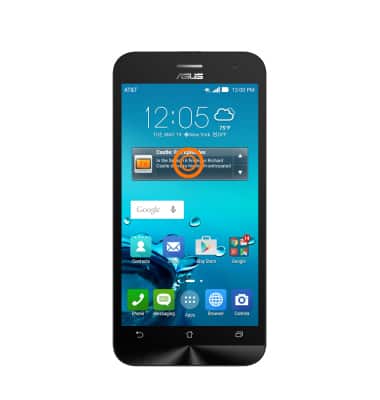
- Drag the selected widget to the Remove icon, then release.
Learn and customize the home screen
ASUS ZenFone 2E (Z00D)
Learn and customize the home screen
Add shortcuts and widgets, access the notification panel, changing wallpaper, and more.
Learn and Customize the Home Screen
Add shortcuts and widgets, access the notification panel, changing wallpaper, and more.
Learn and Customize the Home Screen
2:13
INSTRUCTIONS & INFO