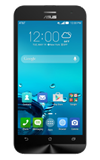
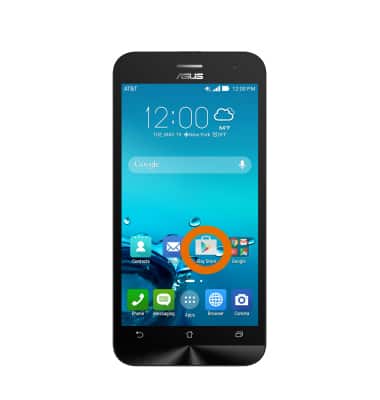
- From the home screen, tap the Play Store icon.
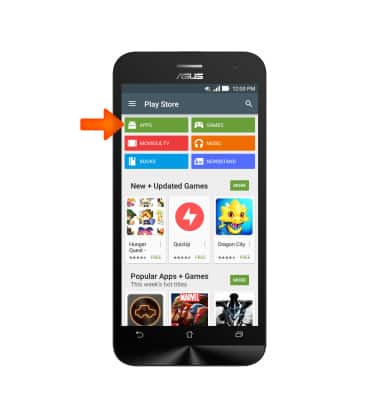
- Tap APPS.
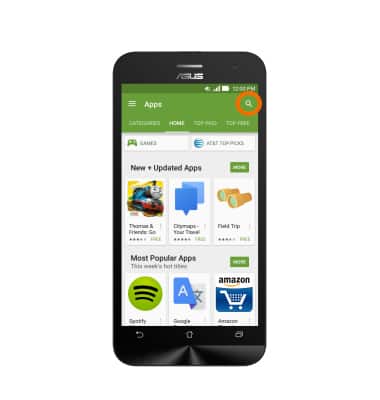
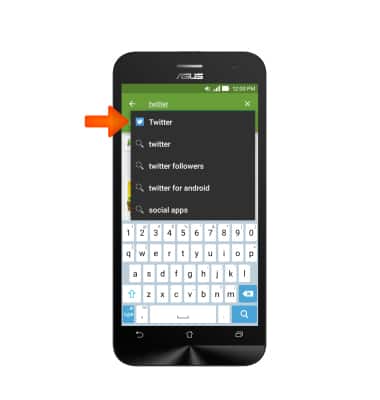
- Tap the Search icon and enter the Desired social media app. Note: Twitter was used for this demonstration.
- Tap Twitter.
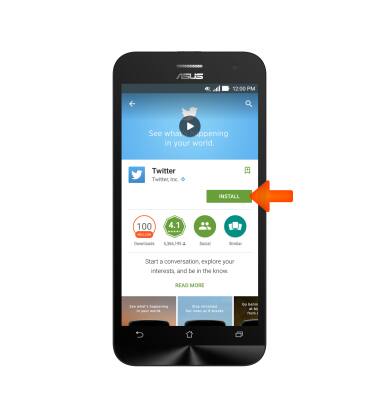
- Tap INSTALL.
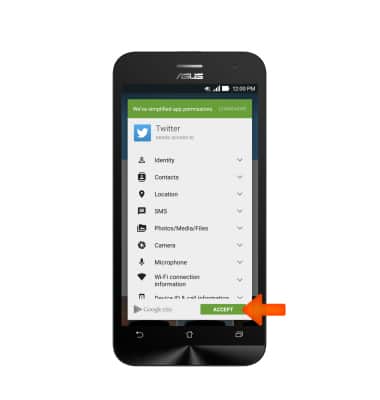
- Tap ACCEPT.
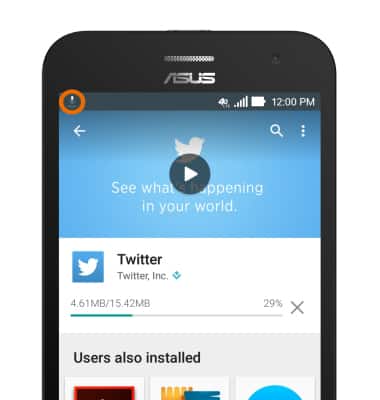
- An Icon in the status bar will indicate that the app is being downloaded and installed.
- When the application has successfully installed, an icon will appear and you can tap OPEN.
Note: You also can access the app from the app icon on one of your home screens.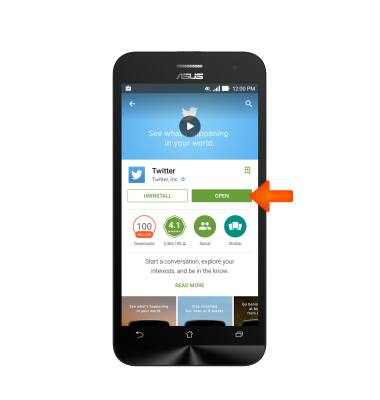
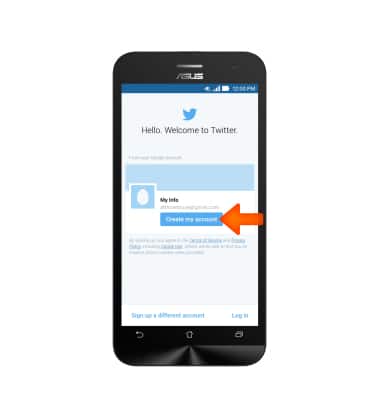
- Tap Create my account.
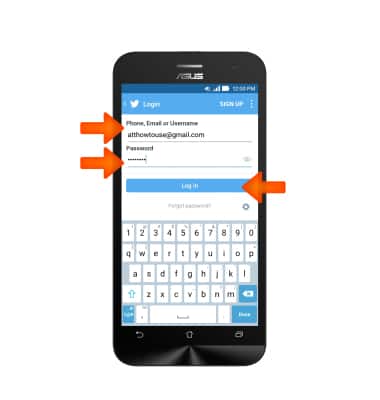
- Enter your Account information and tap Log in.
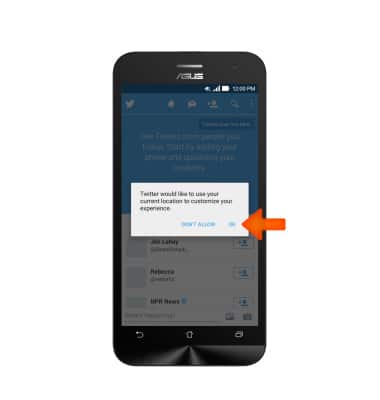
- An icon appears to indicate the app can combine your contacts in the app. Click OK to proceed.
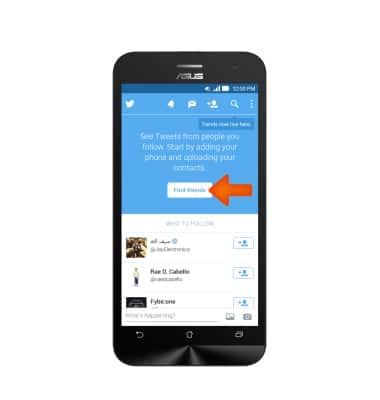
- Tap on Find friends. If you are in another app, you can also open the Notification to proceed the same way.
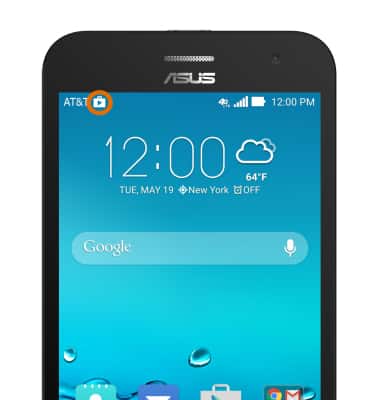
- When app updates are available, the Play Store Update icon will display in the Notification bar.
Social media
ASUS ZenFone 2E (Z00D)
Social media
Stay connected by using a social media app or aggregator.
INSTRUCTIONS & INFO