
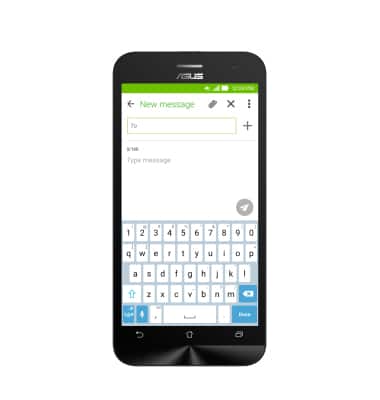
- To access the keyboard, tap on a text entry field.
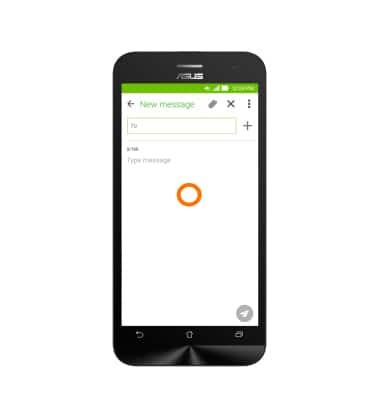
- Tap a key to input the Represented character.
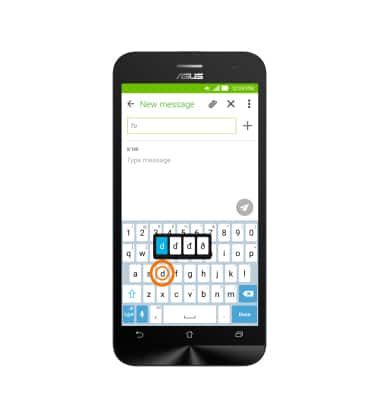
- Touch and hold a Key to display a list of alternative characters related to that key.
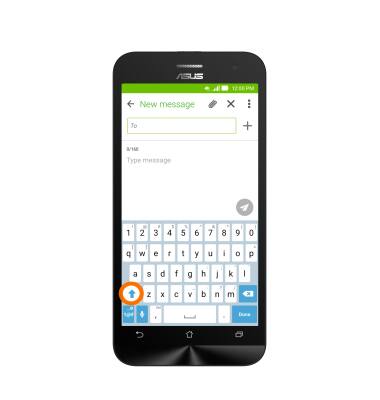
- Tap the Shift key to capitalize the next letter. Tap the Shift key again to enable CAPS lock.
- Tap the Symbols key to view and use commonly used symbols.
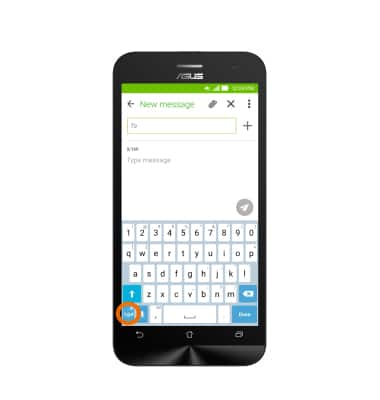
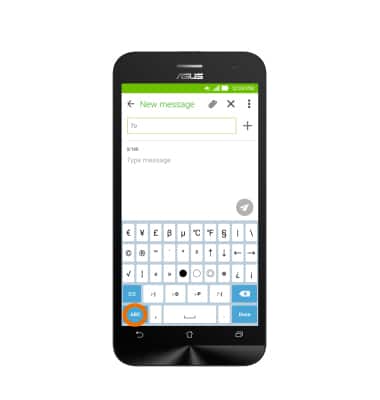
- Tap 1/2 to view more symbols.
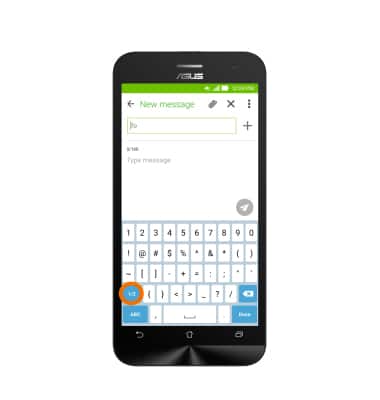
- Tap ABC to return to the alphanumeric keyboard.
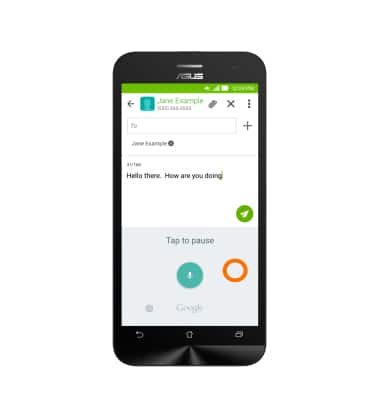
- Tap the Microphone key to use the speech-to-text function.
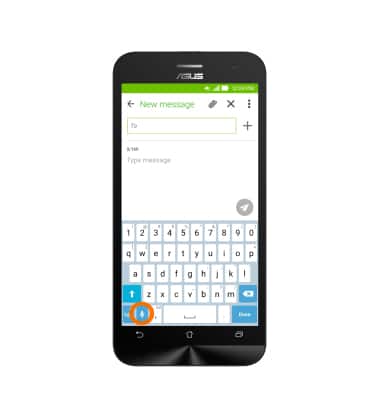
- Speak the Desired message and tap in the Grey area to pause, or in the Open message area to finish.
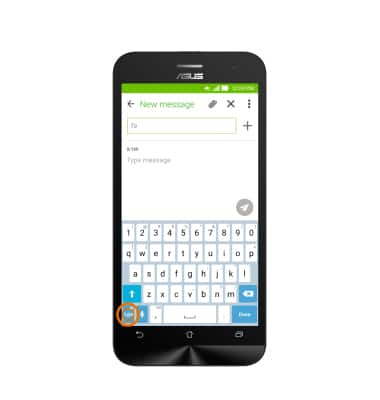
- To access keyboard settings, touch and hold the Symbols key.
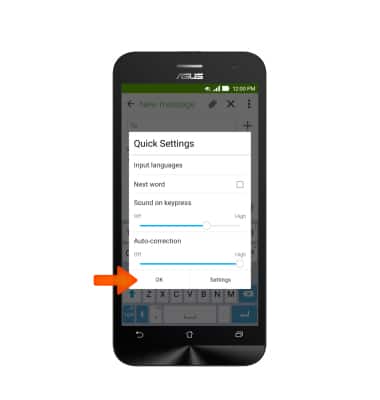
- Make Desired changes for quick settings. For more settings options, tap Settings. Tap OK when completed.
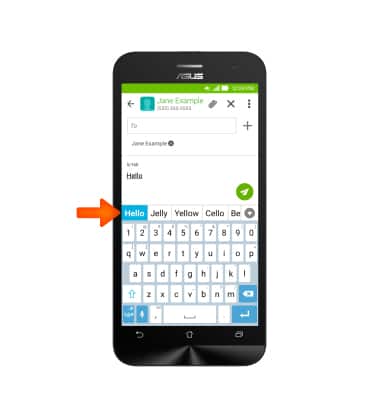
- As you type, you can select any auto-complete word options provided.
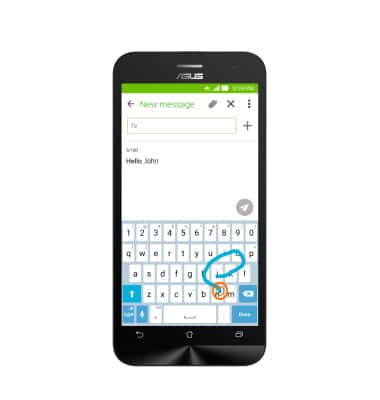
- The device also comes with Swype to aid in auto-complete, tap and drag from one letter to the next to spell a word.
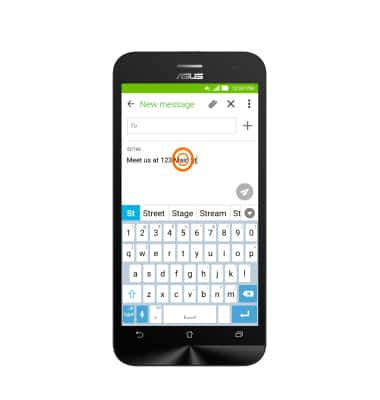
- To copy text, touch and hold Desired text.
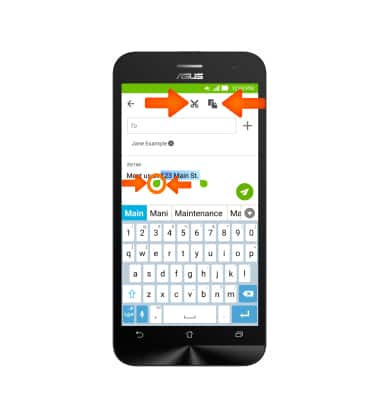
- Adjust the sliders to the Desired text. Tap on the Cut icon to cut, or the Copy icon to copy.
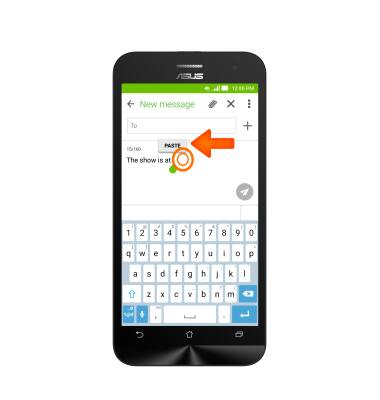
- To paste text, touch and hold the Text entry field, then tap PASTE.
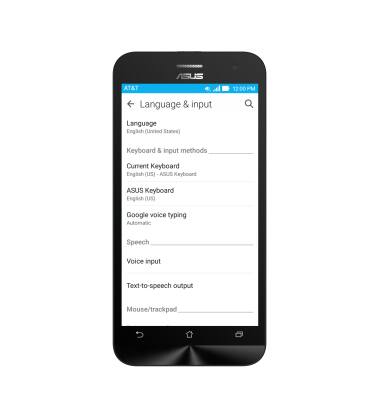
- You can also access the keyboard settings through the main settings menu under Language and Input.
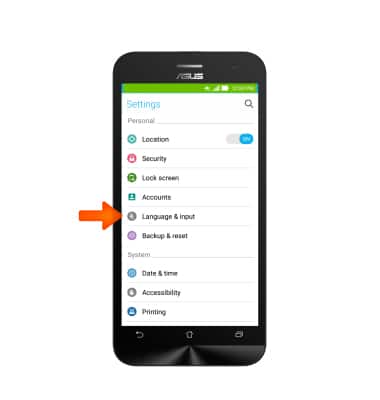
- Edit your Desired settings.
Keyboard & typing
ASUS ZenFone 2E (Z00D)
Keyboard & typing
Cut and paste, use speech-to-text, and access keyboard settings.
INSTRUCTIONS & INFO