
- To stop a running app that is not working properly, tap the Start key.
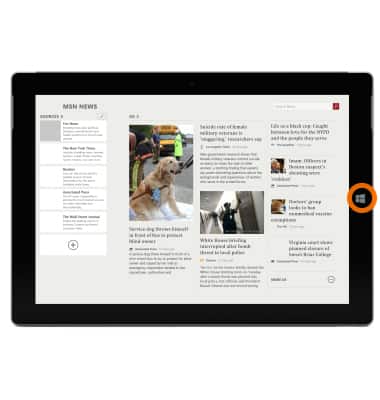
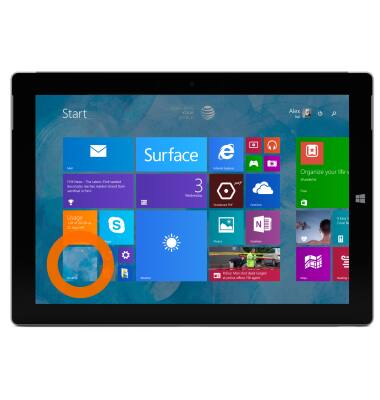
- Tap the Desktop tile.
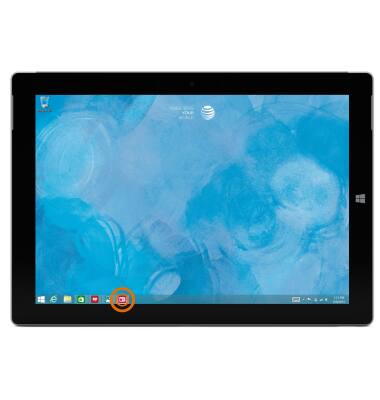
- From the task bar, touch and hold the Desired app icon until a menu appears.
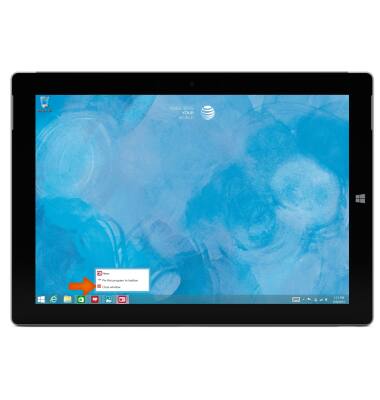
- Tap Close window to close the app.
- The App is now closed. Tap the Start key to return to the Start screen.
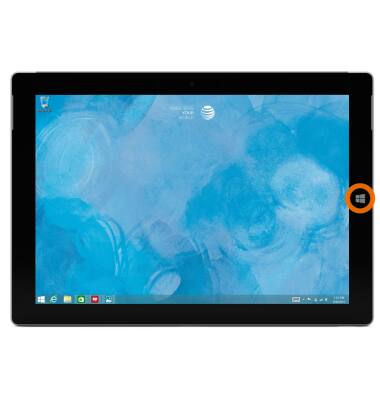
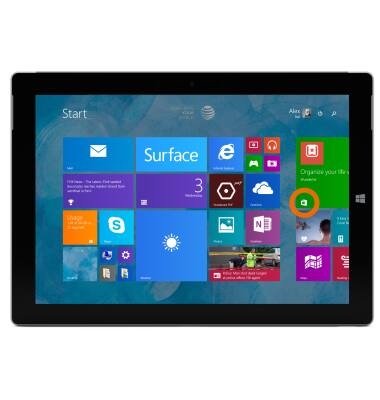
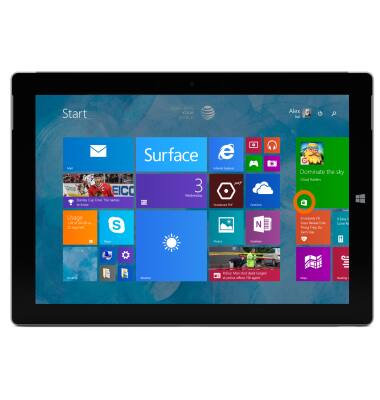
- To check for app updates or turn on auto update, from the Start screen, swipe to and tap the Windows store Tile.
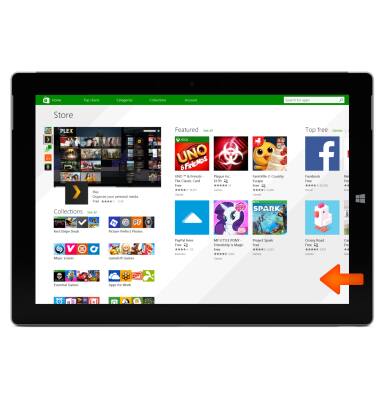
- From the Windows Store Home Screen, swipe in from the right edge of the screen to access the Charm bar.
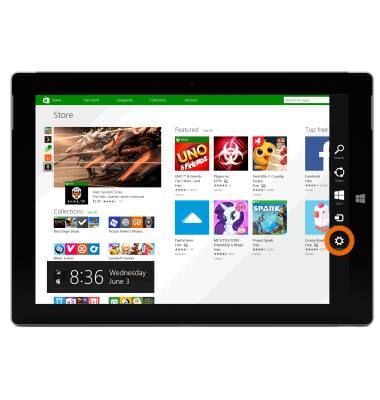
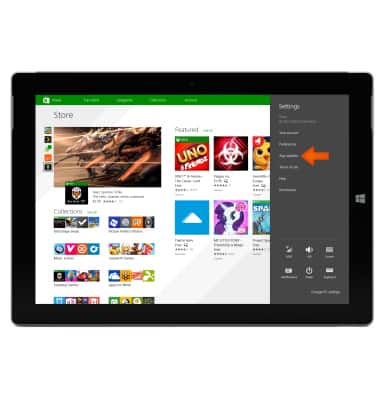
- Tap the Settings icon.
- Tap App updates.
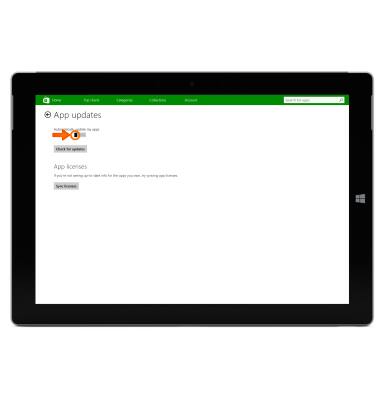
- Tap Check for updates or turn on Automatically update my apps to update & install latest version of your apps.
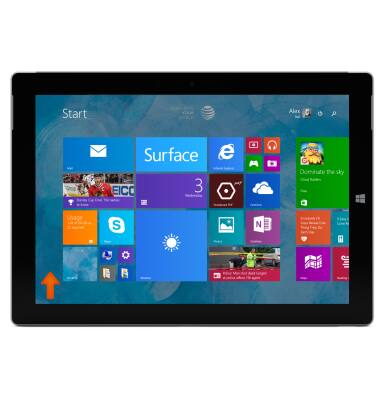
- To remove an app, from the Start screen, swipe up to reveal the Apps list.
- Touch and hold Desired app.
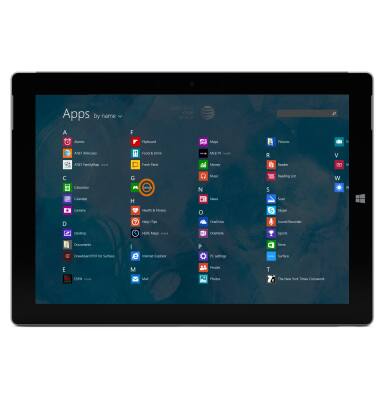
- Tap the Uninstall icon.

- Tap Uninstall.
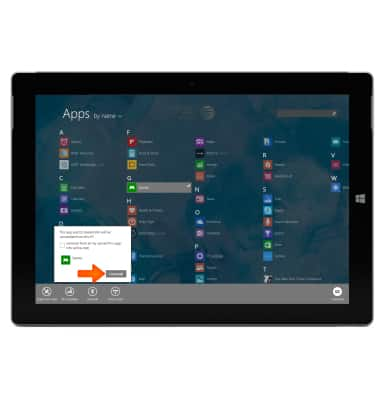
- The app is no longer installed. To reinstall the app, go to the Start screen.
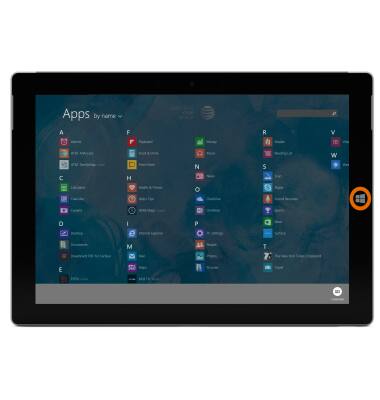
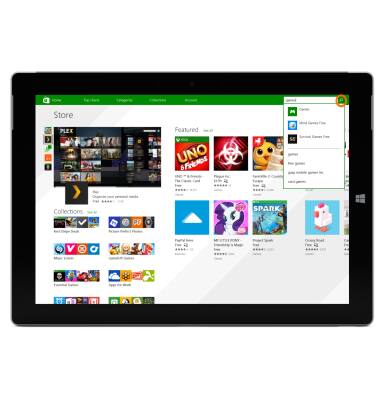
- Tap the Windows Store Tile.
- Tap the Search field to enter the Desired app.
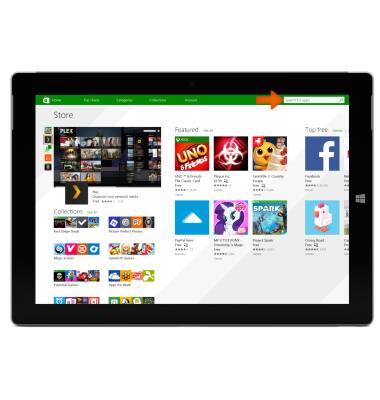
- When the desired app is entered, tap the Search icon.
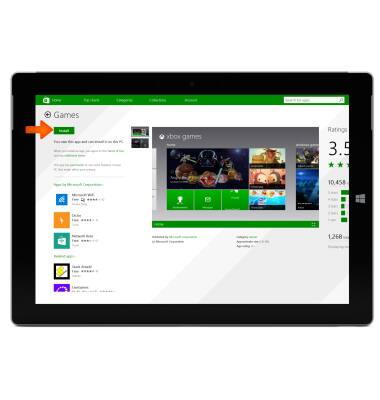
- Tap Install.
App Troubleshooting
Microsoft Surface 3 (1657) Windows 8.1
App Troubleshooting
Improve your app and device performance.
INSTRUCTIONS & INFO