
- To access Open apps, Swipe in from the left edge without lifting your finger, and push back toward the left edge. You'll see the apps you recently used.
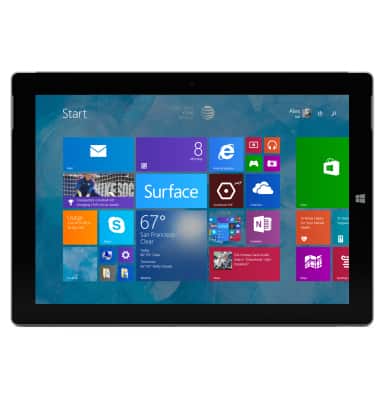
- Tap the app you want to use.
Note: To Access recent Apps, Follow the same steps to access Open apps.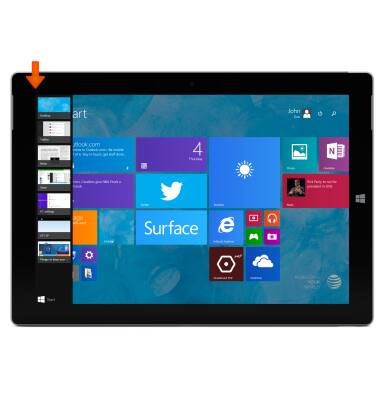
- Hold the Desired app you would like to close and drag it to the bottom of the Start screen until it disappears.
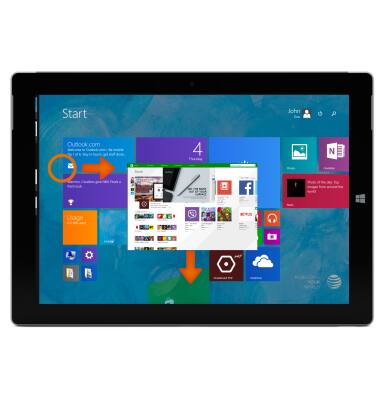
- To switch to a running app. From the left side of the screen, touch and drag your finger in from the left edge to bring in the second app.
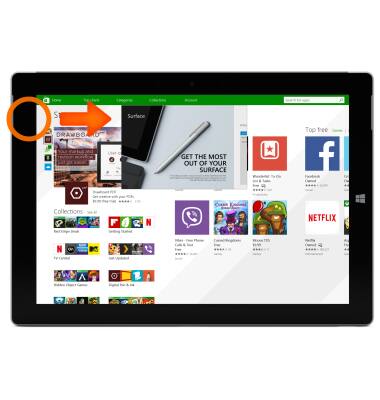
- Then release.
Note: For this demonstration, the Surface app was used.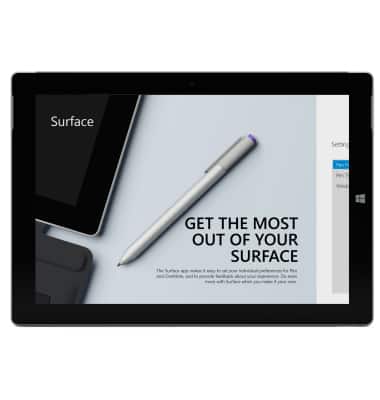
- To run two apps side by side so that you can toggle quickly between them, touch and drag from the left edge to bring in the second app.
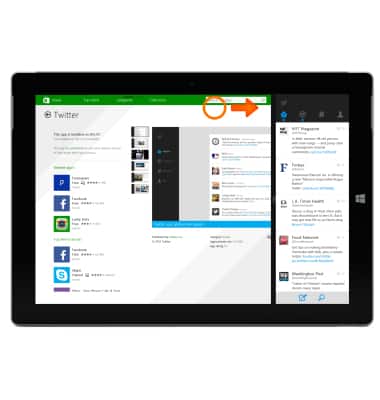
- Then drag the Desired app to the left or right side of the screen until an opening appears behind it and let go of the app.
Note: To adjust the size of the apps, move the line between the apps. One app can take a third of the screen and the other can take two thirds.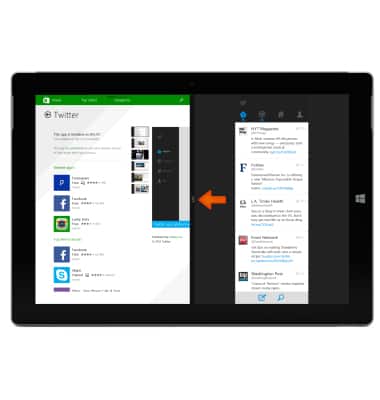
- To access the task manager, tap the Desktop tile from the Start screen.
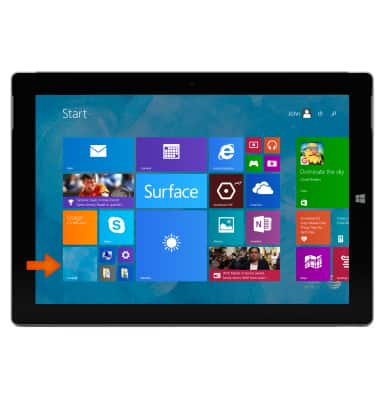
- The Task manager will appear at the bottom of your desktop.
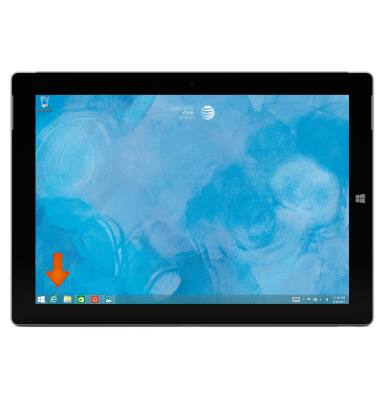
- To add an app to your task manager, from the Start screen swipe up from the bottom of the screen or swipe left and tap the Down arrow icon.
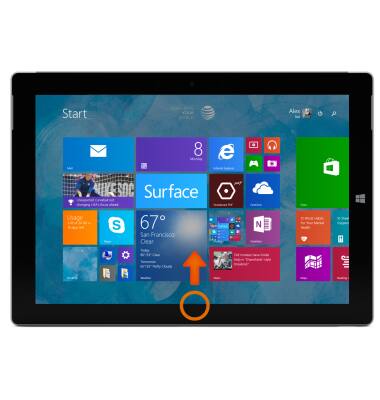
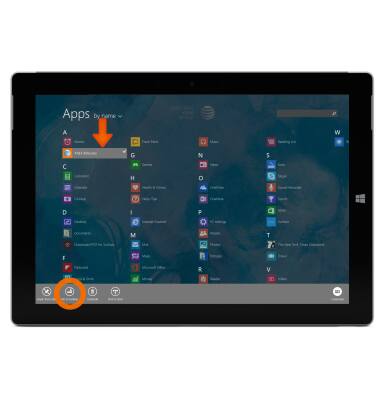
- Select the Desired app, then tap and hold pin to taskbar.
- The app will now be visible in your taskbar.
Note: For information on viewing app and data usage, please see the 'View & manage data' tutorial.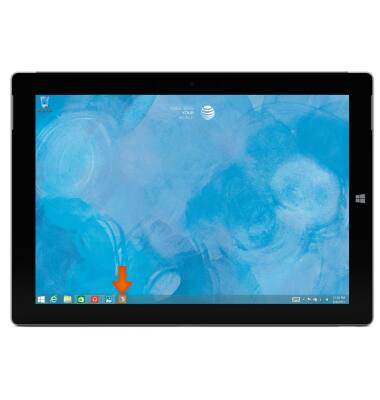
View or close running apps
Microsoft Surface 3 (1657) Windows 8.1
View or close running apps
How to view, switch between, and close running applications.
INSTRUCTIONS & INFO