- SET UP A SECURE SCREEN LOCK: Swipe down from the Notification bar, then select the Settings icon.
Note: To wake the device or put the screen to sleep, press the Power/Lock button. You can also use KnockON. When the device is locked and sleeping, double-tap the center of the screen to wake up the screen. To lock the screen, double-tap an empty area on the Home screen or the Notification bar in any screen (except on the camera viewfinder).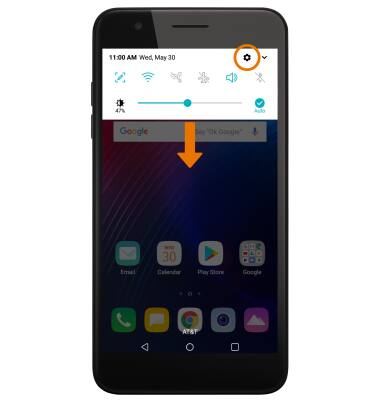
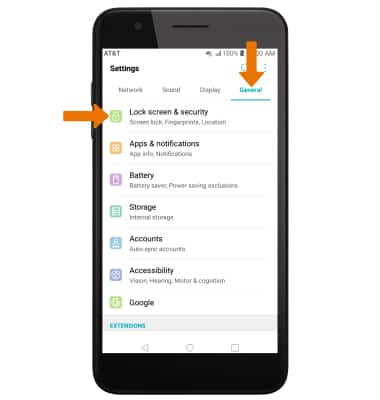
- Select the General tab, then select Lock screen & security.
- Select Select screen lock, then select the Fingerprints switch.
Note: For this demonstration, Fingerprints was chosen. If you set a Pattern lock and forget it, you will have to reset your device. See the Reset Device tutorial for alternate reset instructions.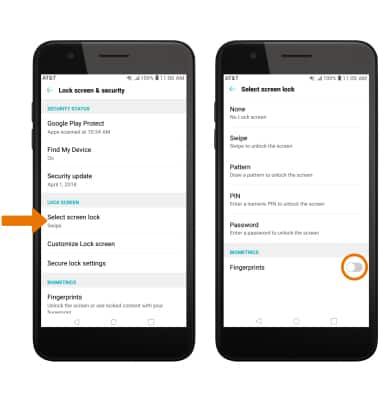
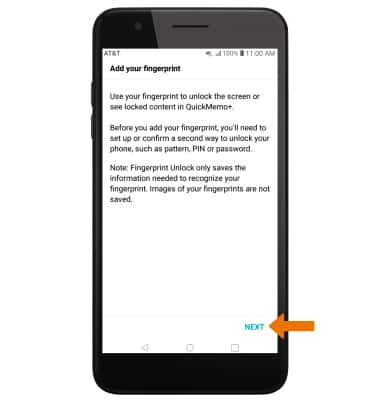
- Review the Add your fingerprint prompt, then select NEXT.
- Select the desired back up screen lock type.
Note: For this demonstration, Pattern was chosen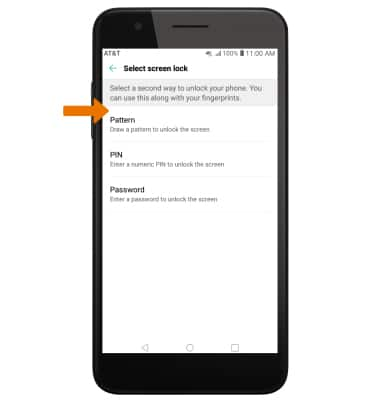
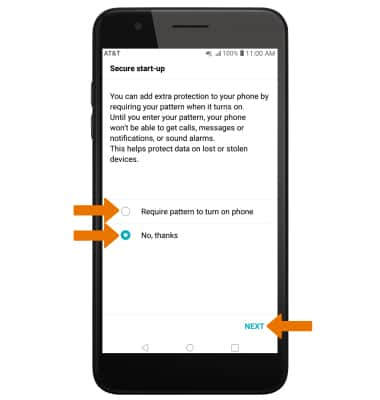
- Review the Secure start-up prompt, then select the desired option. Select NEXT.
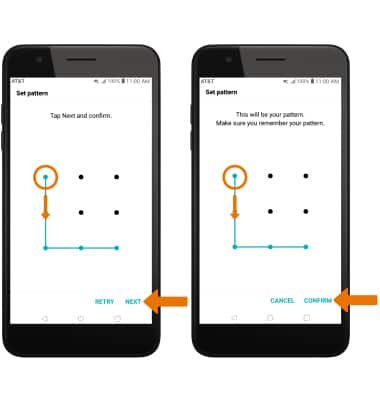
- Draw your desired pattern, then select NEXT. Repeat the pattern to confirm, then select CONFIRM.
- Select desired Lock screen notification setting, then select OK.
Note: To change lock screen notifications, swipe down from the Notification bar > select Settings icon > General tab > Apps & notifications > Notifications > Lock screen > choose the desired option.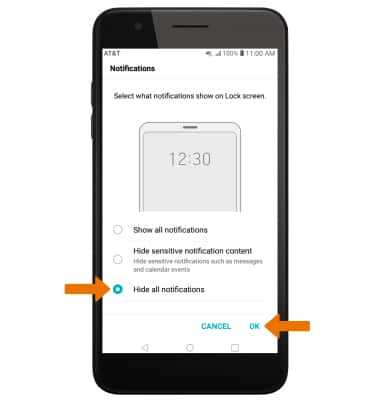
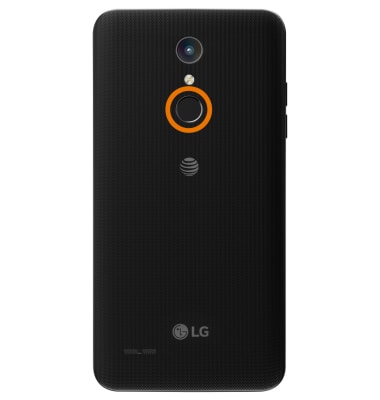
- Follow the prompts to add your fingerprint, then select OK to continue or select ADD MORE to add another fingerprint. The fingerprint sensor is located on the Power/Lock button.
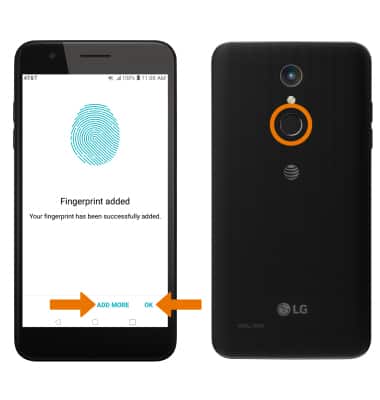
- LOG IN USING THE SECURITY LOCK: Press the Power/Lock button located on the back of the device. Place and hold your finger on the Power/Lock button.
- ADJUST THE SCREEN LOCK TIME: From the General tab in Settings, select Lock screen & security > Secure lock settings > Lock timer > select the desired option.
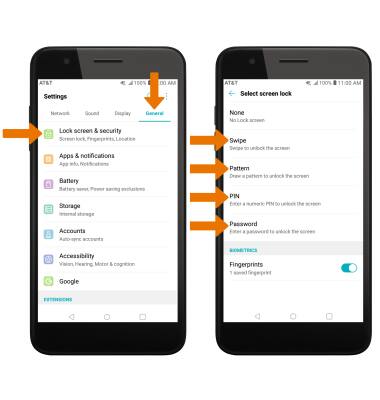
- CHANGE THE SECURITY LOCK TYPE: From the Lock screen and security screen, select Select screen lock > enter your back up secured lock > select the desired screen lock type and follow the prompts to complete set up.
Note: To learn more about requesting a device unlock for your AT&T mobile device so that it can operate on another compatible wireless network, visit www.att.com/deviceunlock. If your device is locked and is requesting a "PUK" code, click here for instructions on how to obtain your PUK or PUK2 code.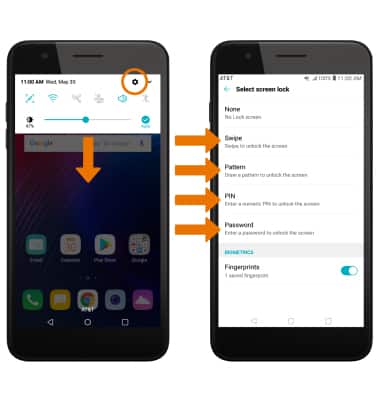
Secure My Device
LG Phoenix Plus / K30 (LM-X410AS)
Secure My Device
Lock or unlock your display, set a screen security lock type (pin, password, pattern, or fingerprint), get your PUK code, or request your device be unlocked from the AT&T network.
Fingerprint Security Lock
Set up fingerprint security lock, change the secured lock time, use your fingerprint to unlock the device, and add or remove fingerprints.
Fingerprint Security Lock
2:04
INSTRUCTIONS & INFO