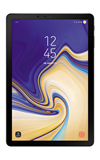
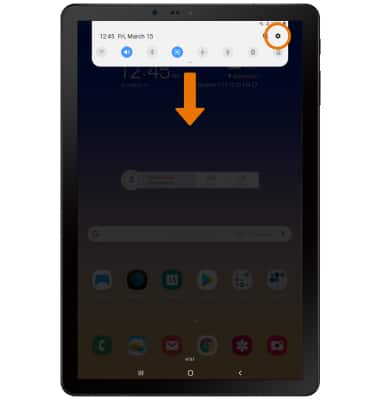
- SET A SECURITY LOCK: Swipe down from the Notification bar, then select the Settings icon.
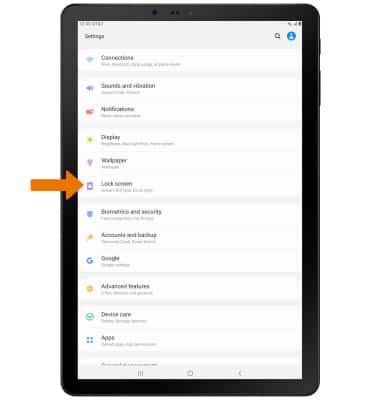
- Select Lock screen.
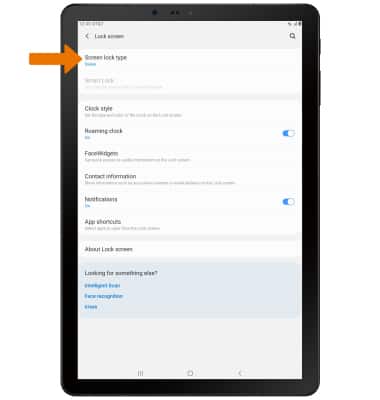
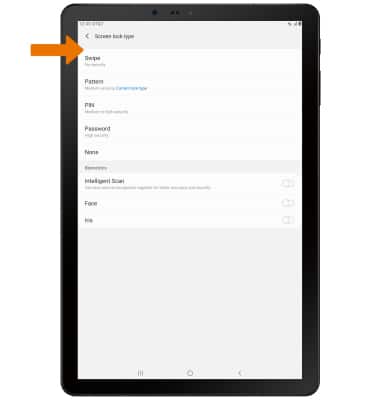
- Select Screen lock type.
- Select the desired screen lock type, then follow the prompts to complete setup.
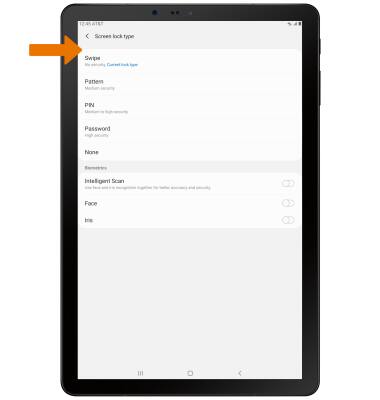
- INTELLIGENT SCAN: From the Screen lock type screen, select the Intelligent Scan switch.
Note: To use Intelligent Scan, you will be required to set up a secure screen lock type on your device. Select the desired screen lock type, then follow the prompts to complete setup. For this demonstration, Pattern was selected. If you choose Pattern lock, you will have to reset your device if you forget your Pattern lock. Visit the Reset Device tutorial for alternate reset instructions.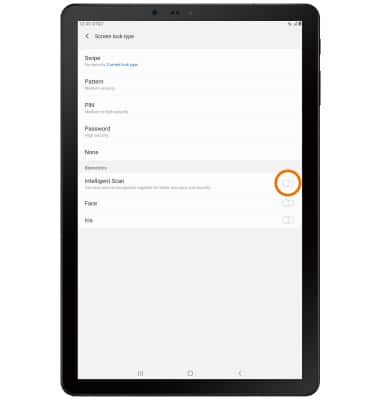
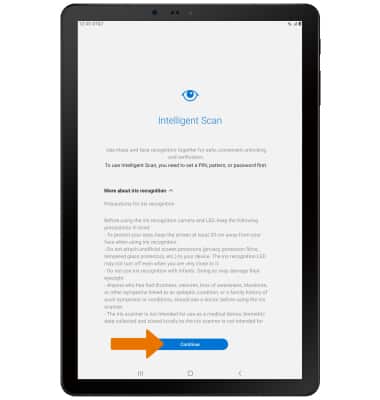
- Select Continue, then follow the prompts through Intelligent Scan, including Face register and Iris scan.
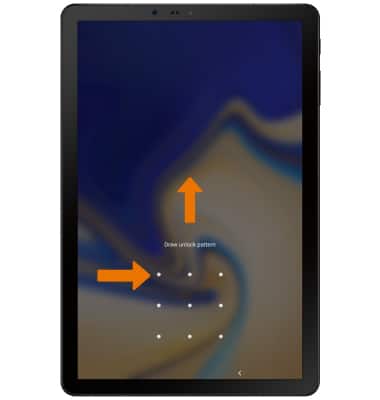
- LOG IN USING THE SECURITY LOCK: From the lock screen, swipe up then enter the screen lock pattern to unlock.
- CHANGE LOCK SCREEN TIMEOUT: From the Lock screen screen, select Secure lock settings.
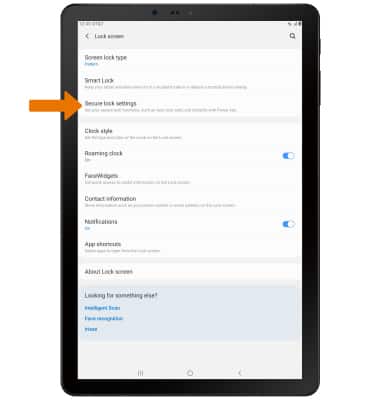
- Select Lock automatically.
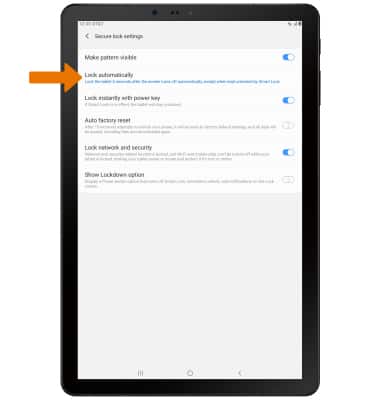
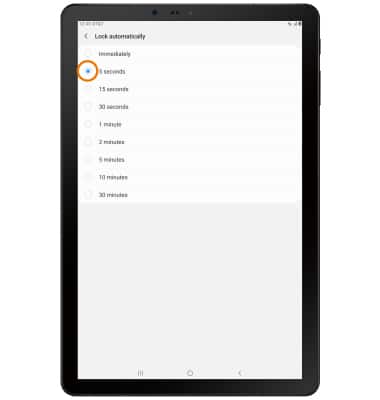
- Select the desired secured lock time.
- CHANGE LOCK TYPE: From the Lock screen screen, select Screen lock type.
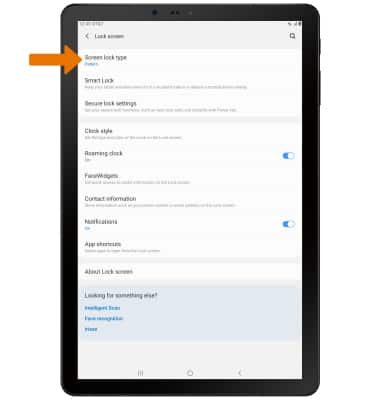
- Select the desired screen lock type, then follow the prompts to complete setup.
Secure My Device
Samsung Galaxy Tab S4 (SM-T837A)
Secure My Device
Lock or unlock your display, set a screen security lock type (pin, password, pattern, or face register), get your PUK code, or request your device be unlocked from the AT&T network.
INSTRUCTIONS & INFO

To learn more about requesting a device unlock for your AT&T mobile device so that it can operate on another compatible wireless network, visit www.att.com/deviceunlock. If your device is locked and is requesting a "PUK" code, click here for instructions on how to obtain your PUK or PUK2 code.