- ACCESS CAMERA: From the home screen, select the Camera app.
Note: Alternatively, from the lock screen swipe left to the Camera icon. Upon first access, a Change mode overlay will appear. Select NEXT to continue. This device has a 13MP rear-facing camera and an 5MP front-facing camera, as well as a 2MP rear-facing Wide-view FHD Action camera. The video recorder is 1080p at 30 fps.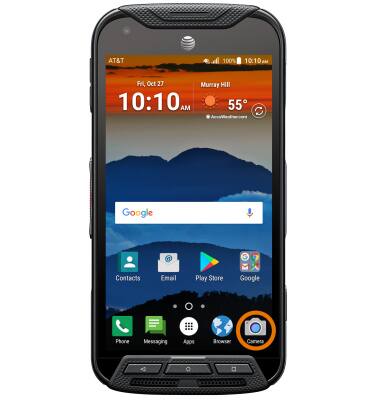
- SWITCH BETWEEN FRONT/REAR CAMERAS: Select the Switch camera icon.
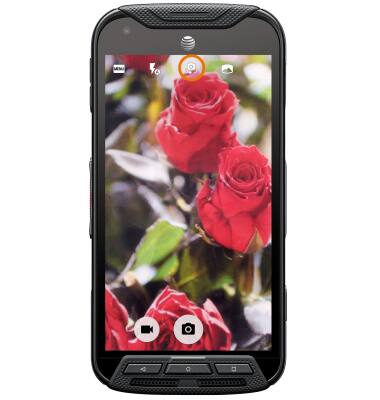
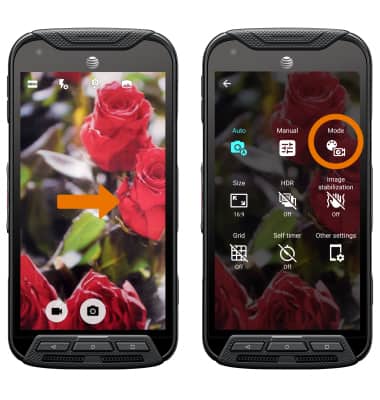
- CHANGE CAMERA MODE: Swipe right from the camera app and select the Mode icon, then select the desired mode.
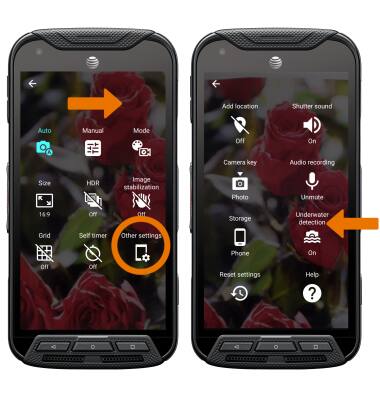
- ENABLE UNDERWATER MODE: Swipe right from the camera app then select Other settings. Select Underwater detection.
- TAKE A PHOTO: Select the Capture icon.
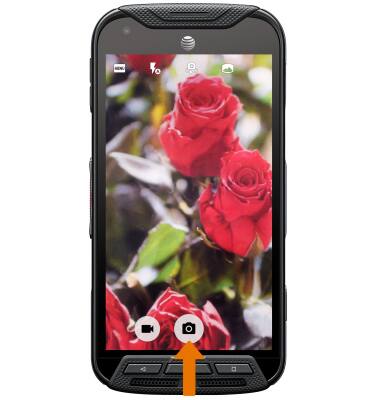
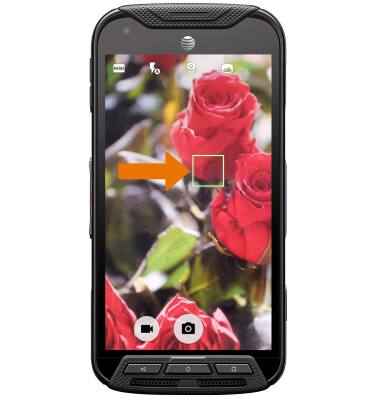
- FOCUS CAMERA: Select the desired area of the screen you wish to focus the camera on. A square will appear when the area is selected.
- ZOOM IN/OUT: Move two fingers apart towards the edge of the screen to zoom in. Move two fingers inward towards the middle of the screen to zoom out.
Note: Alternately, after beginning a zoom select and drag the zoom slider as desired.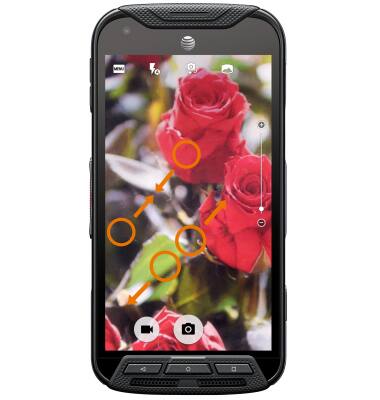
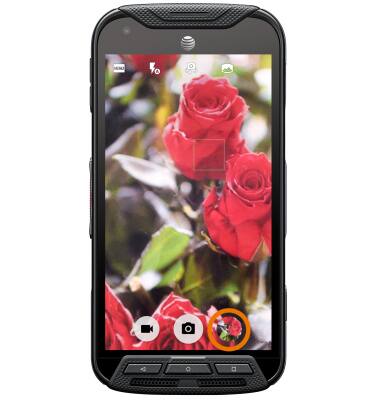
- ACCESS VIDEOS/PHOTOS: Select the Gallery icon.
Note: Photos and videos can also be viewed from the home screen by selecting the Apps tray > swipe to and select the Photos app > follow the prompts to edit or delete photos.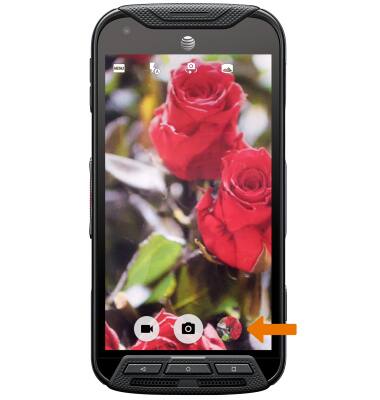
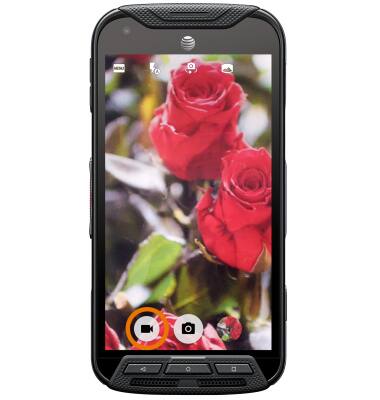
- RECORD A VIDEO: Select the Video icon. Video will automatically begin recording.
- PAUSE/STOP/TAKE PICTURE WHILE RECORDING: Select the Pause icon to pause a video. Select the Stop icon to stop recording a video. Select the Capture icon to capture a still photo while recording a video.
Note: Videos are automatically saved when recording ends.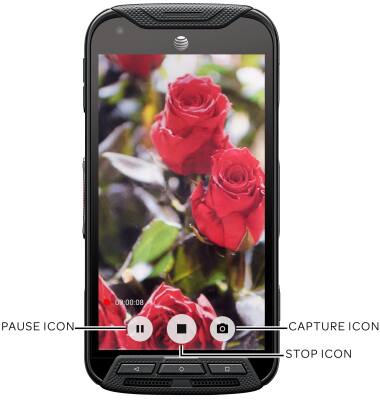
- ACCESS SAVED VIDEOS: Select the Gallery icon to access the Photos app.
- TAKE A SCREENSHOT: Press and hold the Power/Lock button and Volume down button simultaneously.
Note: To access screenshots, from the home screen select the Apps tray > swipe to and select the Photos app > select Screenshots.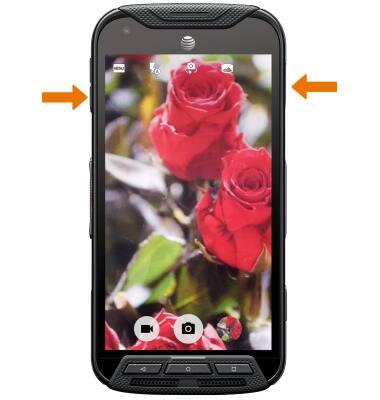
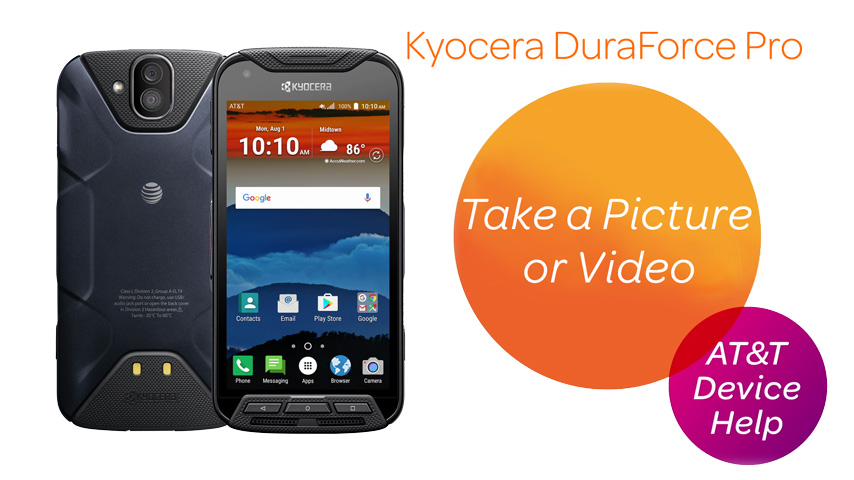
Take a Picture or Video
Kyocera DuraForce Pro (E6820)
Take a Picture or Video
Take and edit a picture or video, use the front and rear camera, and switch between camera and video modes.
Take a Picture or Video
Take and edit a picture or video, use the front and rear camera, and switch between camera and video modes.
Take a Picture or Video
2:29
INSTRUCTIONS & INFO