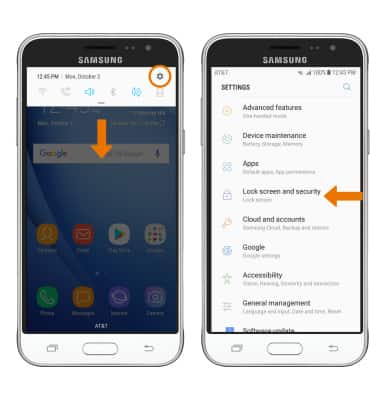
- SET A SECURITY LOCK: Swipe down from the Notification bar, then select the Settings icon. Scroll to and select Lock screen and security.
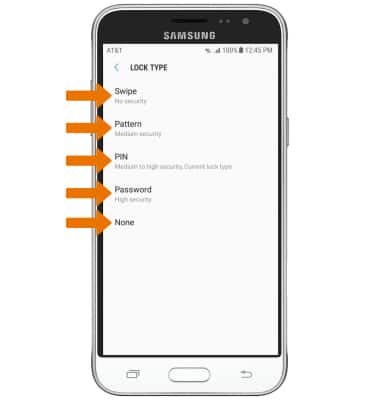
- Select Screen lock type. Select the desired screen lock type, then follow the prompts to complete set up.
Note: For this demonstration, Pattern was selected.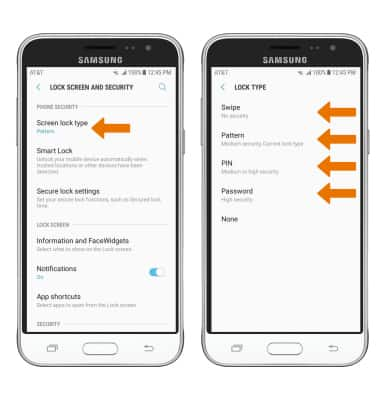
- Enter the desired pattern, then select CONTINUE. Enter the desired pattern again to confirm, then select CONFIRM.
Note: If you choose Pattern lock, you will have to reset your device if you forget your Pattern lock. See the Reset Device tutorial for alternate reset instructions.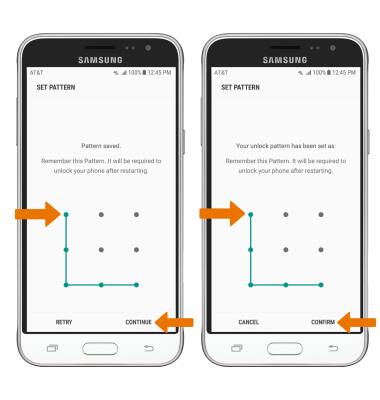
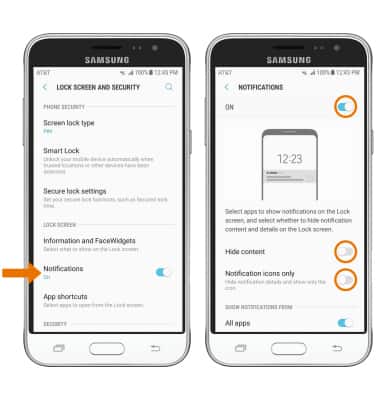
- Select Notifications, then select desired display option for notifications.
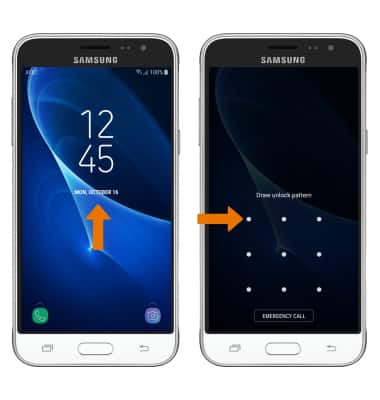
- LOG IN USING THE SECURITY LOCK: From the lock screen, swipe in any direction then enter the screen lock to unlock.
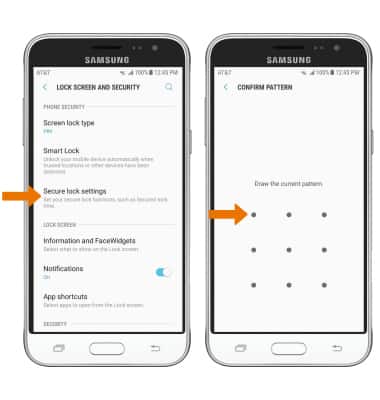
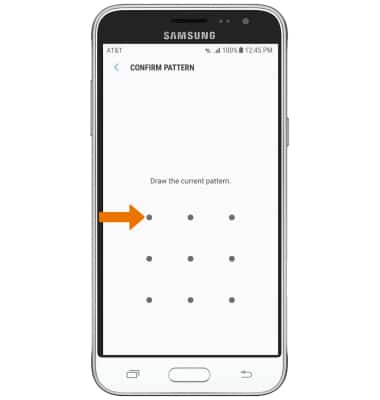
- CHANGE LOCK SCREEN TIMEOUT: From the Lock screen and security screen, select Secure lock settings then enter your Pattern.
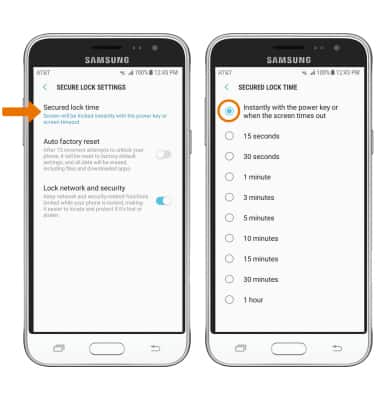
- Select Secured lock time, then select the desired option.
- CHANGE LOCK TYPE: From the Lock screen and security screen, select Screen lock type.
Note: To learn more about requesting a device unlock for your AT&T mobile device so that it can operate on another compatible wireless network, visit www.att.com/deviceunlock. If your device is locked and is requesting a "PUK" code, click here for instructions on how to obtain your PUK or PUK2 code to unlock your SIM card.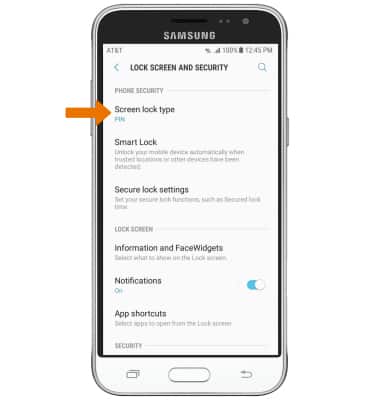
- Enter your current pattern.
- Select the desired screen lock type, then follow the prompts to complete setup.
Secure My Device
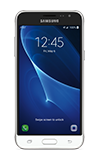
Samsung Galaxy J3 (2016) (J320A)
Secure My Device
Lock or unlock your display, set a screen security lock type (pin, password, or pattern), get your PUK code, or request your device be unlocked from the AT&T network.
INSTRUCTIONS & INFO