- SET SCREEN LOCK: From the clock screen, press the Power/Home button.
Note: Gear S2 will automatically lock when Bluetooth connection is ended. If PIN is forgotten, reconnect to phone via Bluetooth to unlock Gear and adjust PIN setting.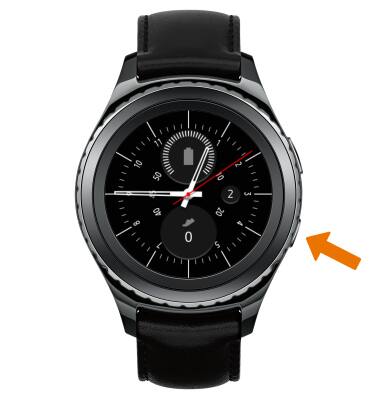
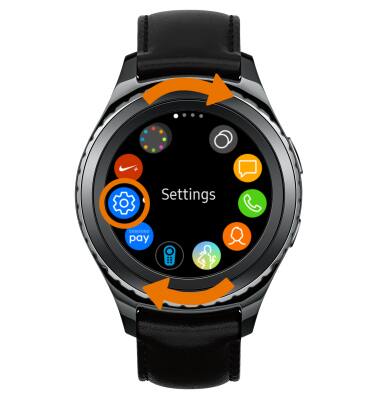
- Rotate the bezel to and select the Settings icon.
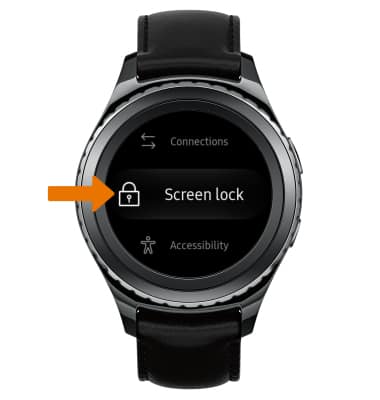
- Scroll to and select Screen lock.
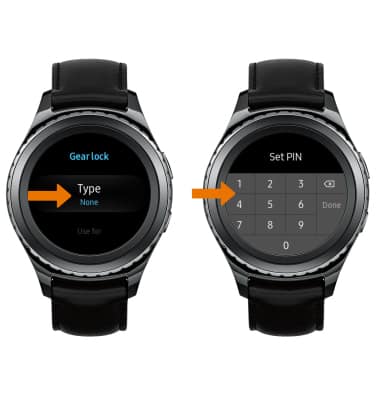
- Select Type.
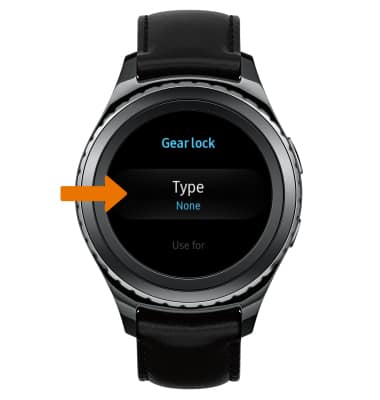
- Select the desired screen lock.
Note: For this demonstration, PIN was selected.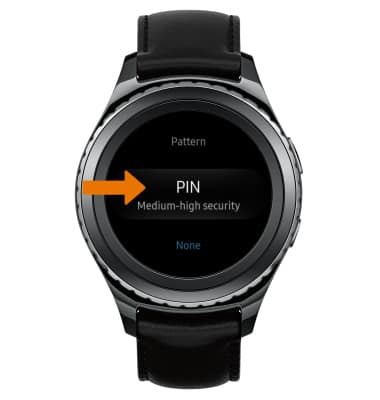
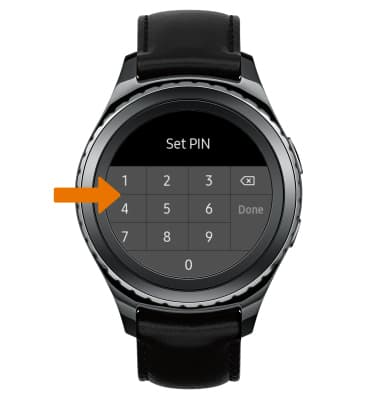
- Enter desired 4 digit PIN.
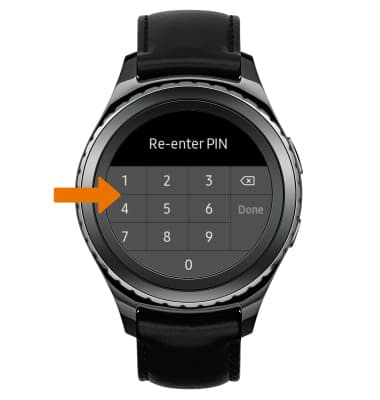
- Re-enter the 4 digit PIN.
- UNLOCK DEVICE USING SECURITY LOGIN: When the screen is locked, enter your security code to unlock the device.
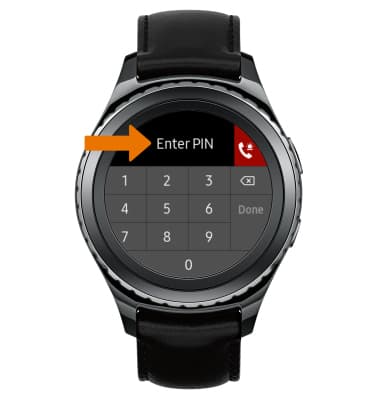
- CHANGE SECURITY LOCK: From the Gear lock screen, select Type > enter the current security lock code > select the desired Gear lock > enter the desired lock code.
- To learn more about requesting a device unlock for your AT&T mobile device so that it can operate on another compatible wireless network, visit www.att.com/deviceunlock.
Note: If your device is locked and is requesting a "PUK" code, click here for instructions on how to obtain your PUK or PUK2 code to unlock your SIM card.
Secure My Device
Samsung Gear S2 classic (R735A)
Secure My Device
Lock the device screen, set and change security lock.
INSTRUCTIONS & INFO